Known Participant
September 10, 2017
Answered

Merging 2 specific points

  • September 10, 2017
  • 1 reply
  • 553 views

I've got an issue in Illustrator CC 2014 that's driving me completely crazy. I have tried e-ve-ry-thing for 2 hours straight for this ridiculously simple problem.

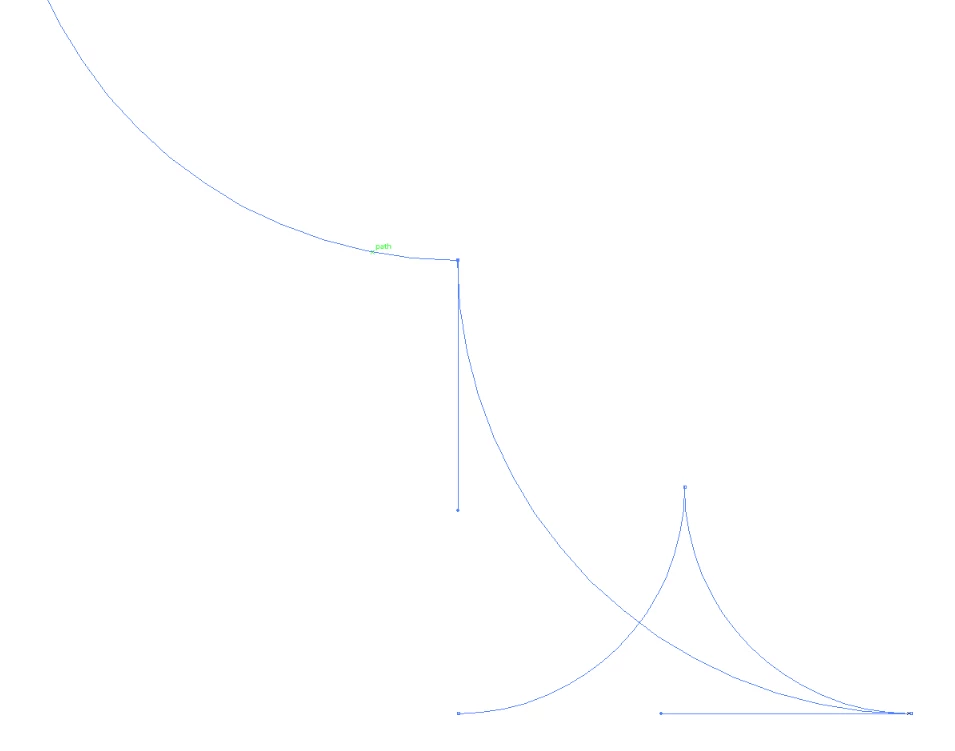
I've got these lines which are neatly joined together to form a single shape.
I then have to add in this last line.
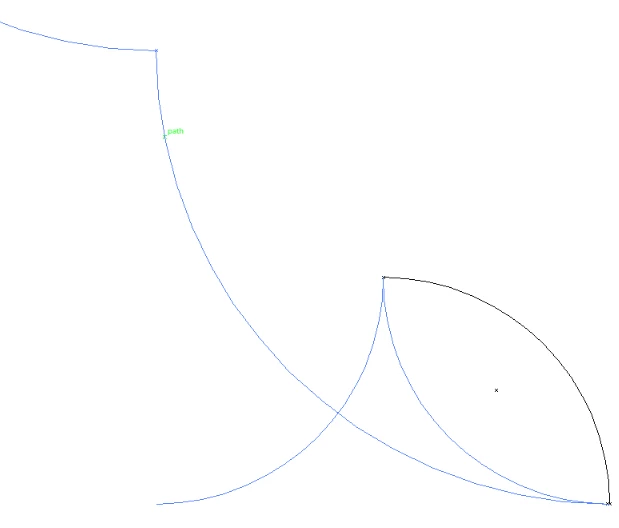
But when I try to join it with the rest, it merges the wrong 2 points, like this:
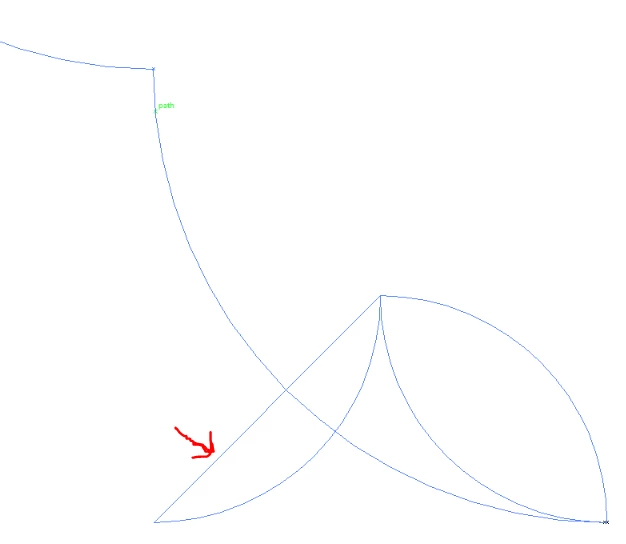
I hope my explanation of the problem is clear enough. I have tried literally everything I could find on the internet but I can't find out why it does this.

Disclaimer: Yes, it is essential for my project to join those lines together.

Thanks in advance!

This topic has been closed for replies.
Correct answer Jacob Bugge

finv,

To get what I believe you want, you may change the way you draw the paths, namely that you start the multiple segment path as before until you reach the lowest right corner, but then continue with what would otherwise be the new path by going up and to the left anf then down and to the left with the last segment, then adding what would otherwise be the second last segment as the new path.

In other words swap the paths so the multiple segment path gets a convex shape, and the offset paths of it will go out and meet in the right way.

Obviously, the offset path of the additional path will end in the middle of nowhere, but you can just select it and then click with the Scissors Tool to cut it and delete the unwanted parts (repeating until you are done); (also) in this connexion Smart Guides are your friends, telling you when you are within snapping distance (saying anchor, intersect, path, and the like).

In this way, you can reduce the mess to the simple appearance that corresponds to the first set with the single path by removing each unwanted bit.

1 reply

Monika Gause
Community Expert
Community Expert
September 10, 2017

There cannot be 3 segments joined in one point.

You can group them.

finv1995Author
Known Participant
September 10, 2017

Hmm that's a slight problem...

I managed to turn the lines on the top left into one single shape. Then using 'offset path' got me the top right, which is exactly what I wanted.

However, I can't manage to do the same for the lines on the bottom left. Using 'offset path' on that turns it into the mess on the bottom right.

Any idea on how to fix this?

Once again, thanks in advance!

Monika Gause
Community Expert
Community Expert
September 10, 2017

So the purpose of this is to be able to offset the path?

In that case you might need to say goodbye to the concept of combining all the paths into one path first and then offset path. You might need to offset the path piece by piece and then later combine the offset shapes.