


Participating Frequently
Nov 5, 2026 3:00 PM UTC
Question

More Aligning Question

Hi everyone,


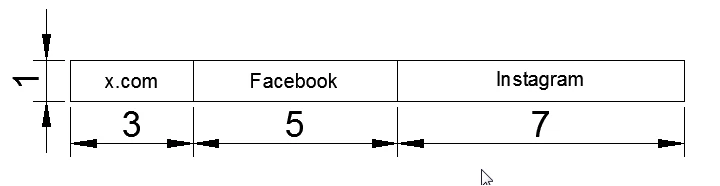
Can someone tell me please step by step of how do I align object like attached image in Adobe Illustrator 2020? Note that all object position inside each cell is at the center.

Please tell me as detail as possible.

Thank you
    4 replies

    Monika Gause
    Community Expert
    Community Expert
    Nov 5, 2026 4:41 PM UTC

    Are those the actual measurements? In that case use the dimension tool. https://helpx.adobe.com/de/illustrator/using/tool-techniques/dimension-tool.html

    Translate
    Tina_Irvine
    Community Expert
    Community Expert
    Nov 5, 2026 3:45 PM UTC

    Hi ​@smart_society8a44,

    This is what I would do:

    Ungroup the chart’s bars to separate all of the lines, then group only the two sides surrounding the text that you want to centre. Make sure the bars are a higher layer than the text (copy the bars, then cut, then paste in front), then select the grouped bars and the text you want to centre. Choose align to key object, and then align centre (horizontally or vertically - whichever you’re working on). I made a quick video. This method is faster if you’re using quick keys.

    Also, to get things to snap (as I show at the end with the rectangles), make sure Smart Guides are turned on.


    Translate
    CORCTON34033231
    Community Expert
    Community Expert
    Nov 5, 2026 3:03 PM UTC

    Hi smart_society8a44,


    You can build exactly that row — three boxes of widths 3, 5 and 7 sitting edge to edge — with the Align panel. No helper lines are needed; the panel does the alignment for you. This works the same in Illustrator 2020 on Windows.


    Step 1 — Make the three boxes the exact widths

    1. Select the Rectangle tool and draw three rectangles, roughly the sizes you want.

    2. Select the first rectangle, then open Window > Transform and type its exact Width (W) — 3, in whatever unit your document uses (for example cm or inches). Do the same for the other two: 5 and 7.

    3. Give all three the same Height (H) in the Transform panel, so they form one even row.


    Step 2 — Line them up in a row with no gaps

    1. Select all three rectangles (drag a marquee around them, or Shift-click each one).

    2. Open Window > Align to show the Align panel.

    3. Click Vertical Align Center so all three sit on the same centre line.

    4. In the Align panel, click the panel menu (top right) and choose Show Options if you do not see the Distribute Spacing field. Type 0 in the Distribute Spacing field and click Horizontal Distribute Space. The three boxes will now sit touching each other, in left-to-right order — so check that the 3-unit box is on the left, 5 in the middle and 7 on the right before you click.

    5. Select all three and press Ctrl+G to group them, so they stay together.


    Step 3 — Centre the row on your artboard (optional)

    With the group selected, in the Align panel change "Align To" to Artboard and click Horizontal Align Center.


    Two notes:

    - The dimension lines with the 3 / 5 / 7 and the arrows in your picture are only measurements showing the widths. You do not need them to do the alignment. If you want to reproduce them, draw them with the Line tool and add arrowheads in the Stroke panel.

    - If you prefer to drag things into place by hand, turn on View > Smart Guides — the edges will snap together as you drag. But the Align panel steps above are the precise way to do it.


    Adobe's help pages for these steps:

    - Align or distribute selected objects: https://helpx.adobe.com/illustrator/desktop/manage-objects/arrange-objects/align-and-distribute-objects.html

    - Distribute objects by specific distances: https://helpx.adobe.com/illustrator/desktop/manage-objects/arrange-objects/distribute-objects-by-specific-distances.html


    Eugene Tyson also gave a good overview of the same Align-panel approach in your earlier thread (How do I Align Like This in PC Version of Adobe Illustrator 2020?), so this reply expands on that with the exact widths and the 0-spacing step for your 3-5-7 row.


    Let me know how it goes, or post a screenshot if the boxes do not come out in the right order.

    Translate
    Community Expert
    Nov 5, 2026 3:44 PM UTC

    Just to add to the instructions above, there's a useful trick for centring the text inside each rectangle without moving the rectangle itself.

    Select the rectangle and its text together, then click the rectangle again to make it the Key Object (you'll see a thicker selection outline).

    Now choose Horizontal Align Center and Vertical Align Center in the Align panel.

    The text will move to the exact centre of the rectangle while the rectangle stays in position.

    Repeat for the other two rectangles, then group each rectangle with its text.

    This is particularly useful when working with objects of different widths, as in your example.

    Translate