Scott218544677fae
Participating Frequently
February 5, 2025
Question

My artboards have turned white and all of the content has disappeared.

  • February 5, 2025
  • 21 replies
  • 1570 views

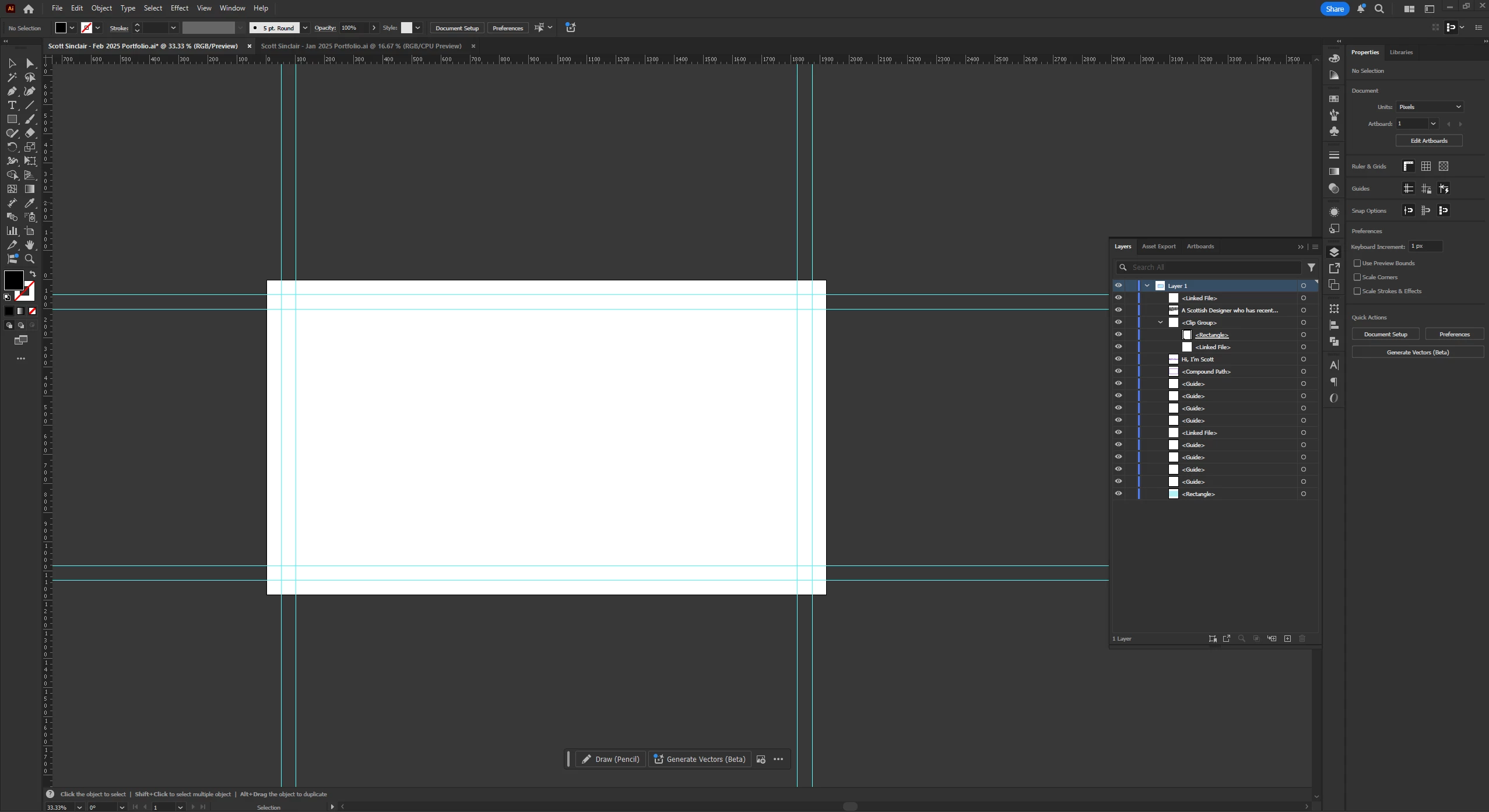
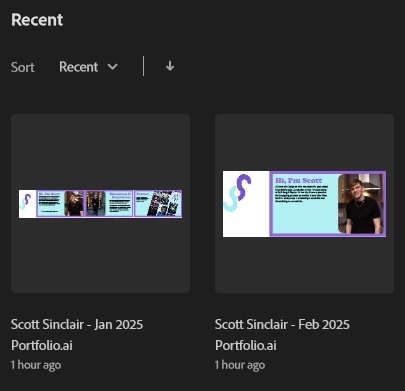
I was working on a project and when I loaded it up today all of the content was still there but I couldn't see it. I've looked for an answer online but couldnt find a solution. I then attempted to restart the project in a new file but then the issue has happened again where all the content has dissapeared and turned white. The content still shows on the preview of the project so I'm hoping theres a solution to getting my work back.


I have attached images that show my artboards and the preview.


I hope somebody can help, thanks.


21 replies

Participating Frequently
September 17, 2026

Here is the fix. It’s INSANE how such a long time issue isn’t freaking cleared up by Adobe! They fixed it in old version but the bug crept up again, but STILL, a freaking PSA or ANYTHING would be helpful. They are just silent. Until they need another payment…. 

Illustrator turns GPU rendering off per document, not globally: when something in a file trips its GPU renderer, it silently drops that one document to CPU preview and greys out "View using GPU" (which is why Cmd+E does nothing there). The same troublesome content is then making the CPU renderer fail as well. Illustrator draws the artwork once when the file opens; your first pan or zoom forces a full redraw, the redraw fails, and you're left with bare white artboards. So there isn't a switch to flip back on. Illustrator will re-enable the GPU for that document on its own once the trigger is gone, usually after a save and reopen.

The triggers Adobe and users have confirmed over the years are quite specific: placed images, especially linked PNG or GIF files or images whose colour profile doesn't match the document (Generic CMYK is a repeat offender); switching into Outline mode (Cmd+Y), a bug Adobe fixed in 26.2.1 that has resurfaced in later versions; and, on some Mac setups, the canvas colour preference set to White. Rulers, guides and grouped objects have also been reported as triggers in some builds.

Start by closing the file and reopening it, then look at the View menu before you touch anything. If "View using GPU" is available at that moment, choose it and save. If the greying-out returns later, whatever you did in between (most likely Cmd+Y) is the trigger, and avoiding it in that file keeps the GPU on. If it's already greyed out the instant the file opens, the cause is content. Open Window > Links and look at every placed image: its format and, in the link details, its colour space and profile. Anything that's a GIF, an odd PNG, or carries a profile different from the document's (Edit > Assign Profile shows what the document uses) is a suspect. To confirm, hide the images one at a time (select one in the Links panel, choose Go To Link, then Cmd+3) and pan or zoom; when the blanking stops, you've found it. Fix it by opening that image in Photoshop, converting it to the document's profile or discarding the profile, saving it as a TIFF, PSD or JPEG, and relinking; then save the Illustrator file and reopen it.


Two cheap settings changes are worth trying alongside that, since they cleared the problem for other people: Edit > Color Settings, set Settings to North America General Purpose 2; and Illustrator > Settings > User Interface, set Canvas Color to Match Brightness. Also let the Creative Cloud app update Illustrator if it's behind, because this bug has been fixed and reintroduced more than once.

If none of that brings the GPU back, the workaround that consistently works is a fresh file. Create a new document with the same size and colour mode and confirm "View using GPU" is available in it. In the old file, press Cmd+Option+2 and Cmd+Option+3 to unlock and show everything, turn on Paste Remembers Layers in the Layers panel menu, switch to the Artboard tool (Shift+O), press Cmd+A then Cmd+C to copy every artboard together with its artwork, paste into the new document, and save it under a new name.

Participating Frequently
September 17, 2026

Same here. I have no links and no clipping masks... not that one object with a clipping mask is gonna make every freaking entire artboard disappear….  And opening a PDF helps how? 


Ton Frederiks
Community Expert
Community Expert
February 5, 2025

You have a lot of linked files, are they still linked or are the links broken?

Where did you save your files, using cloud services can corrupt your files.

Scott218544677fae
Participating Frequently
February 5, 2025

The images haven't moved, they're still in a folder on my PC. I'm new to illustrator and I'm used to photoshop, should i not just drag and drop the images in? (still learning lol). But even then surely the images would be the only things that are missing and not the text and other shapes too?

Ton Frederiks
Community Expert
Community Expert
February 5, 2025

Can you check View > Links panel for missing links?

Can you select the objects that say Clip Group in your Layers panel and select Object > Clipping Mask > Release?

Or Select > Object > Clipping Masks and Object > Clipping Mask > Release?

michelew83603738
Community Expert
Community Expert
February 5, 2025

Can you rename the file and see if that helps. Also, what happens if you open it as a pdf? Does the content show there?

Scott218544677fae
Participating Frequently
February 5, 2025

I tried renaming the file and nothing changed, I also opened it as a pdf and some of the content is shown but not all of it. The background was correct and some of the text appeared but none of the images were there