



My Layers are now gone with just a <Image> - what happened and can it be saved?!
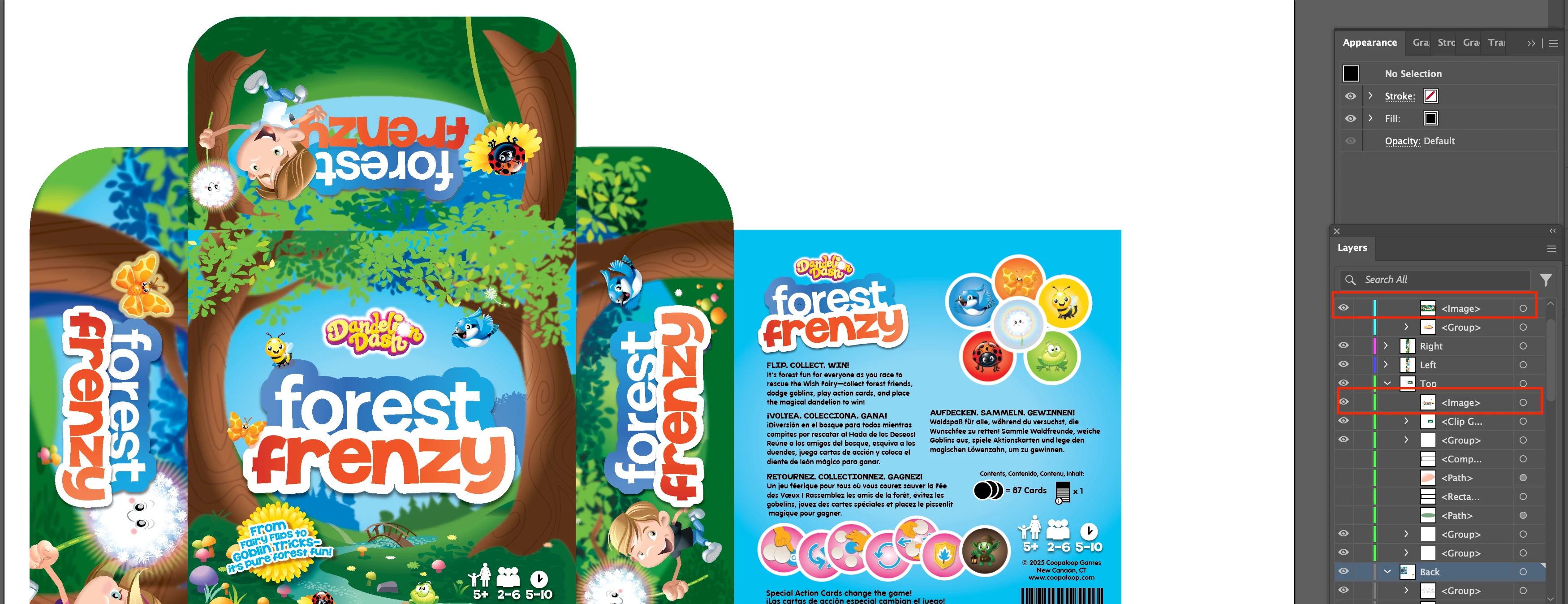 I'm using a template file provided by my manufacturer for a card game box. To build out the artwork, I copied and pasted a large number of graphics from another Illustrator file (these were pre-designed assets from a different box that I’m repurposing).
Initially, everything worked as expected—I could open the file and see all the layers. But now, when I open the document, many of the layers just show <image> instead of the actual artwork.
When I open the file, I receive this warning:
"Illustrator now honors 9-slice scaling of symbols. Any scaling done on symbol instances with 9-slice scaling option in legacy version will look different now. Do you want to retain the 9-slice scaling option for symbols?"
And when I exit/save, I get:
"Saving to legacy format may cause some changes to your text layout and disable some editing features when the document is read back in. Do you want to continue?"
I've seen these warnings many times before (probably over 1000 times) while working with the same graphics and never had any issues—until now.
For context:
I'm running the latest version of Illustrator (v29.6.1) on a Mac (Sequoia 15.3).
I have plenty of disk space left (432GB free out of 4TB).
I also tried reverting to Illustrator v28.0 to see if that helped, but the problem persists.
Any ideas what might be causing the <image> placeholders to appear instead of the original artwork?
 AdChoices