
Participating Frequently
September 29, 2017
Answered

Need help with this logo

  • September 29, 2017
  • 1 reply
  • 281 views

Hello I have this logo

Adobe Creative Cloud

that if I put on a colored background you see white under your chin,
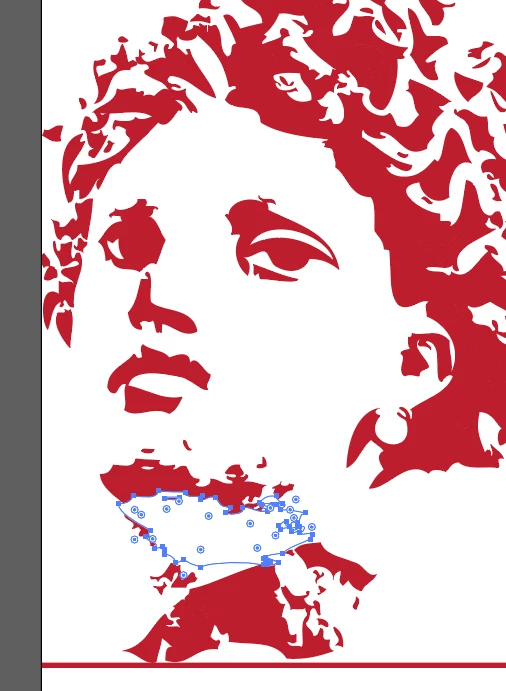
I need it to be transparent, but if I remove it below you see the red of another larger selection,

how do I use the white selection to remove even the red part below?

Thanks and sorry for my english I hope to have been clear.

This topic has been closed for replies.
Correct answer Monika Gause

You want to get rid of all the white?

Select all and in the pathfinder panel (Window > Pathfinder, Not Effects > Pathfinder) click on Merge.

Then take the layers panel and see what you've got. There might be several invisible objects left that you need to delete.

First ungroup all

Then select one of those invisibles and Select > Same > Fill and stroke color

Delete.

1 reply

Monika Gause
Community Expert
Monika GauseCommunity ExpertCorrect answer
Community Expert
September 29, 2017

You want to get rid of all the white?

Select all and in the pathfinder panel (Window > Pathfinder, Not Effects > Pathfinder) click on Merge.

Then take the layers panel and see what you've got. There might be several invisible objects left that you need to delete.

First ungroup all

Then select one of those invisibles and Select > Same > Fill and stroke color

Delete.

Participating Frequently
September 29, 2017

Perfect!! Thanks so much!

Monika Gause
Community Expert
Community Expert
September 29, 2017

You're welcome!