
Participant
February 2, 2021
Answered

Need illustrator help! Joining paths
  • February 2, 2021
  • 3 replies
  • 369 views


Hi!


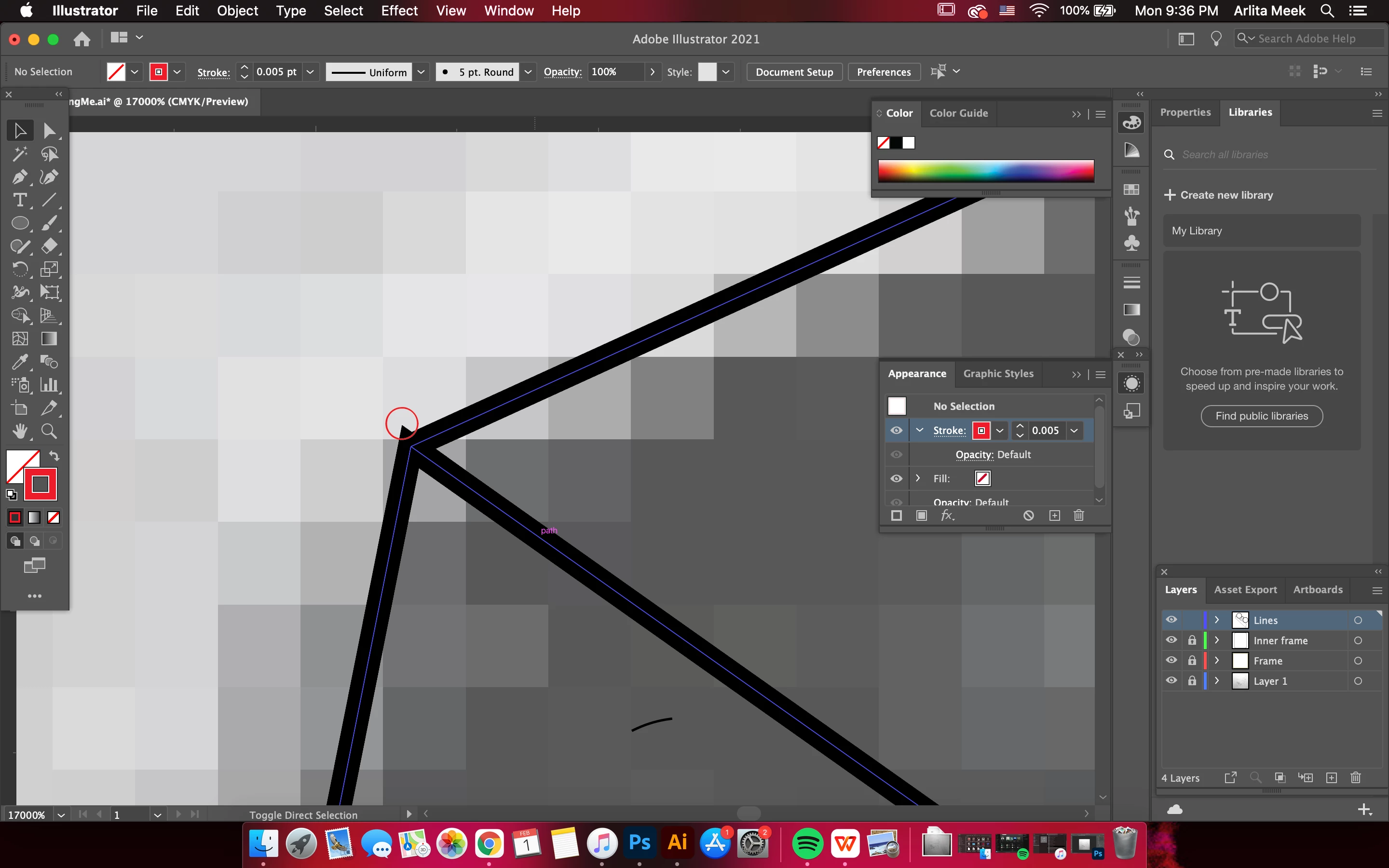
I'm, im new to illustrator. I'm doing a complex illustration using the pen tool and am having trouble creating seamless smooth strokes when combining multiple paths. For example, I'm trying to join anchor points to create a "corner" by using the "create compound path" function. It aligns my anchor points, but I have this odd stroke sticking out. Any advice would be greatly appreciated!


This topic has been closed for replies.
Correct answer Jacob Bugge

Arlita,


In addition to what Simeon said, your fundamental issue is that you have an upper open path with an end Anchor Point coinciding with a rather sharp corner Anchor Point on the lower path with (at least two segments,  and the Miter Join creates the spike.


The straightforward way to deal with/avoid such issues is to have the outermost parts form a continuous path, in this case the leftmost and the topmost as segments of the same path which will give the right spikeless sharp corner flush with the sides, and the one at the lower right as an open path with a coinciding end Anchor Point (avoid Projecting Cap for the latter).


3 replies

Jacob Bugge
Community Expert
Jacob BuggeCommunity ExpertCorrect answer
Community Expert
February 2, 2021

Arlita,


In addition to what Simeon said, your fundamental issue is that you have an upper open path with an end Anchor Point coinciding with a rather sharp corner Anchor Point on the lower path with (at least two segments,  and the Miter Join creates the spike.


The straightforward way to deal with/avoid such issues is to have the outermost parts form a continuous path, in this case the leftmost and the topmost as segments of the same path which will give the right spikeless sharp corner flush with the sides, and the one at the lower right as an open path with a coinciding end Anchor Point (avoid Projecting Cap for the latter).


Simmer1
Community Expert
Community Expert
February 2, 2021

Hi,


Watch this video it will help you easily get rid of any overlaps.


I would Dupicate your Layers so you them a backed up first though.

https://www.youtube.com/watch?v=R5wW_65iAiU  

Mylenium
Legend
February 2, 2021

Adjust the stroke alignment in the stroke palette.


Mylenium