AshKayG
Participant
April 29, 2018
Beantwortet

Need to Erase Certain Parts of Background and Make Them Transparent

  • April 29, 2018
  • 1 Antwort
  • 742 Ansichten

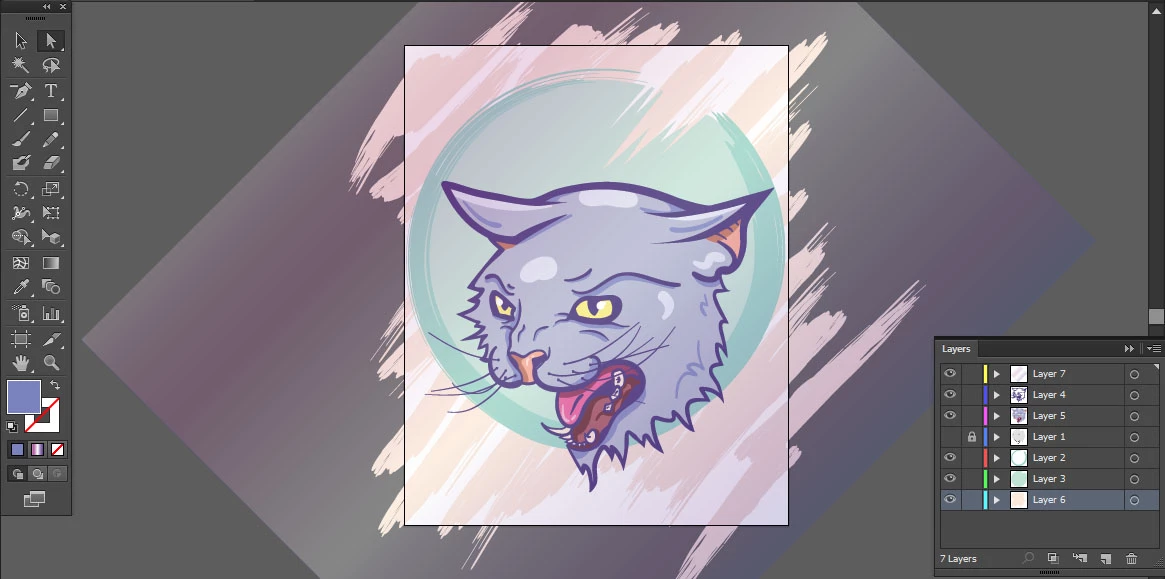
Hello! I have this picture here that I've drawn up in Illustrator and I'm looking for a way to remove pieces of the background, specifically the gradient rectangle I have on my top layer. I still want that top layer there, but I'd like to remove some of it (I've circled some of the pieces I want to remove in the second picture). So essentially I want to the gradient to cover the brushstrokes I have in the background, but I want the white space and the rectangle shape to be transparent. I hope this makes sense, I struggled with finding a good way to word this haha.

I'm self-taught and I've only been using Illustrator for a little over a year. I would really appreciate any help!


-Ash
Dieses Thema wurde für Antworten geschlossen.
Beste Antwort von Monika Gause

You could:

1. select all the artwork except the gradient rectangle

2. Edit > Copy

3. Lock all the existing artwork

4. Edit > Paste in front

5. (This depends on the nature of the strokes) While the artwork is still selected: Object > Expand appearance (might give an error that there is nothing to expand) Object > Path > Outline stroke (might also give an error because strokes are already expanded)

6. Pathfinder panel: click on the "Unite" button (top left)

7. Fill with black (in case it's an RGB file: RGB 000)

8. Unlock all

9. Select the gradient rectangle and the black shape and in transparency panel click on "Make mask" button.

10. Check the option "Invert", uncheck "Crop"

1 Antwort

Monika Gause
Community Expert
Community Expert
April 29, 2018

You could:

1. select all the artwork except the gradient rectangle

2. Edit > Copy

3. Lock all the existing artwork

4. Edit > Paste in front

5. (This depends on the nature of the strokes) While the artwork is still selected: Object > Expand appearance (might give an error that there is nothing to expand) Object > Path > Outline stroke (might also give an error because strokes are already expanded)

6. Pathfinder panel: click on the "Unite" button (top left)

7. Fill with black (in case it's an RGB file: RGB 000)

8. Unlock all

9. Select the gradient rectangle and the black shape and in transparency panel click on "Make mask" button.

10. Check the option "Invert", uncheck "Crop"

AshKayG
AshKayGAutor
Participant
May 3, 2018

Yes!! Thank you so much, I appreciate you!