
Inspiring
December 15, 2016
Answered

new to illustrator- much difficulty with hand drawn art

  • December 15, 2016
  • 5 replies
  • 1246 views

Hello,

Done all the illustrator tutorials but still stumped. 

Whenever I load my own scanned art I can't manipulate it (join segments, color). Here is an original scan of one I vectorized with a 3rd party app, but still no luck doing anything with it inside illustrator. Feels like I'm missing something simple. I can highlight all the anchor points created, but the shapes don't respond like in the tutorials.

This is the UN-vectorized version.
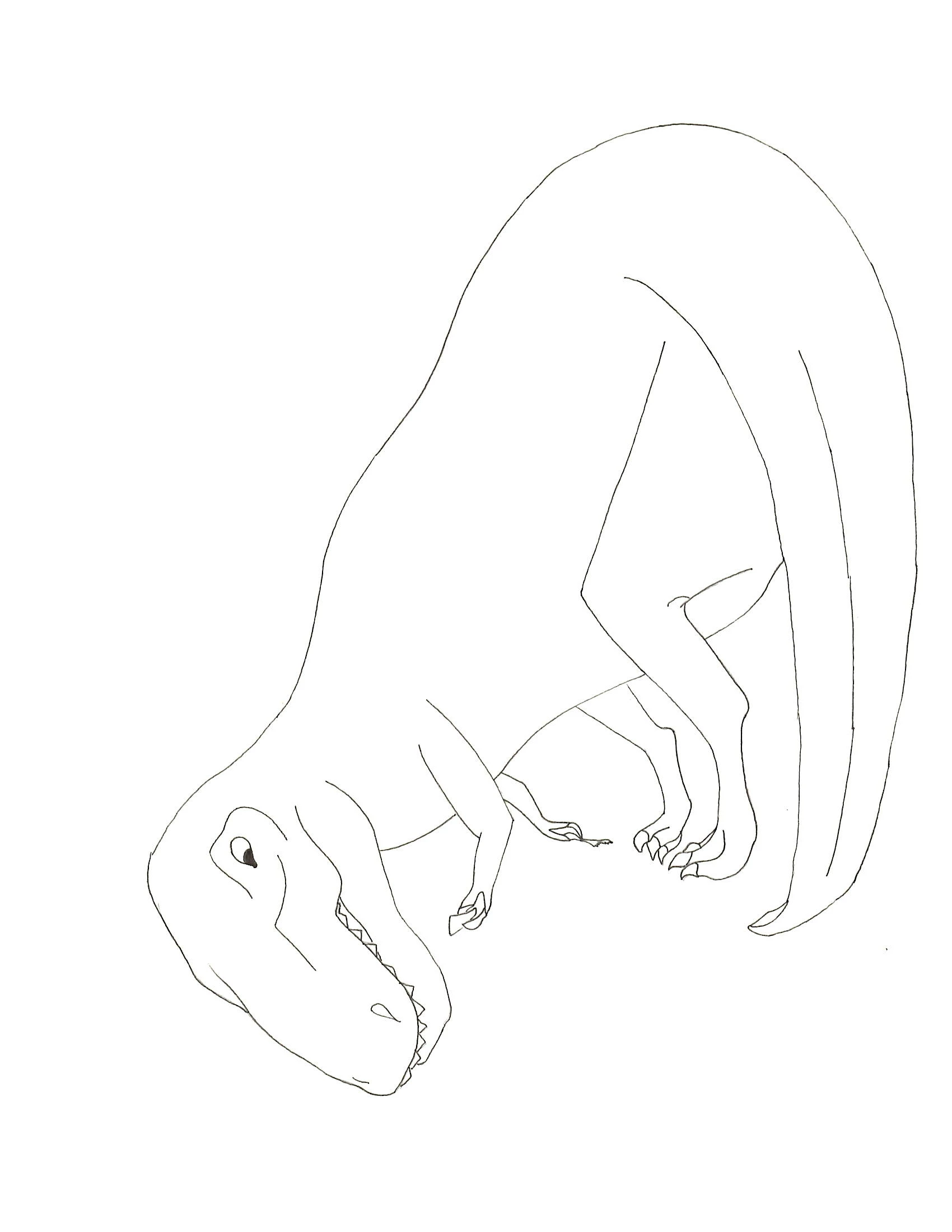
    This topic has been closed for replies.
    Correct answer Jacob Bugge

    redgiantcola,

    Presuming you have used Image Trace, you will need to expand after image tracing to get things to work. Select it/them and Object>Image Trace>Expand.

    To get stroked paths, use Strokes under Tracing options:

    https://helpx.adobe.com/illustrator/using/image-trace.html

    You may also look here:

    http://blogs.adobe.com/adobeillustrator/2013/07/image-trace-in-illustrator-a-tutorial-and-guide.html

    5 replies

    geoffball
    Inspiring
    December 15, 2016

    You say you have no luck doing anything with it in Illustrator. What do you mean by anything? If you're seeing path segments and points, you should be able to edit them with the white arrow tool.

    Are you willing to post a sample in vector format?

    Doug A Roberts
    Community Expert
    Community Expert
    December 15, 2016

    redgiancola wrote:

    Here is an original scan of one I vectorized with a 3rd party app,

    what was the app?

    Inspiring
    December 15, 2016

    dougofakkad wrote:

    redgiancola wrote:

    Here is an original scan of one I vectorized with a 3rd party app,

    what was the app?

    It's called Image Vectorizer by Icosasoft.

    Jacob Bugge
    Community Expert
    Jacob BuggeCommunity ExpertCorrect answer
    Community Expert
    December 15, 2016

    redgiantcola,

    Presuming you have used Image Trace, you will need to expand after image tracing to get things to work. Select it/them and Object>Image Trace>Expand.

    To get stroked paths, use Strokes under Tracing options:

    https://helpx.adobe.com/illustrator/using/image-trace.html

    You may also look here:

    http://blogs.adobe.com/adobeillustrator/2013/07/image-trace-in-illustrator-a-tutorial-and-guide.html

    Inspiring
    December 15, 2016

    Jacob Bugge wrote:

    redgiantcola,

    Presuming you have used Image Trace, you will need to expand after image tracing to get things to work. Select it/them and Object>Image Trace>Expand.

    To get stroked paths, use Strokes under Tracing options:

    https://helpx.adobe.com/illustrator/using/image-trace.html

    You may also look here:

    http://blogs.adobe.com/adobeillustrator/2013/07/image-trace-in-illustrator-a-tutorial-and- guide.html

    Okay, I retraced a sketch under "trace and expand," but the results are the same. And the expand option under Object>Image Trace> Expand is not highlighted. Even when I select everything.

    Monika Gause
    Community Expert
    Community Expert
    December 15, 2016

    Autotracing an image usually produces closed paths. That's why you can't join them.

    You might be looking for something different. In your case I would recommend drawing them manually. Gives you greater control, a better result and open paths.

    But no matter how you traco your images, the live paint tool should colorize it. Turn on the Gap detection.

    How to create and work with Live Paint groups in Illustrator

    Inspiring
    December 15, 2016

    Monika Gause wrote:

    Autotracing an image usually produces closed paths. That's why you can't join them.

    You might be looking for something different. In your case I would recommend drawing them manually. Gives you greater control, a better result and open paths.

    But no matter how you traco your images, the live paint tool should colorize it. Turn on the Gap detection.

    How to create and work with Live Paint groups in Illustrator

    I don't want to redraw all my drawings, I just want to color them.

    The gap detection is on, and it says there are no gaps. And also, I have no color options at all. Only the black and white of the tracing.

    Monika Gause
    Community Expert
    Community Expert
    December 15, 2016

    redgiancola schrieb:

    I don't want to redraw all my drawings, I just want to color them.

    The gap detection is on, and it says there are no gaps. And also, I have no color options at all. Only the black and white of the tracing.

    Then obviously there are no swatches. You can still specify color through the color panel. Or just create swatches.

    You might want to read the documentation.

    How to choose colors in Illustrator

    How to use and create swatches in Illustrator

    geoffb81943439
    Participating Frequently
    December 15, 2016

    In the Layers panel, what do you see when you twirl down the arrow to the left of the thumbnail for Layer 1? Do you see one sublayer called <Image>, or one or more sublayers called <Path>?

    Inspiring
    December 15, 2016

    geoffb81943439 wrote:

    In the Layers panel, what do you see when you twirl down the arrow to the left of the thumbnail for Layer 1? Do you see one sublayer called <Image>, or one or more sublayers called <Path>?

    There is one sublayer called group, and under that there are about a hundred sublayers called paths. I can highlight the paths, but not the areas inside them.