
felipegrin
Participant
April 19, 2016
Question

Not able to choose color of my gradient in the color picker tool

  • April 19, 2016
  • 11 replies
  • 60974 views

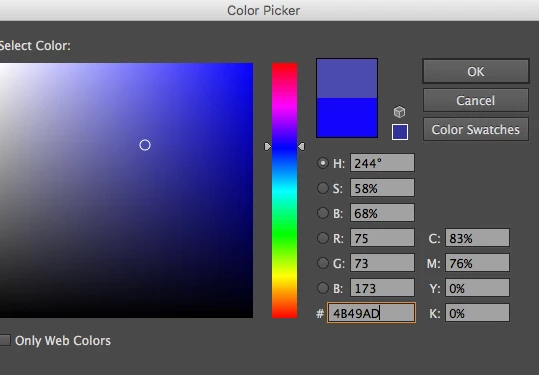
Why can't i chose the color of my gradient in the color picker of the tools bar, just like i do with the fill and stroke color?
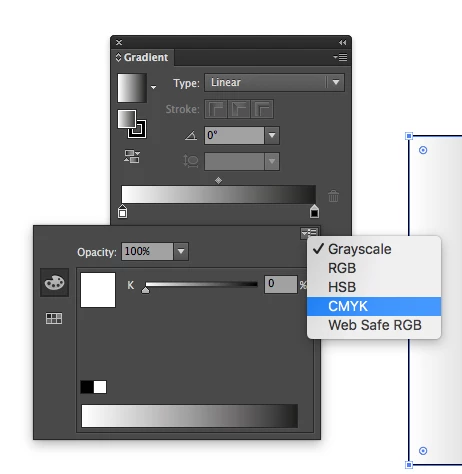
Why do i need to tell the gradient panel every damn time that my gradient is not black and white. Gradients are almost never black and white.
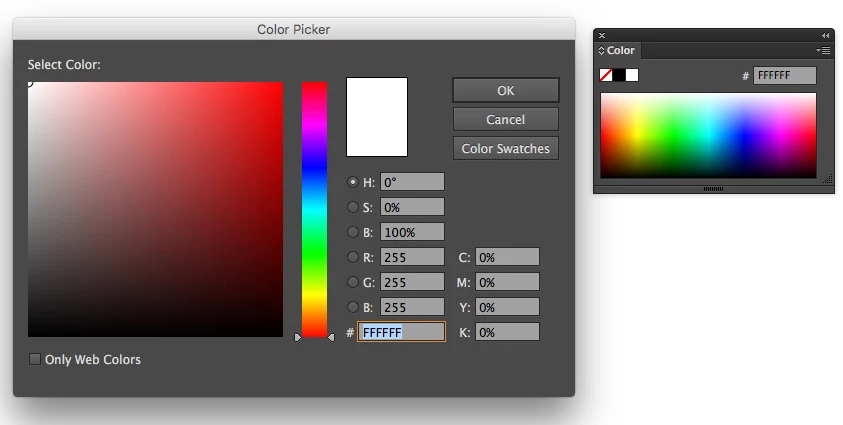
Why don't we have a shortcut for the fill and stroke color picker tool, just like Photoshop? Or maybe a real color picker panel, not that stupid color panel that it have.
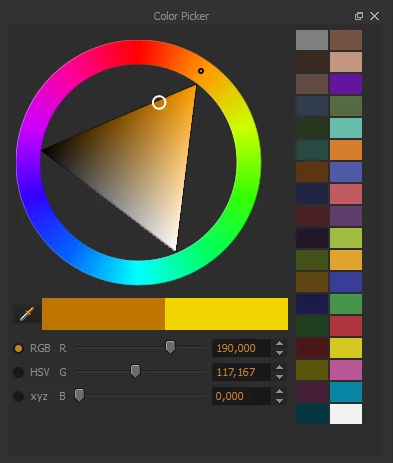
Why don't we still don't have this?
Why is the default tools shortcuts so nothing to do with anything?
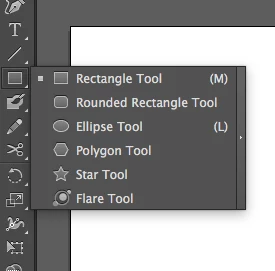
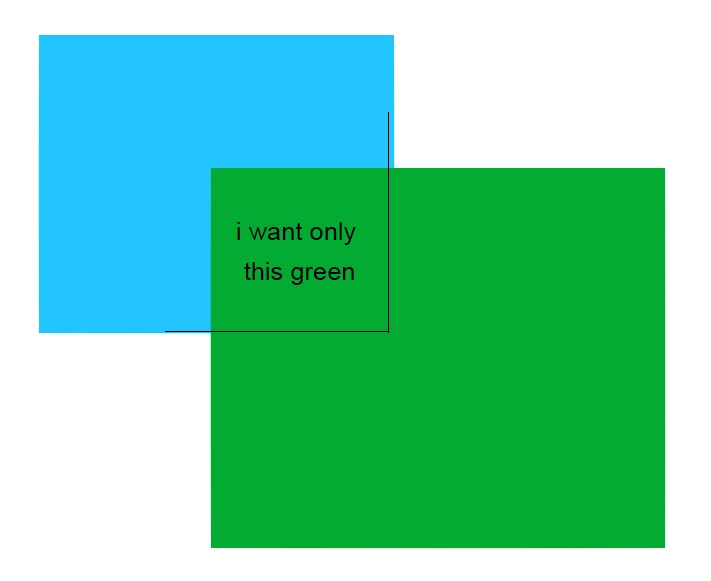
Why is it so hard to make a simple mask?
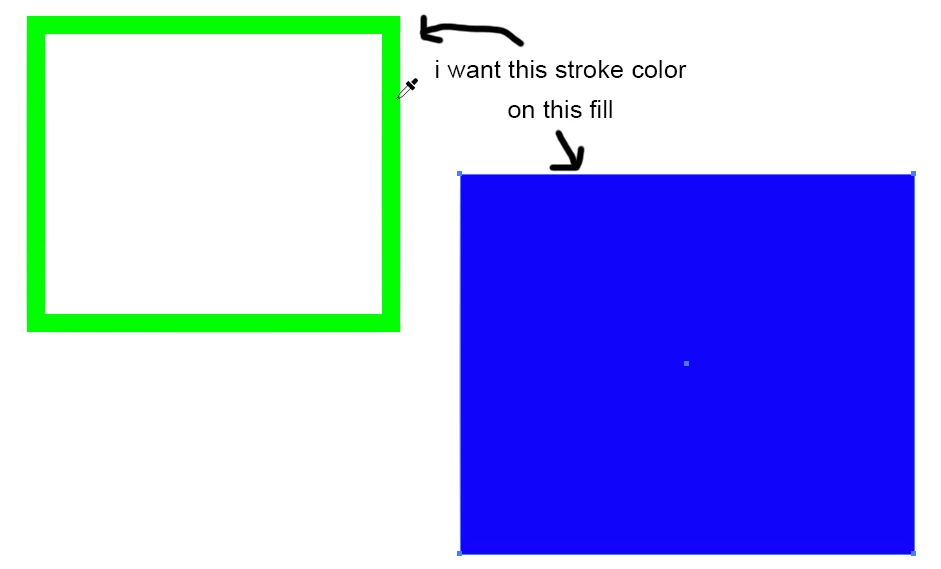
Why is using the eyedropper not as simple as it should? (have to duble click in it every time and change its options)
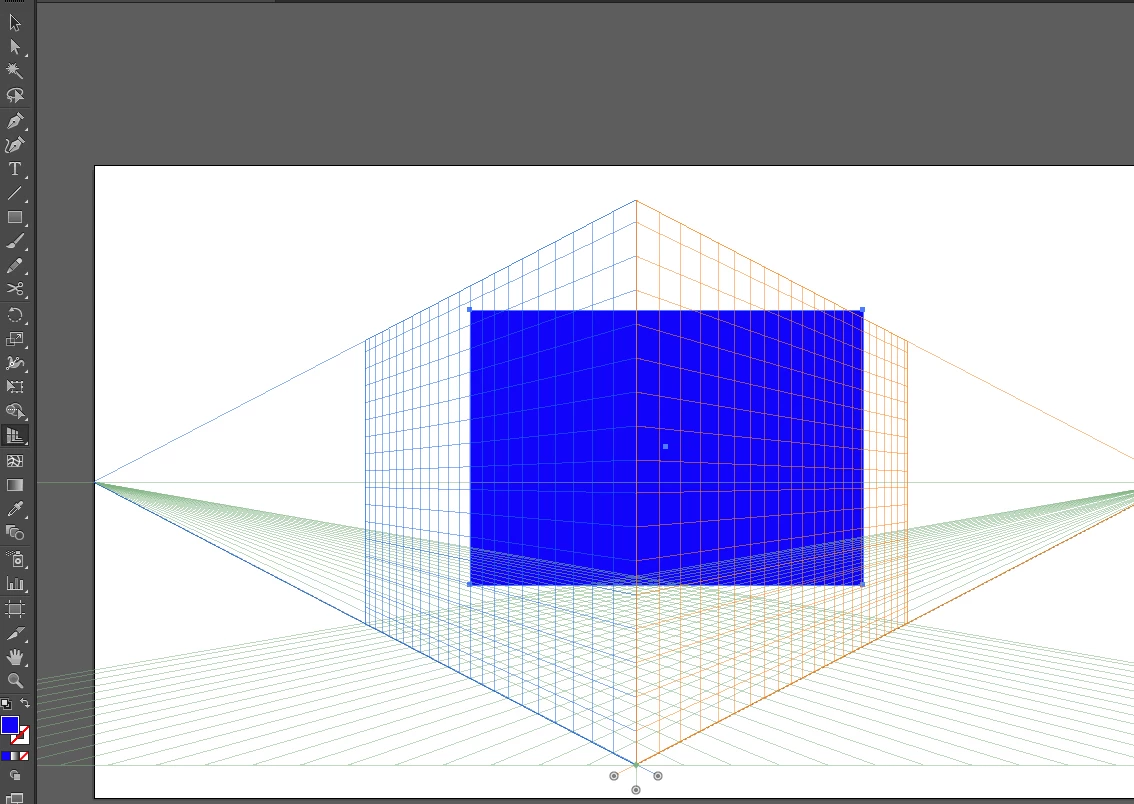
And, of course, this thing, EVERY. DAMN. TIME!

I guarantee every person who uses this software wondered for a long time how to hide this in the first time this happened . Whyyyy so easy to show and so difficult to hide?
Most of this problems you can solve it with options and with habits, i know, i know. Still, it is all these little stupid things that drives me crazy. I cannot use another software since the company I work at demands me to work with it.

Why is Illustrator so damn infuriating and over complex? It takes about 40 steps to do something should be possible with 3!

This topic has been closed for replies.

11 replies

Barb Binder
Community Expert
Community Expert
April 19, 2016

Create your gradients in the Gradient panel and save them in Swatches. You can assign them from there without starting with B/W.

Double click the Fill or Stroke icon in the Toolbox and voila: the Color Picker, just like Photoshop.

The tools shortcuts were intended as shortcuts for those with motion disabilities, who aren't facile with a mouse. I still use them, and recommend post-its to help you learn the ones you care about.

Select the blue box, turn on Draw Inside mode at the bottom of the tools panel. Cut the green box and paste it inside the blue one. Don't forget to turn Draw Normal on when done. Easiest.Mask.Ever.

Double click the Eyedropper before using it to tell it what you want it to pick up. Press Sh+X to swap fill and stroke color.

Try not to inadvertently click the Perspective Drawing tool. If you can't help yourself, turn off the grid with View > Perspective Grid > Hide Grid.

On the other hand, have you checked out the color inspiration tools with the Color Guide panel and Adobe Color. Or Edit > Recolor Artwork? Pretty amazing stuff, once you learn where it is and how it works.

~Barb at Rocky Mountain Training
rcraighead
Legend
April 19, 2016
Try not to inadvertently click the Perspective Drawing tool. If you can't help yourself, turn off the grid with View > Perspective Grid > Hide Grid.

Barb's suggestions are good. I do find myself accidentally turning on the Perspective Grid too often and don't understand why the shortcut is NOT a toggle (I can never remember the "hide" shortcut). Better yet, I'd like to disable the Persp Grid COMPLETELY because I find it useless in my work.

I agree there is MUCH room for ergonomic improvements in AI. Your list doesn't even scratch the surface, feli.

jane-e
Community Expert
Community Expert
April 19, 2016

RCraighead,

If you are in CC 2015, you can do just that! Click the .... at the bottom of the Toolbar, then click Edit toolbar and move your unwanted tools to the hidden tools area. They will still be available if you hit the dots again, but it's harder to click them accidentally.