
Participant
February 24, 2020
Answered

Object in back covers other objects

  • February 24, 2020
  • 4 replies
  • 1187 views

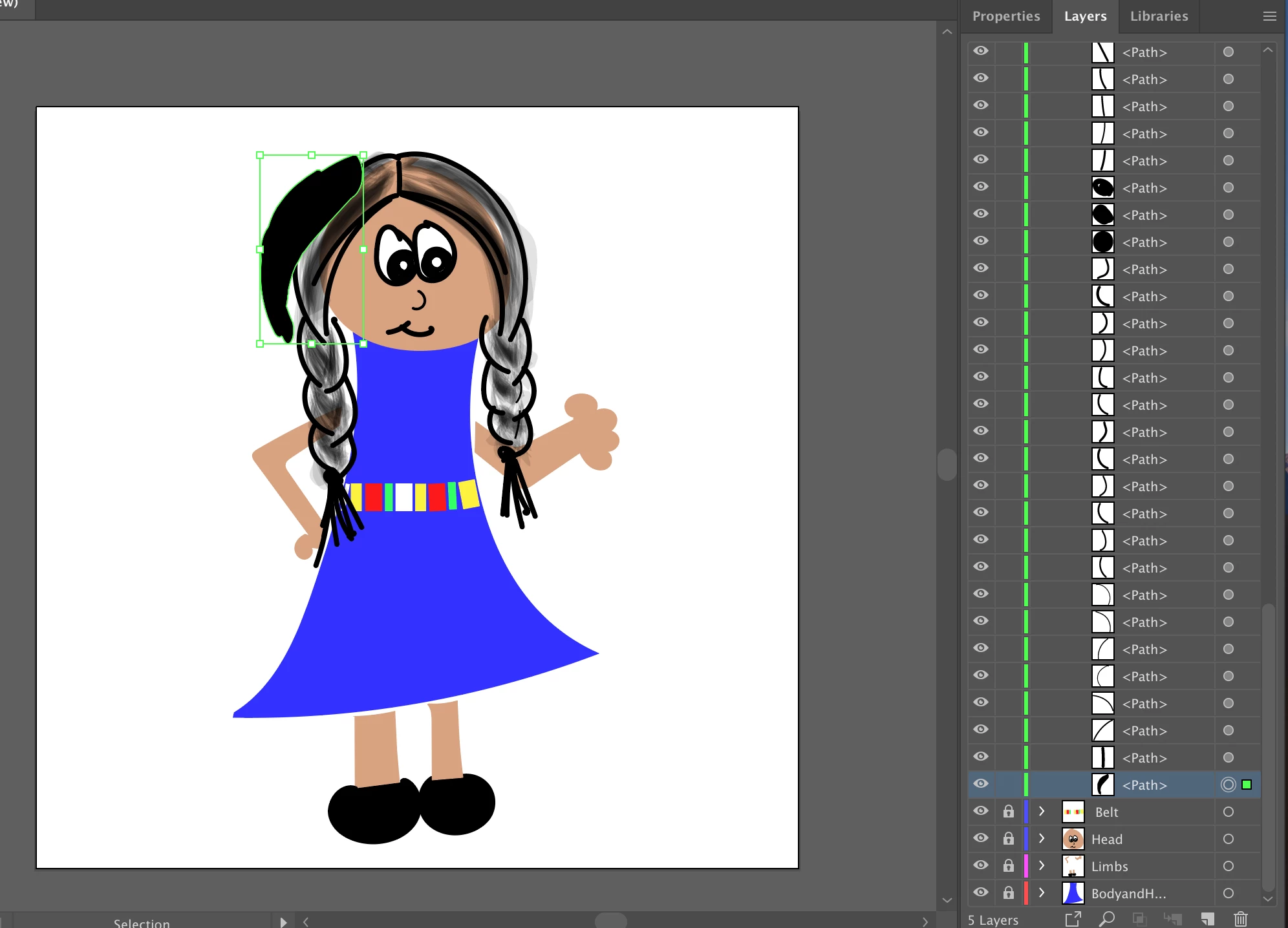
Hi everyone! I have an object that I sent to back - and in the layers panel, I can see that it should be behind everything else in that layer. For some reason though the object is showing up in front of everything else. 


No clue what it could be 😞 Any suggestions? Screenshot for clarity. The highlighted piece is the one that should be behind the other hair (but in front of her head). 


This topic has been closed for replies.
Correct answer Monika Gause

Those are bristle brush strokes, right? They are all transparent, so the back shines through them.

4 replies

kphotopage
Legend
February 25, 2020

stephaniew53142559, Hi


As mentioned by Peter, I’m also inclined to think your upper paths are in the Multiply mode.

If placed on top of that bottom Black fill, well, the Black fill wins out.


Monika also mentioned Bristle Brushes.

Yes, they are transparent.

If you expand, and ungroup and redistribute,

You will see it’s really made up 12 filled paths, each having an Opacity of 11%


K


Monika Gause
Community Expert
Monika GauseCommunity ExpertCorrect answer
Community Expert
February 24, 2020

Those are bristle brush strokes, right? They are all transparent, so the back shines through them.

キィィ─!!!
Participating Frequently
February 24, 2020

Hello, stephaniew53142559.


For example, if the black object on the back is K = 100% and the black brush on the front is also K = 100%, they will appear as one after multiplication.
This is because there cannot be more than 100% K.

Change the back object black and front brush black settings.


For example,
Left circle is CMY = 0, K = 100
The brush object on the right is C = 83, M = 80, Y = 80, K = 35, multiply mode.


If it doesn't look like this, let's display black correctly.
Change the preference "Appearance Of Black" to "Display All Blacks Accurately".
Choose Edit > Preferences > Appearance Of Black (Windows) or [application name] > Preferences > Appearance Of Black (Mac OS).
Set to "Display All Blacks Accurately".


However, please note that printing has a limit on the total amount of ink.

tromboniator
Community Expert
Community Expert
February 24, 2020

Do you by any chance have a blending mode such as Multiply applied to the hair? That would make the black-filled path appear to be in front.


Peter