
Participant
March 28, 2021
Answered

Objects in clipping mask appear as wrong color

  • March 28, 2021
  • 2 replies
  • 769 views

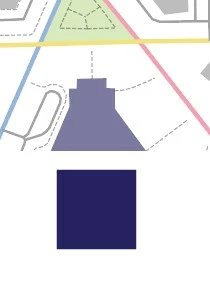
I'm working with simple shapes inside a clipping mask, and whenever I edit the fill color, the colors seem like theres a semi-opaque layer of white on top. 

(the lighter shape is inside the clipping mask, the square is outside of it. Both are exactly the same fill color.)

They're both at default fill/opacity (100%) and color mode is RGB. Any help appreciated! I'm pretty sure I've run into this a while ago and the fix was simple, I'm just forgetting it right now.
This topic has been closed for replies.
Correct answer Ton Frederiks

Try to click on the little circle next to the buildings name in the Layers panel.

Check in the Appearance panel if there is an Opacity setting applied to the layer.

2 replies

Ton Frederiks
Community Expert
Ton FrederiksCommunity ExpertCorrect answer
Community Expert
March 29, 2021

Try to click on the little circle next to the buildings name in the Layers panel.

Check in the Appearance panel if there is an Opacity setting applied to the layer.

Monika Gause
Community Expert
Community Expert
March 28, 2021

Are you in isolation mode?

Paolo5FB0Author
Participant
March 28, 2021

Hello,

I went into isolation mode and when I isolate the object itself, it's the right color. Upon leaving isolation mode it becomes different. There's a couple of different groups to get through before the path is isolated. It seems to be an issue with the group it's in, as when I drag it outside of the group it looks fine. 

It used to be in the group 'buildings' but looks fine once taken out. I don't know what it is about the group that's making the paths look this way though.

The rectangle used to make the clipping mask was just a path-less, fill-less shape as well.


Participating Frequently
March 29, 2021

Change the display of the Layers panel, which may help you organize and make more sense
when selecting.

  • Choose Panel Options from the Layers panel menu.
  • Select Show Layers Only to hide paths, groups, and collective elements in the Layers panel.
  • For Thumbnails, select a combination of layers, groups, and objects for which to display thumbnail previews.