

Opaque objects becoming semi-transparent after export
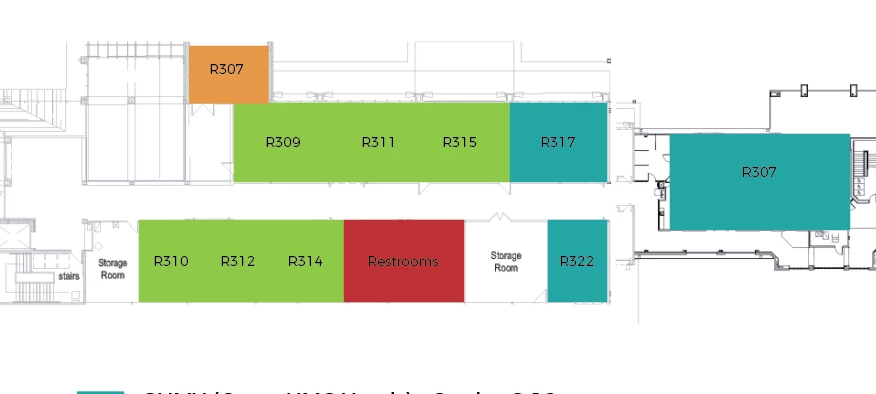
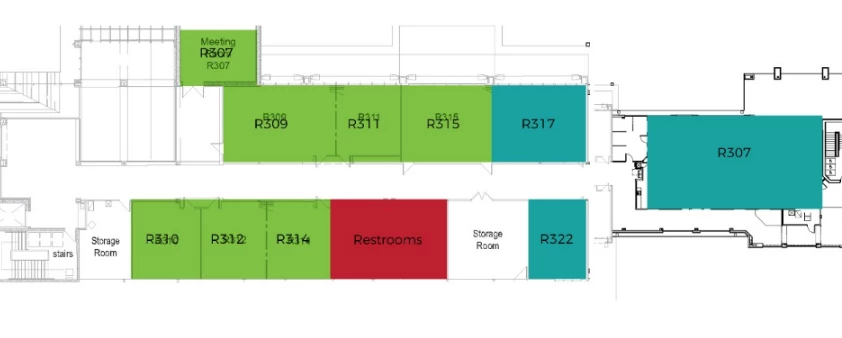
I am creating a map of our building by overlaying the original map image with color-coded boxes to define certain areas. All my color boxes are 100% opaque, their layers are above the original map layer, and in the Illustrator document it appears exactly the way I want it. However, when I export to an image file (.jpeg or .png) one color of box appears to be semi-transparent and I can see the text of the original map through the color. The first image is how it appears in Illustrator, the second is how it appears after export (sans the orange box - that was a change made later). Interestingly, when I select a darker color, it seems to work fine. But should it matter that I'm using a light color?? Obviously the fix is to just go with a different color, but I still want to know why this is happening.
I am a total novice at Illustrator and just trying to learn as I go, but for the life of me I cannot figure out why this is happening! All the other boxes appear correctly and all have the same settings (I literally alt-dragged them so they would all be exactly the same). Anyone know how to fix this? TIA!
 AdChoices