Participant
June 1, 2019
Question

Outer glow outlines when printing from PDF

  • June 1, 2019
  • 2 replies
  • 3707 views

Hi all,

I'm pretty new at this, so bear with me.

I've created a flyer in Illustrator (CMYK) for a client, and added outer glow effects to most of the text to make it pop more/ easier to read. I'm trying to prevent my client from having issues when she goes to Office Depot to get these printed (and FYI, they require a PDF).

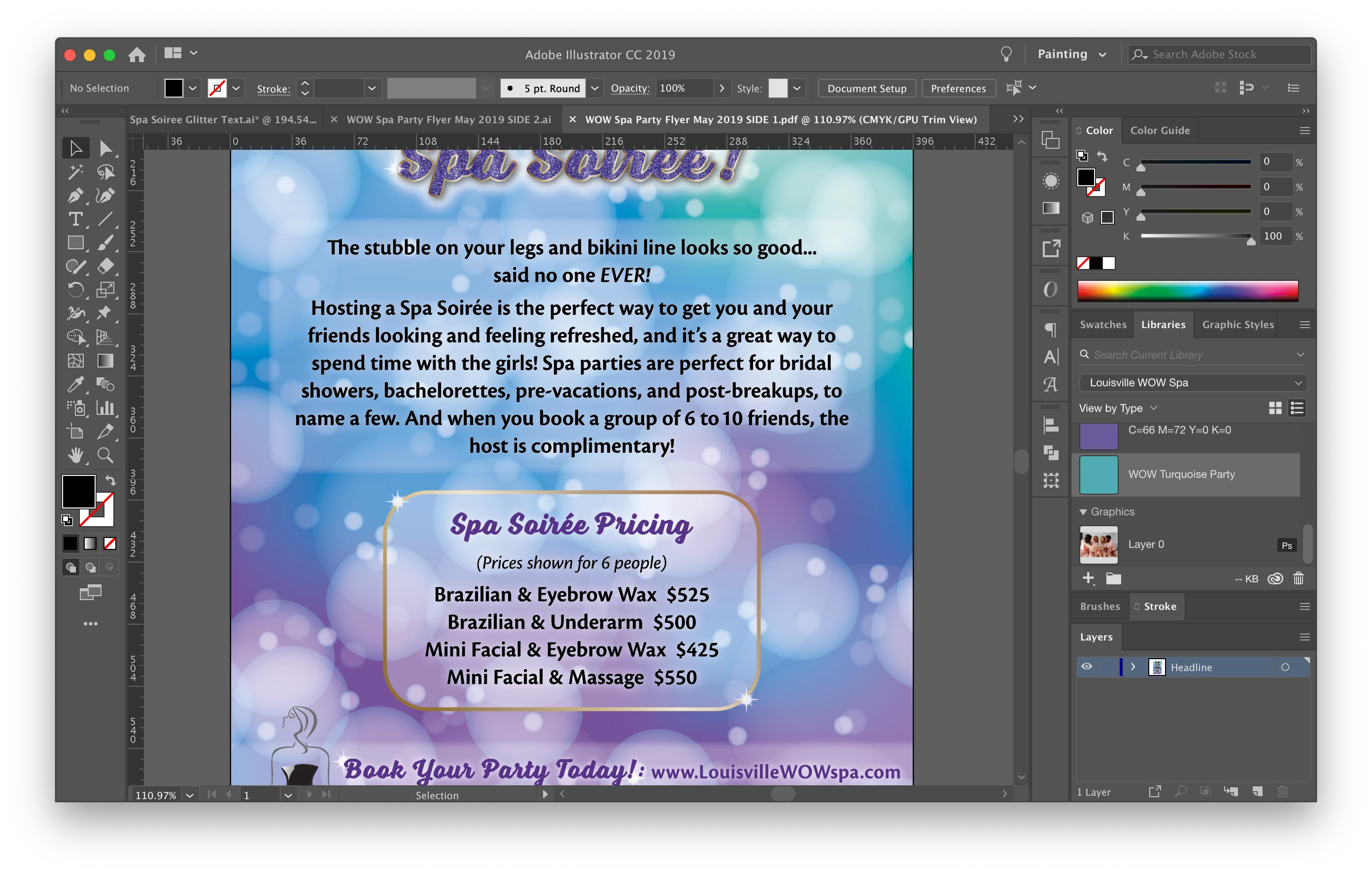
When I save as PDF and view on screen, no issues. When I print the PDF or AI files directly from Illustrator, no issues. BUT, when I print directly from the PDF preview or from Adobe Acrobat, I get these weird black outlines around the text (see attached screenshots). I don't want these to show up when my client gets them printed - can anyone tell me how to fix this?? I'm totally stumped despite hours of Google-ing.

Thanks in advance!!
This topic has been closed for replies.

2 replies

Inspiring
June 2, 2019

If you are in a pinch, try Export > TIF.  Use a medium resolution ( 150 ppi ) CMYK.  Open the TIP in Photoshop and Save As > Photoshop PDF.  Make sure your Illustrator document Resolution ( Raster Effects ) is set to 150 ppi.  The Black artifacts look like some type of stitching.  Your PDF settings may affect the transparency effects you applied in the original document, like Theresa J explained.  Be forwarned, the PDF routine I explained in line #1 creates a PDF that you cannot edit, so always make sure the original file is still intact in case you have to make any changes.  When you Export, a raster file is created using the .tiff designation, so it is already renamed.  You could also try Save As > PDF > High Quality Print in your setting to see if that improves the quality.

Theresa J
Community Expert
Community Expert
June 2, 2019

What settings are you using for the PDF? Some printer RIPs can handle transparency, but a lot of them can't. The printer you are testing this on probably can't handle the transparency.  The printers at Office Depot might print it okay. You could call Office Depot and ask. To be completely safe you could save your PDF with the PDF/X-1a setting. That will flattened everything. You might see faint white lines in your PDF where the flattened areas get sliced up, but those lines won't print.

Participant
June 14, 2019

Thanks so much Theresa! This seemed to work, at least on my home printer, so I ended up sending the client both the version I was originally using, and the PDF/X-1a version, just in case. I was originally using the High Quality Print Setting and got those strange black outlines. I did make sure to convert text to outlines, remove any hidden layers/ artwork, and flatten everything beforehand. Can you give me any insight into why this doesn't cut it for transparencies in Illustrator? All of the transparencies in this document were adjustments to opacity - is this something I should try to avoid with Illustrator in the future? Or are most good printing companies (and I assume, online printing specialty companies like Vistaprint) set up to handle this kind of thing?

Thanks again!

- Vanessa

Monika Gause
Community Expert
Community Expert
June 14, 2019

Please read the introduction to transparency to understand how it works:

http://67.227.198.33/~ghp/wp-content/uploads/2011/05/Transparency_DesignGuide.pdf