Participant
September 27, 2018
Answered

Outerglow not showing over background

  • September 27, 2018
  • 7 replies
  • 15706 views

Hey people,

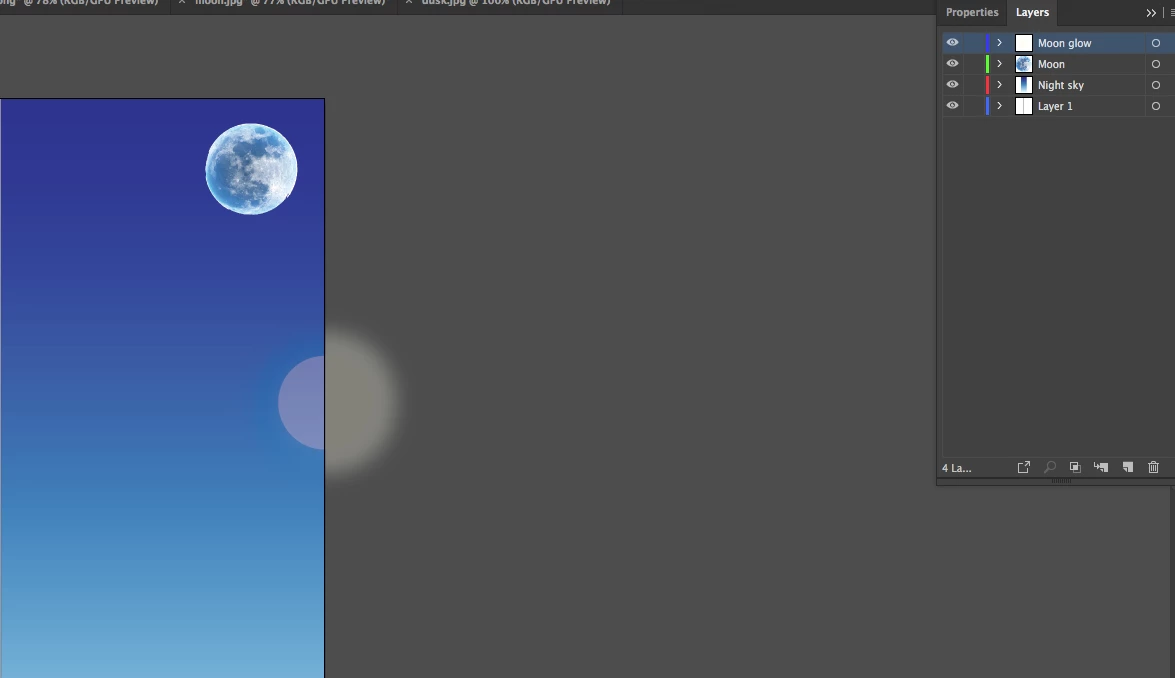
I am using illustrator since 2 weeks and I can't get the glow to the front. I tried previously answered questions but those solutions don't work. Any help?

Correct answer John26620542p83m

Click on the moon element, go to appearance (window - appearance) look at the outer glow opacity. click on it opacity. at the bottom there are boxes you can check, make sure isolate blending is selected. it should work.

7 replies

Participant
February 13, 2025

Select the shape

1. Go to properties Window/Panel

2. Look in the Appearence Section

3. Click the (...) three dot in bottom right corner.

4. From the appearence Panel - Click on Opacity Layer.

5. Now Select the checkmark "Isolate Blending"

Done.

Noelia38182545pnof
Participant
February 9, 2026

This is the trick! Just posting a tip because I just spent a while trying to figure out why this wouldn’t show on my laptop. If using macOS, when the “Opacity layer” window opens, it doesn’t immediately show the options stated here. Just click on the three lines and click on “Show options”. Now you have the options to choose from. Thank you so much for all the help!


John26620542p83mCorrect answer
Participant
April 30, 2023

Click on the moon element, go to appearance (window - appearance) look at the outer glow opacity. click on it opacity. at the bottom there are boxes you can check, make sure isolate blending is selected. it should work.

Participant
October 30, 2022

I'm having a problem with Adobe after effects. After applying the toro brush tool to the file, I added an outer glow layer but for some reason it's not working or showing up?

Monika Gause
Community Expert
Community Expert
October 30, 2022

Please select the object, open the Appearance pnel and then post a screenshot that contains the object and the panel.

Participant
July 10, 2020

Myra Ferguson,

   Thank you so much for sharing this information.  For the longest time in my design career I used Illustrator for vector files and vinyl decals. Now these days I do a large amount of Digital Print for vehicle wraps.  These designs tips are great!


Thank You
Robert

Myra Ferguson
Community Expert
Community Expert
September 27, 2018

Select the moon and go to your Appearance panel. Click on the Outer Glow effect to see what blend mode it's set to. I suspect changing it will help. Try Screen.

MelkuniAuthor
Participant
September 28, 2018

Nice thank you, this worked for me

rcraighead
Legend
September 27, 2018

Can you show the contents of the "Moon Glow" layer (expand the layer in Layers Panel)?

Also, with the "Moon Glow" object selected, it would be helpful to se the Attributes panel, fully expanded.

Without seeing these details its just a guess. I think Ton is on the right track of suggestion you change the color to a simple white w/30% opacity.

One more thing, is this a radial gradient and not a blurred object? Gradient would be best.

Ton Frederiks
Community Expert
Community Expert
September 27, 2018

Maybe use another color (white?) instead of the default black of the Outer Glow Effect.

MelkuniAuthor
Participant
September 27, 2018

The color at the moment is CMYK: 0,91%, 0%, 15,94%, 0,% and 30% opacity. So the color of the glow is correct, only the glow is not showing over the blue sky.

Inspiring
September 27, 2018

Make sure the object is not set to overprint or multiply.