
Participant
November 28, 2016
Question

Outline stroke forcing align to pixel grid

  • November 28, 2016
  • 2 replies
  • 2378 views

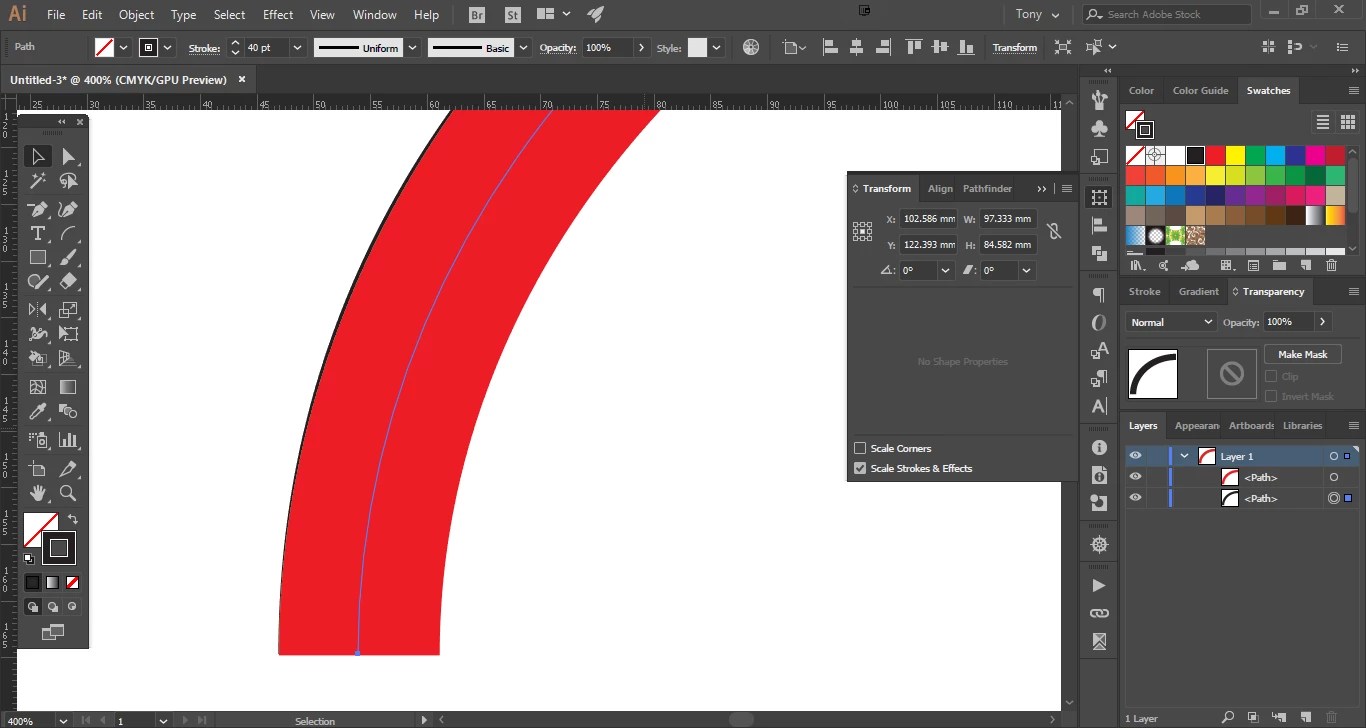
I've been trying to convert some paths to outlines, and every time I do this Illustrator is (I guess?) using the pixel grid to do so. This is resulting in shapes that don't match the original path. Here I have converted a path, and overlaid a copy of the original path so you can see the black overlap. Everything I've seen online says that turning the pixel grid off can either be done from the transform panel, or from the pixel grid icon in the top right of the screen. But neither solution works for me (transform because I don't see an option).

Any help?
    This topic has been closed for replies.

    2 replies

    Ton Frederiks
    Community Expert
    Community Expert
    November 28, 2016

    I cannot replicate this behaviour without using one of the new options like the "Align selected art to pixel grid" button in the Control bar or Object > Make Pixel Perfect.

    Participant
    November 28, 2016

    If I try and use "make pixel perfect" on the path before outlining, I actually get an error message "Selection contains art that cannot be made pixel perfect". Unchecking all the options in the align to pixel fly out window does nothing either. Making sure align to pixels is turned on before I even draw a path seems to be the only way to correct this behaviour.

    Ton Frederiks
    Community Expert
    Community Expert
    November 28, 2016

    I can see a slight difference, but I have to zoom in around 40000 percent. It does not seem to make a difference wheter align to pixelgrid is on or off.

    Jacob Bugge
    Community Expert
    Community Expert
    November 28, 2016

    Nascentideas,

    At least for the paths in question, select and untick Align to Pixel Grid in the Transform palette before outlining.

    Or, you may select everything and then untick Align to Pixel Grid in the Transform palette, and also untick Align New Objects to Pixel Grid in the flyout options. It is crucial that the box is completely unticked, not just a - which also counts as ticked.

    It may be noted that even if Align to Pixel Grid is unticked with all objects selected, as long as Align New Objects to Pixel Grid is ticked the creation of new objects will result in those new objects being aligned, even when they are created from existing objects as may happen with Pathfinder operations.

    You may avoid document types with that as default (RGB for web and the like) or change the default for such documents.

    Here is an exquisite screenshot made by Ton in the first post:

    https://forums.adobe.com/message/7841770#7841770

    Ton Frederiks
    Community Expert
    Community Expert
    November 28, 2016

    Jacob, the Align to Pixel Grid behaviour is totally changed in CC2017. It's no longer possible to create a new document with the option on (although it’s possible when you create a custom New Document Profile) and the align options are removed from the Transform panel.

    Seamlessly align your artwork with the pixel grid...

    Jacob Bugge
    Community Expert
    Community Expert
    November 28, 2016

    Thank you for the wakeup call, Ton.

    I believe I was fooled by the OP wording (overlooking the paranthesis in the last sentence).