Participating Frequently
July 20, 2022
Answered

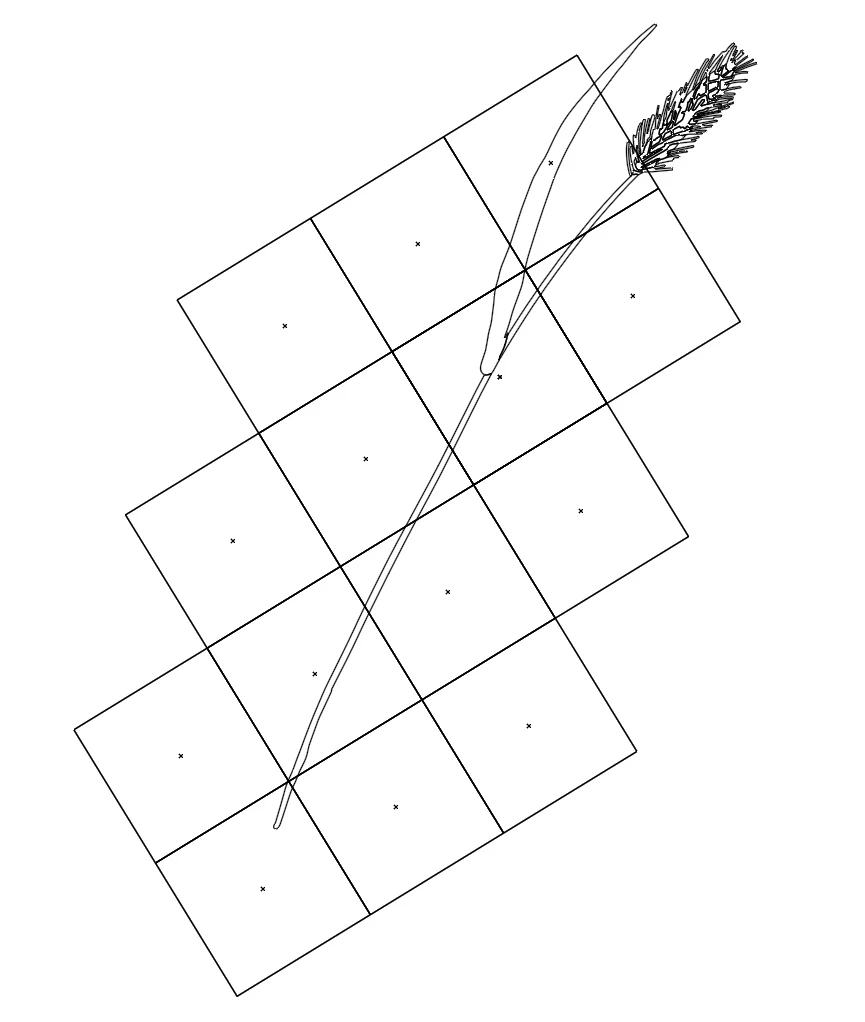
Outline view shows boxes around my motifs.

  • July 20, 2022
  • 4 replies
  • 869 views

Outline view shows boxes around my motifs. (Only on some of them) I’m not sure how to fix this or what I did to cause the issue. I have attached  an image.


This topic has been closed for replies.
Correct answer Ton Frederiks

I cannot make it simpler than I already described: "Select All and click Divide in the Pathfinder panel."
4 replies

Ton Frederiks
Community Expert
Community Expert
July 21, 2022

As far as I can see, Monika already gave the right answer, you used a pattern swatch that looked like a color swatch.

When you fill a rectangle with a color and drag that rectangle to the Swatches panel, it will create a Pattern swatch that looks like a Color swatch.

The rectangles you see in your file are expanded green colored pattern swatches. If you delete them it will create holes in your drawing where they were used.

What you could do to get rid of them is Select All and click Divide in the Pathfinder panel. (In the image: left before, right after Divide)

You may want to combine fills on the leaves at the lower left that shows the division caused by the Pattern rectangles.

Anshul_Saini
Community Manager
Community Manager
July 21, 2022

You are right, Ton! As Moniaks said, patterns created accidentally have been expanded, which resulted in the clipping masks.

Anshul_Saini
Community Manager
Community Manager
July 20, 2022

Hi @Becki253164398spb,


Sorry to hear about the trouble you are facing. I would suggest cleaning up the file. Select all > Path > Clean up.


I hope this helps!


Regards,

Anshul Saini

Participating Frequently
July 20, 2022

I tried it, it gave me a message that there was nothing to clean up. 🤷‍♀️

Anshul_Saini
Community Manager
Community Manager
July 21, 2022

Thanks for trying. Would it be possible for you to share the file with us? We'll check it at our end.


Regards,

Anshul Saini

Monika Gause
Community Expert
Community Expert
July 20, 2022

Do you still know how you created it? What is in this artwork?

Can we also see how it looks in preview and in the layers panel?

Participating Frequently
July 20, 2022

Attached is the preview image of the item shared above. The layer panel does not show any such images either.


Ton Frederiks
Community Expert
Community Expert
July 20, 2022

If they don't have any color, you could select one, choose: Select > Same > Fill & Stroke and delete them.

Participating Frequently
July 20, 2022

Good suggestion, but they don't  color and I can't select and delete. 

Ton Frederiks
Community Expert
Community Expert
July 20, 2022

It may be empty clipping masks. Does Object > Clipping Mask > Release help?
