
Participant
February 2, 2020
Answered

Paint bucket help

  • February 2, 2020
  • 2 replies
  • 468 views

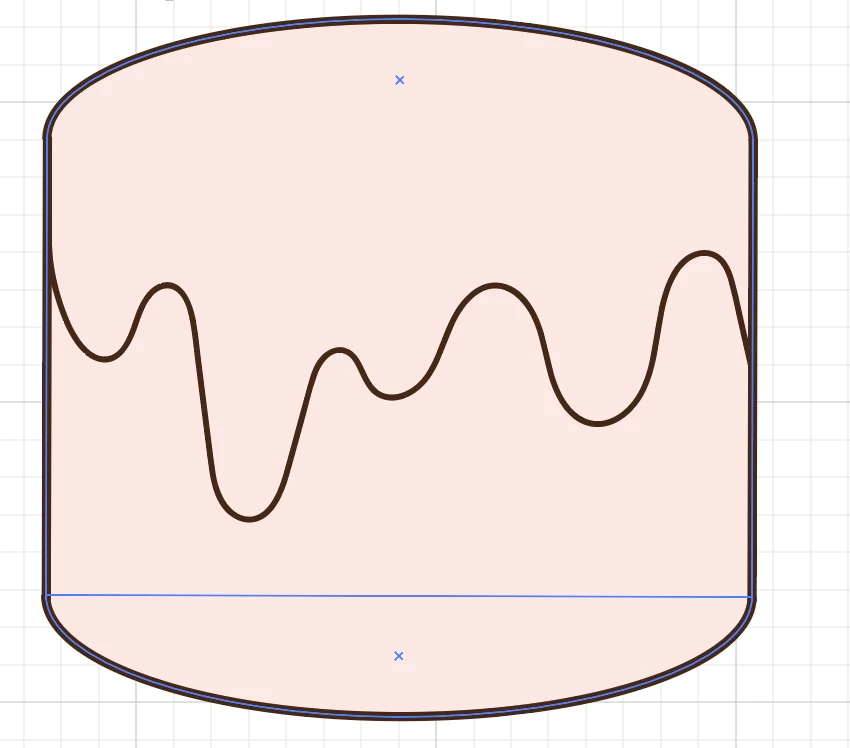
HELLO, I'm new to Illustrator and anything adobe related. I've been trying to figure this out for hours and it's driving me crazy because it's such a simple thing to do and I so far can't find anything online that helps me. The dripping line in the middle is a separate stroke from the cylinder shape, however, I want the top part and bottom part (dripping line being divider) to be two different colours. Everytime I use the paint bucket option, it just fills in the entire thing, which I don't want. How do I combine my stroke to another shape so that the cylinder can have two colours (top and bottom). 


THANK YOUU & pls help me 
 

This topic has been closed for replies.
Correct answer Ton Frederiks

Did you try to select all and: Object > Live Paint > Make?

Then use the Live Paint Bucket (K) and Object > Live Paint > Expand when ready.

2 replies

Monika Gause
Community Expert
Community Expert
February 2, 2020

So you are using the live paint tool?

You need to select all first and then fill. If it still does not work, go to Object > Live paint > Gap options and turn on the gap detection and set it to a value that works for you.

Ton Frederiks
Community Expert
Ton FrederiksCommunity ExpertCorrect answer
Community Expert
February 2, 2020

Did you try to select all and: Object > Live Paint > Make?

Then use the Live Paint Bucket (K) and Object > Live Paint > Expand when ready.

Participant
February 2, 2020

OMG thank you so much, it works hehe. Been trying to figure it out on my own for too long 🙂 

Ton Frederiks
Community Expert
Community Expert
February 2, 2020

Good to hear you've got it working!