
Participating Frequently
February 10, 2018
Answered

Paint Bucket tool

  • February 10, 2018
  • 3 replies
  • 12453 views

I am attempting to change the colors of the Yellow and Red areas outlined:

Because these shapes are just paths that cross, I am unable to edit them without using the Live Paint Bucket tool

Which wouldn't be a problem, however, I want to fill the areas with a lower opacity purple. When I try to change the opacity in this toolbar and the Paint Bucket tool (Outlined in White) to apply it, the opacity isn't altered.
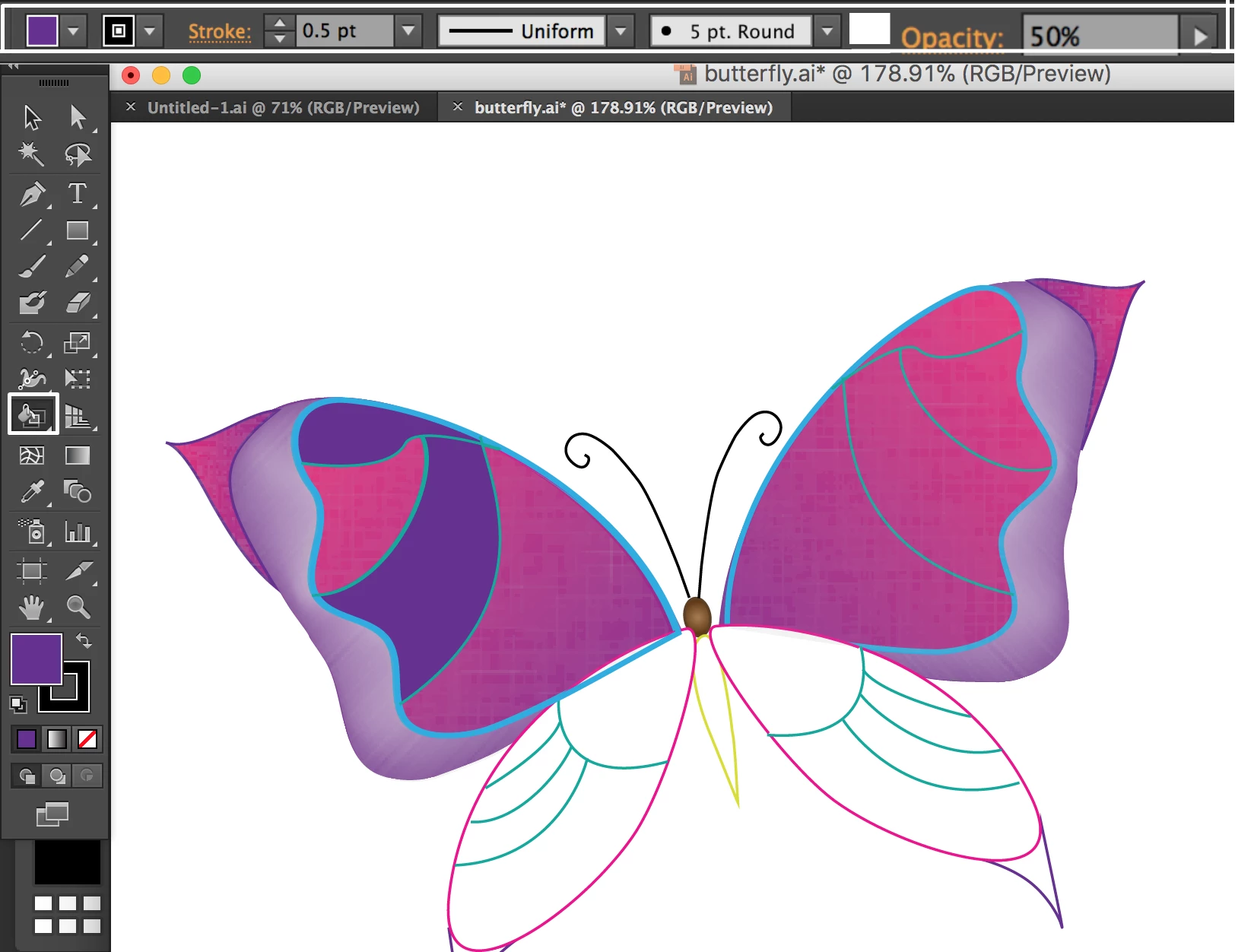
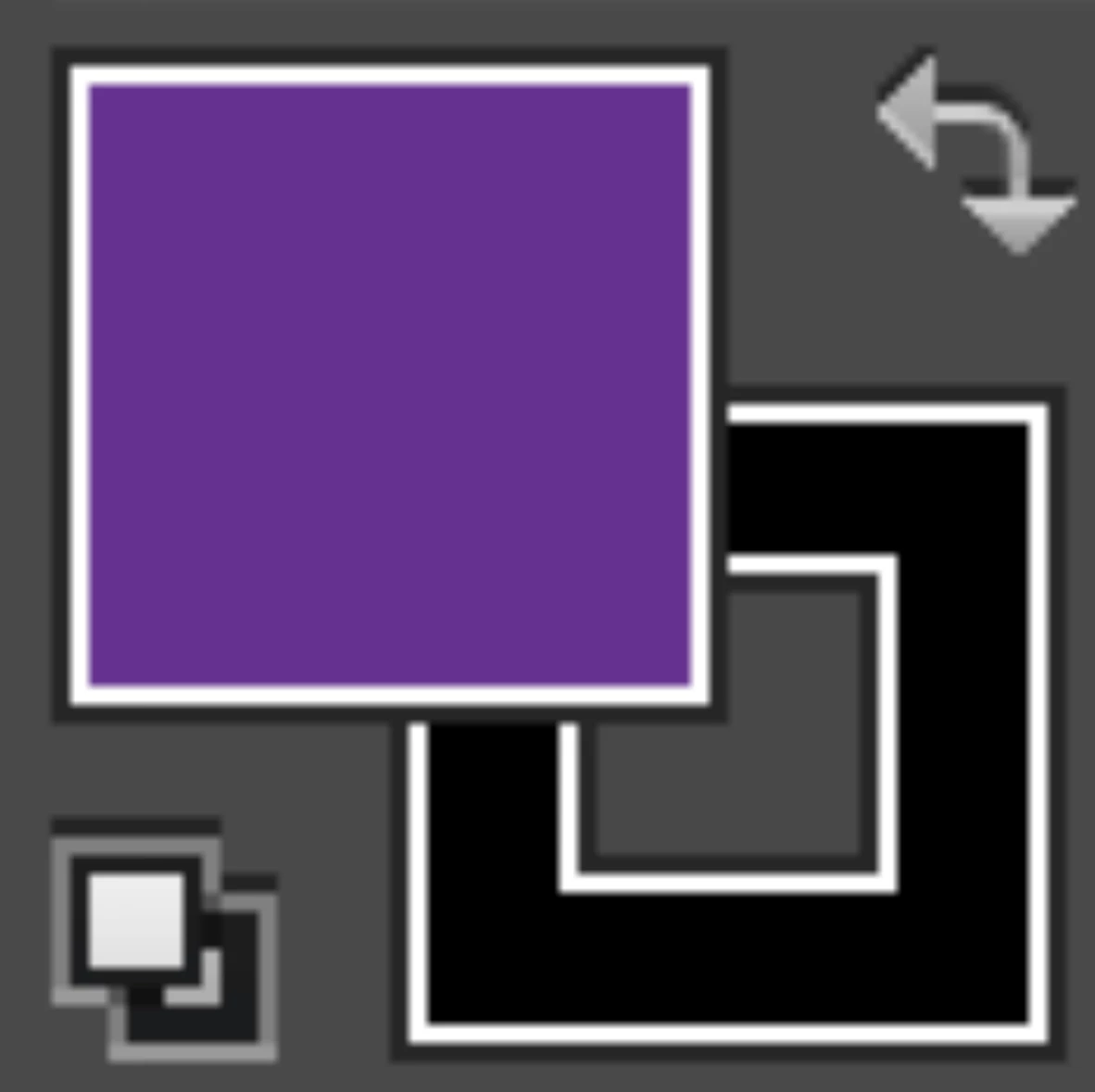
This seems like the only way to change the opacity; can I alter it with the "Fill" tool
This topic has been closed for replies.
Correct answer barbara_a7746676

Using the Paint Bucket tool, fill all the shapes with the colors you want to use.

Select the Live Paint object, and choose Object > Live Paint > Expand. The paths will no longer be a Live Paint Object and each of the filled areas will be closed paths and they will be grouped.

You can either ungroup or use the group selection or direct selection tool to select the paths you want to make semi-transparent. Then lower the opacity as desired in the Transparency panel.

3 replies

Ton Frederiks
Community Expert
Community Expert
February 10, 2018

If you want to change the opacity/transparency of a color, see the answers above.

If you just want to have a lighter shade or tint of a color, change your Swatches into Global Swatches, you can change the percentage of those in the Color Panel.

Doug A Roberts
Community Expert
Community Expert
February 10, 2018

there are a couple of 'cheats' with live paint you can use to create areas of differing opacity in the same live paint group.

1. create a separate filled shape with the colour you want. set the opacity you want. add it to the swatches panel. it'll become a pattern swatch, and you'll find you can use it in live paint.

2. create a separate shape and fill it with a gradient. make both stops the same colour you want to use. reduce the opacity of both to the level you want. add it to the swatches panel, use as before.

both should work fine, but i found the first buggy when exporting to raster files in a knockout group, so i use the second, which is bizarrely more complex but more reliable.

barbara_a7746676
Community Expert
barbara_a7746676Community ExpertCorrect answer
Community Expert
February 10, 2018

Using the Paint Bucket tool, fill all the shapes with the colors you want to use.

Select the Live Paint object, and choose Object > Live Paint > Expand. The paths will no longer be a Live Paint Object and each of the filled areas will be closed paths and they will be grouped.

You can either ungroup or use the group selection or direct selection tool to select the paths you want to make semi-transparent. Then lower the opacity as desired in the Transparency panel.