christopherc92001052
Known Participant
January 25, 2018
Answered

Paintbrush Textures In Illustrator

  • January 25, 2018
  • 1 reply
  • 2011 views

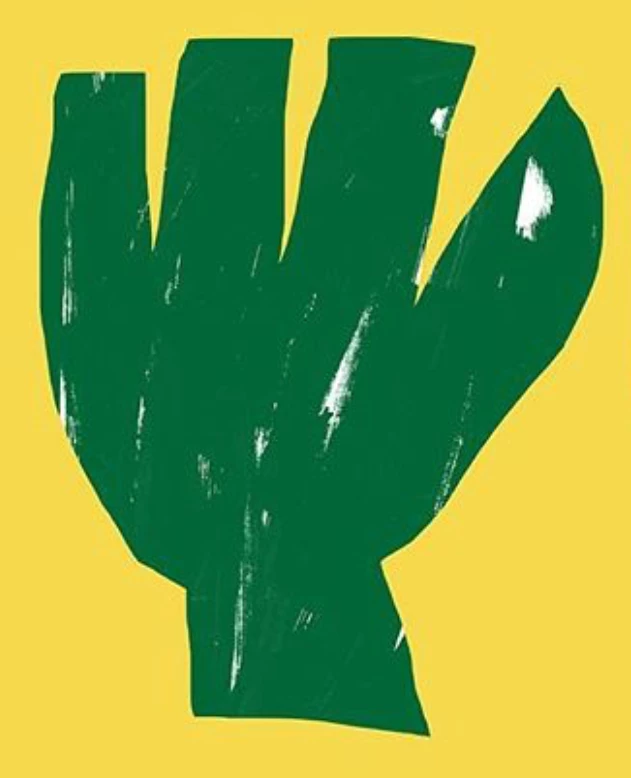
Hey there! Fairly new AI user here. I've been working on a few different projects (personal art) and am wondering how I would go about creating some paintbrush like textures in illustrator. I've been playing with brushes for a few days but can't get anything close to what I am looking for. I've included and example of the sort of textures I am trying to make.

Any help is appreciated! Thanks!!
    This topic has been closed for replies.
    Correct answer barbara_a7746676

    The example does not look like a paintbrush.

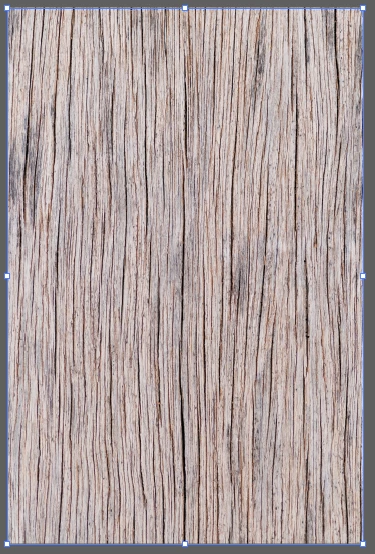
    Find an image with a texture you want to use. This is just an example:

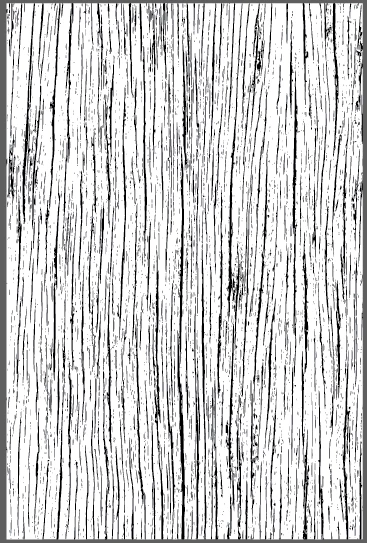
    Place it in Illustrator and Image Trace it using Black and White.

    Then click Expand to convert it to vector.

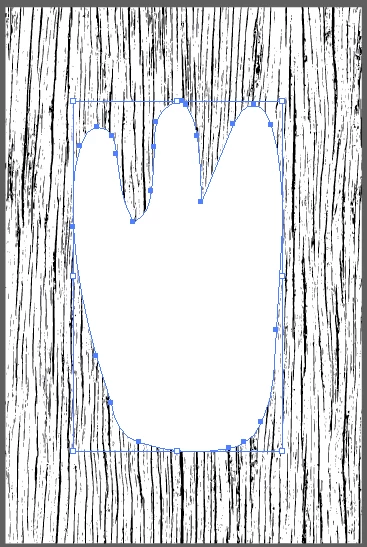
    Put your path on top and fill it with white.

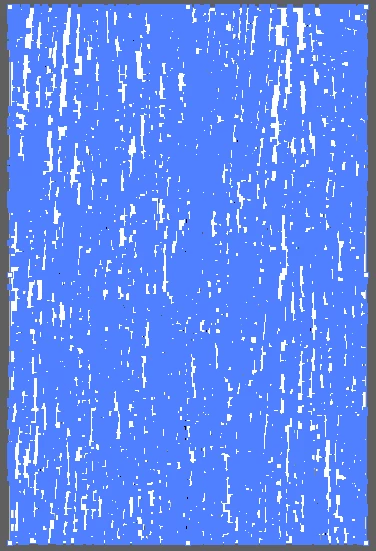
    Select everything and in the Transparency panel click Make Mask.

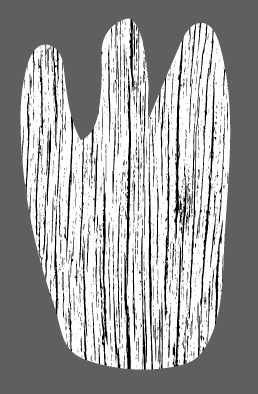
    When you deselect it look similar to this, with the texture inside the path:

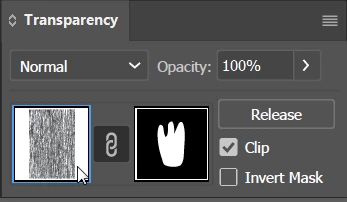
    In the Transparency panel, click the left icon.

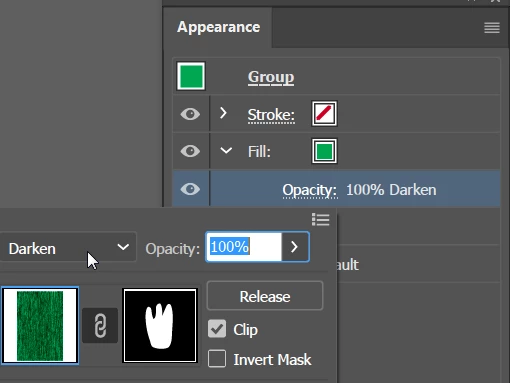
    In the Appearance panel, add a new fill.

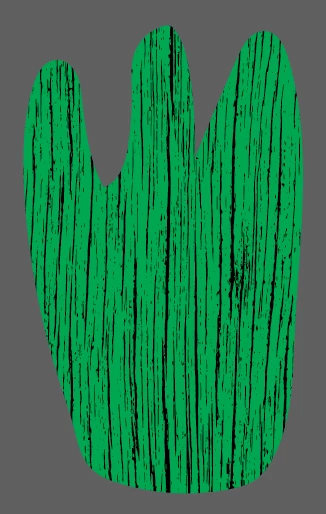
    Click on Opacity and change the blend mode. Below the blend mode is Darken, but you'll need to experience with different modes depending on the colors you're using.

    1 reply

    barbara_a7746676
    Community Expert
    barbara_a7746676Community ExpertCorrect answer
    Community Expert
    January 25, 2018

    The example does not look like a paintbrush.

    Find an image with a texture you want to use. This is just an example:

    Place it in Illustrator and Image Trace it using Black and White.

    Then click Expand to convert it to vector.

    Put your path on top and fill it with white.

    Select everything and in the Transparency panel click Make Mask.

    When you deselect it look similar to this, with the texture inside the path:

    In the Transparency panel, click the left icon.

    In the Appearance panel, add a new fill.

    Click on Opacity and change the blend mode. Below the blend mode is Darken, but you'll need to experience with different modes depending on the colors you're using.

    christopherc92001052
    Known Participant
    January 25, 2018

    Wow thank you so much for the detail info! That's exactly what I'm looking to do. I really appreciate the little tutorial

    Monika Gause
    Community Expert
    Community Expert
    January 25, 2018

    christopherc92001052  schrieb

    Wow thank you so much for the detail info! That's exactly what I'm looking to do. I really appreciate the little tutorial

    Please mark this question as solved, so others can find the information that has helped you.