Known Participant
May 29, 2026
Answered

Paragraph & character styles

  • May 29, 2026
  • 5 replies
  • 368 views

Hi there to All,

Is there a way to apply a background colour to a charcter style in Illustrator? I’m after an effect like so (please see screen below), which I’m currently achieving by having placed a colour-filled rectangle behind the text.

 

The trouble is that when I alter text (add/ remove some) and the text changes position, the position of the rectangle doesn’t change and I have to manually adjust it. It would be so much chandier if I could somehow integrate it with the text, so it all moves together…

Also - is there a way of adding a custom colour into the ‘Character colour’ palette (in ‘Character Style Options’> ‘Character colour’)? 
(I tried adding it as a swatch first, but it doesn’t seem to work).

Thank you!

    Correct answer Dave Creamer of IDEAS

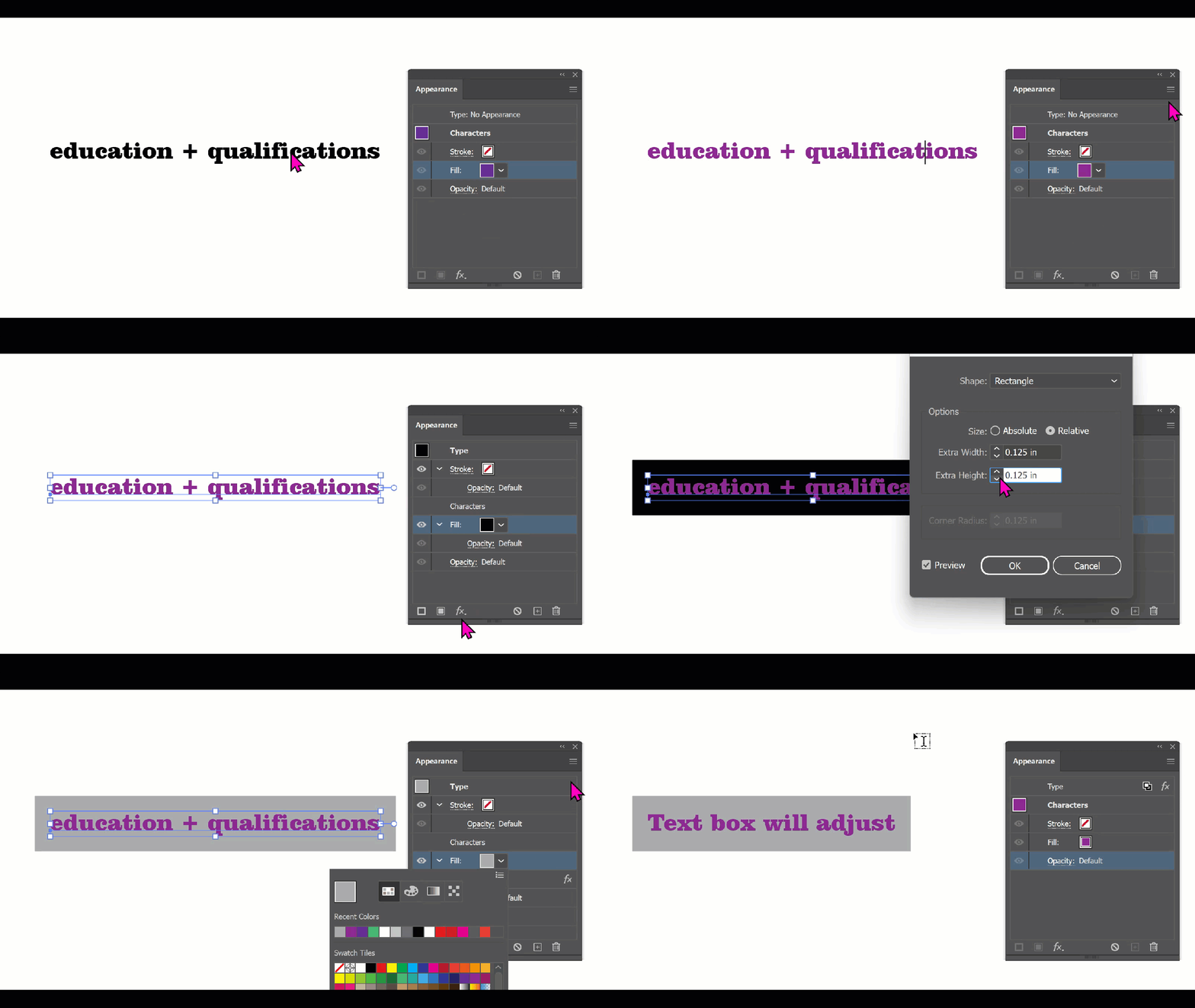
    If the text is standalone, you can use the Appearance panel. 

    Notes: 

    • After I typed the text, I switched to the Selection tool (off screen).
    • I did not you use your exact colors. 
    • Add a new fill and move below the Characters.
    • I used the Convert to Shape > Rectangle effect (off screen).
    • You can save the type settings as a paragraph style; you can save the Appearance settings as a Graphic style. 


    5 replies

    MargoM.Author
    Known Participant
    May 30, 2026

    Thanks for your replies Both!
    No, it is not stand-alone text, unfortunately (had it been, I came up with a workaround of how to apply the effect I’m after via the means of area type). It’s followed by body text, all within the same textbox.

    What was the problem you had assigning a swatch to a Character Style? It’s working fine on my end.

    Hmm, I can see the swatch there now… 😅

    Dave Creamer of IDEAS
    Community Expert
    Community Expert
    May 30, 2026

    What was the problem you had assigning a swatch to a Character Style? It’s working fine on my end. 

    David Creamer: Community Expert (ACI and ACE 1995-2023)
    Kurt Gold
    Community Expert
    Community Expert
    May 29, 2026

    Both dynamic text markers and paragraph markers can be done in Illustrator, but you have to use an appropriate font and/or combine appropriate fonts that contain suitable characters.


    It wouldn't be as straightforward as in InDesign and one may even call it adventurous, but it is possible.


    Do you have, for example, installed a Times New Roman font from Adobe Fonts installed? If so, I may provide a sample Illustrator file. Franklin Gothic should also work and of course all fonts with voluminous characters.

    Dave Creamer of IDEAS
    Community Expert
    Dave Creamer of IDEASCommunity ExpertCorrect answer
    Community Expert
    May 29, 2026

    If the text is standalone, you can use the Appearance panel. 

    Notes: 

    • After I typed the text, I switched to the Selection tool (off screen).
    • I did not you use your exact colors. 
    • Add a new fill and move below the Characters.
    • I used the Convert to Shape > Rectangle effect (off screen).
    • You can save the type settings as a paragraph style; you can save the Appearance settings as a Graphic style. 


    David Creamer: Community Expert (ACI and ACE 1995-2023)
    Monika Gause
    Community Expert
    Community Expert
    May 29, 2026

    You can do that for the area of an area text (it will be the complete area, not just single paragraphs) or you can do that via appearances. 

    It cannot be applied to paragraphs like in InDesign.