Known Participant
September 28, 2026
Answered

paste into/ how to do this

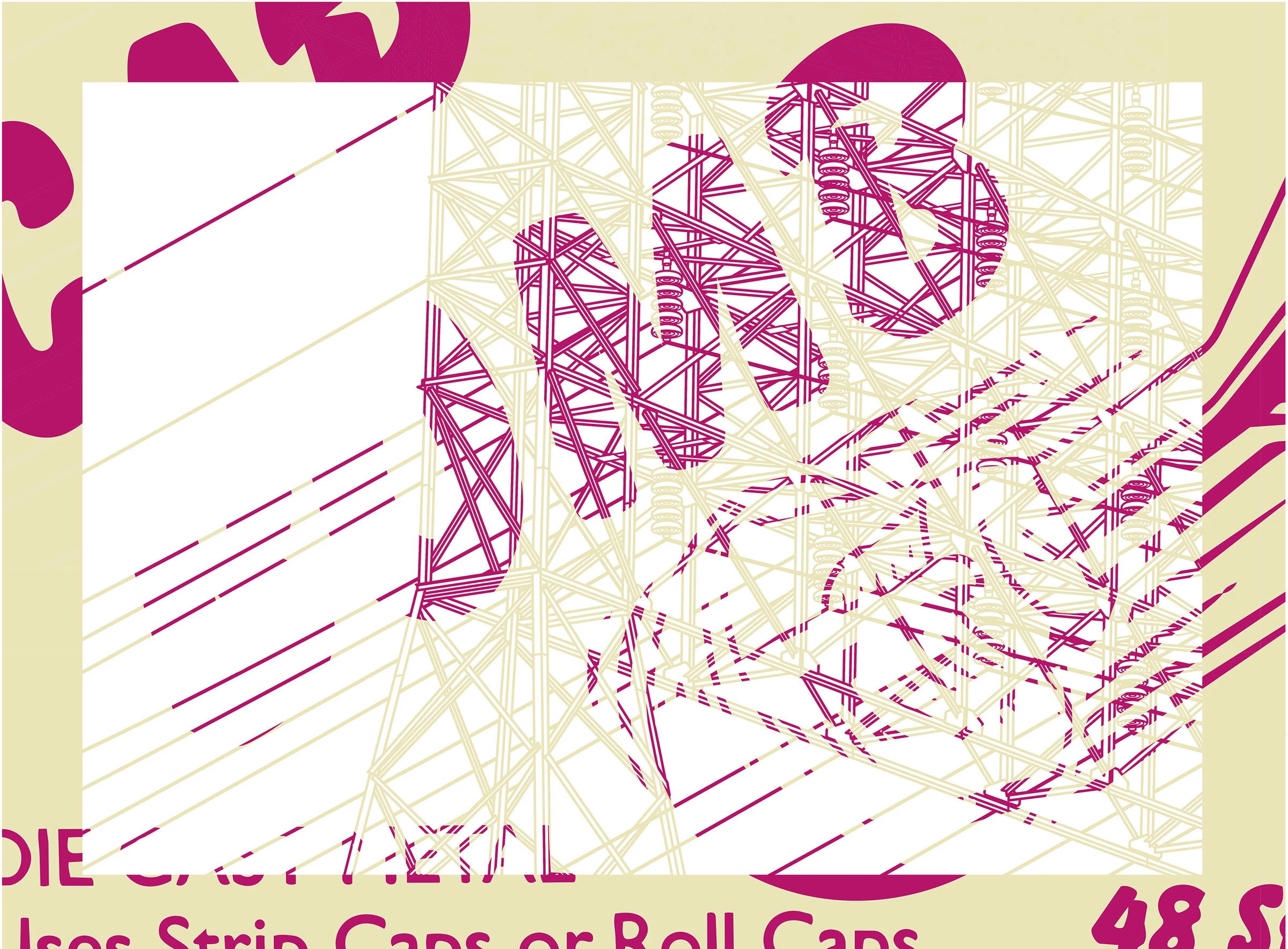
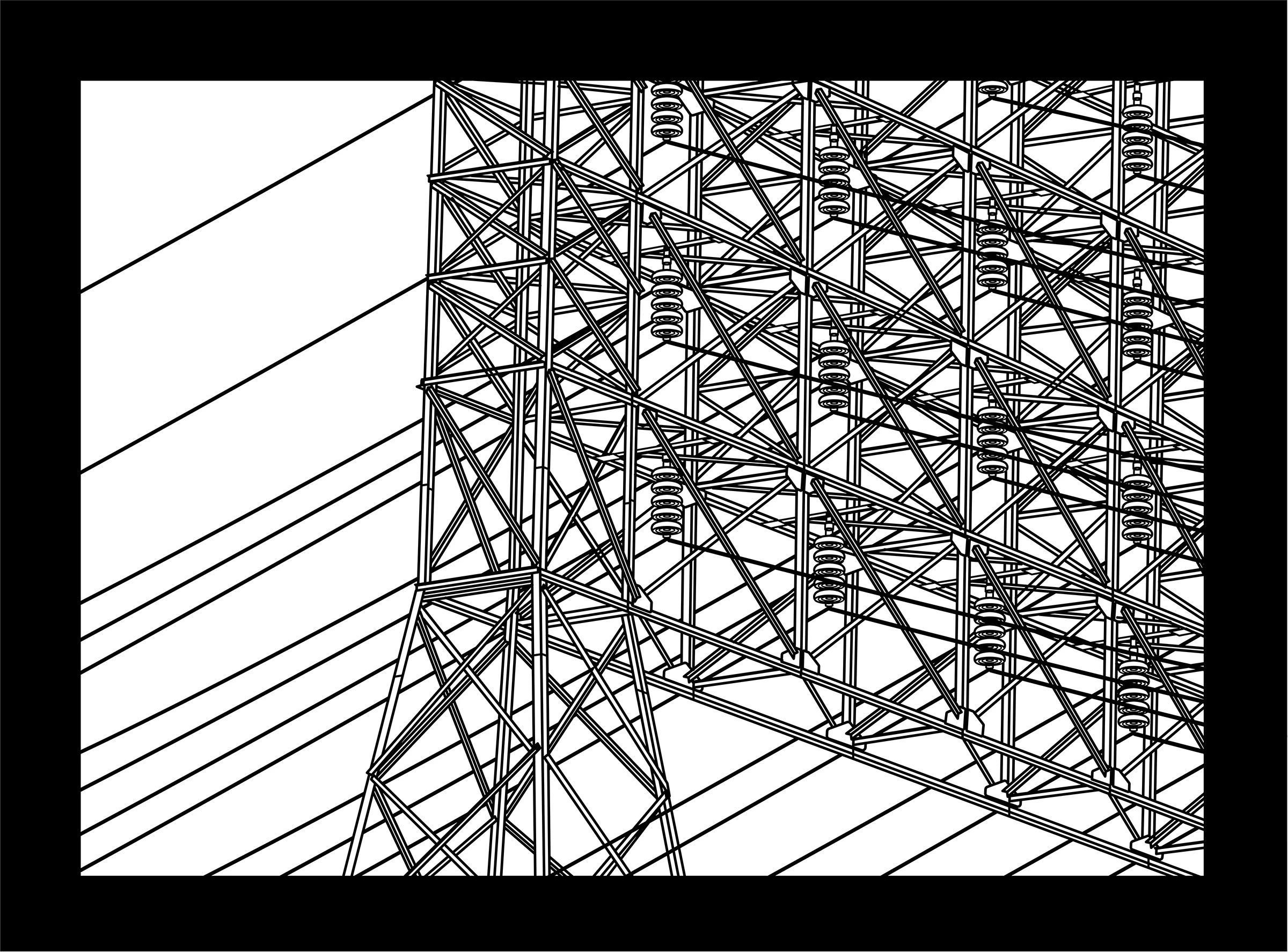
I’ll do my best to explain what I am trying to achieve…  I have a design that is black on white background.  I want to paste an image into the black areas. In photoshop I can put the design on one layer, and the image on another, then select all the black with the color range tool.  Then leaving the selection active, I change the active layer to the image, inverse the selection, then delete.  This leaves the image only where the black was… Is there a way to do this in illustrator (my “image” is already vectorized)?
 

    Tina_Irvine
    Tina_IrvineCorrect answer
    Community Expert
    September 28, 2026

    Hi ​@ipanema451,

    1. If you have a mix of strokes and fills, expand all of the strokes so that they become fills.
    2. With all of the black shapes selected, go to Object > Compound Path > Make. You can hide this for now (command + 3).
    3. Next, group all of the white objects. You can bring this white group to the front if you’d like. Then lock (command + 2) or hide this group of white objects (after you unhide the black layer in the next step), or place them in another layer for easier control.
    4. Unhide your black compound path (command + option + 3).
    5. Then make sure you background image is below the black, select both your background image and the black compound path group and go to Object > Clipping Mask > Make. (you can also access those options by right-clicking with a mouse after you’ve made the selections)

    3 replies

    Ton Frederiks
    Community Expert
    Community Expert
    September 28, 2026

    And another option.

    Create 2 layers and set the top one with your black and white artwork to Lighten in the Transparency panel.


    Translate
    Jacob Bugge
    Community Expert
    Community Expert
    September 28, 2026

    ipanema,


    You can:


    1)) Group all the black artwork on top of the image if not already,

    2)) Select both the balck Group and the image and in the Transparency palette flyout choose Make (opacity) Mask and set the options to Clip and Invert Mask.


    This ought to do it, and it would also work with a black raster image (with transparent parts).


    Translate
    Tina_Irvine
    Community Expert
    Tina_IrvineCommunity ExpertCorrect answer
    Community Expert
    September 28, 2026

    Hi ​@ipanema451,

    1. If you have a mix of strokes and fills, expand all of the strokes so that they become fills.
    2. With all of the black shapes selected, go to Object > Compound Path > Make. You can hide this for now (command + 3).
    3. Next, group all of the white objects. You can bring this white group to the front if you’d like. Then lock (command + 2) or hide this group of white objects (after you unhide the black layer in the next step), or place them in another layer for easier control.
    4. Unhide your black compound path (command + option + 3).
    5. Then make sure you background image is below the black, select both your background image and the black compound path group and go to Object > Clipping Mask > Make. (you can also access those options by right-clicking with a mouse after you’ve made the selections)
    Translate