
Participant
August 18, 2017
Answered

Pasted images are "invisible" when pasted to layer
  • August 18, 2017
  • 4 replies
  • 2124 views

Hi guys,

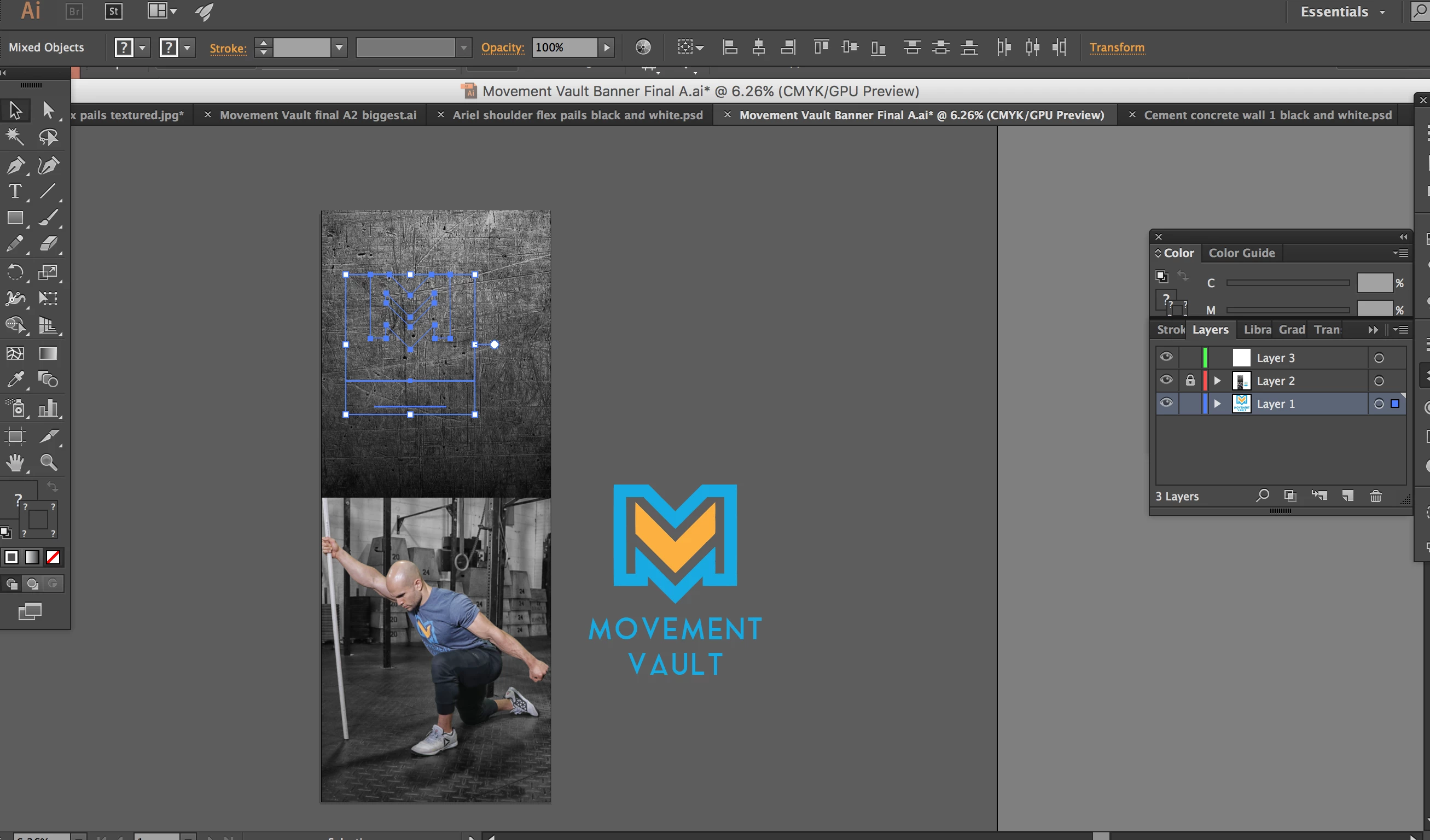
I have a layer (layer 2) that has two images on it as the "background" in which I created a 'clipping mask' in order to trim the images to the clipboard. I then created a new layer (layer 3) and am trying to paste a logo I created in illustrator to this new layer (layer 3) and then move the logo on top of the layer 2, the one containing the images. When I try to move the logo over the background images, the logo appears invisible, but when I move the logo off the background image, it appears with color. You can see in the screen shot that the logo appears invisible (you can see blue points) when moved over the background image. You can also see the logo to the left. This is how it should look. Can anyone help? I really appreciate it! Thanks!

    This topic has been closed for replies.
    Correct answer Jeff Witchel, ACI

    Or in the Layers panel, click on the Layer 1 listing and drag above the Layer 2 listing.

    4 replies

    Participant
    August 19, 2017

    Thanks for the help everyone! It looks like this one was a simple fix.

    Jeff Witchel, ACI
    Community Expert
    Community Expert
    August 19, 2017

    You're quite welcome! Glad to help!

    Jeff Witchel, ACI
    Community Expert
    Community Expert
    August 18, 2017

    Or you could copy & paste from Layer 3 to Layer 1 directly.

    1. First you have to make sure (under the Options menu in the upper-right corner of the Layers panel) that "Paste Remembers Layers" is unchecked.
    2. Then copy your logo
    3. Click on the Layer 3 listing in the Layers panel
    4. Then Paste.

    The logo should end up in your selected (highlighted) Layder in the Layers panel.

    Jeff Witchel, ACI
    Community Expert
    Jeff Witchel, ACICommunity ExpertCorrect answer
    Community Expert
    August 18, 2017

    Or in the Layers panel, click on the Layer 1 listing and drag above the Layer 2 listing.

    sishamIAGD
    Community Expert
    Community Expert
    August 18, 2017

    You have the logo on the bottom layer 1???

    cut it from this layer then select layer 3 in the pallet then paste in place and it will appear above...?