Participating Frequently
October 28, 2021
Question

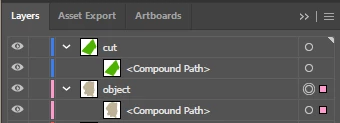
Pathfinder Minus front (with Compound path)
  • October 28, 2021
  • 3 replies
  • 2031 views


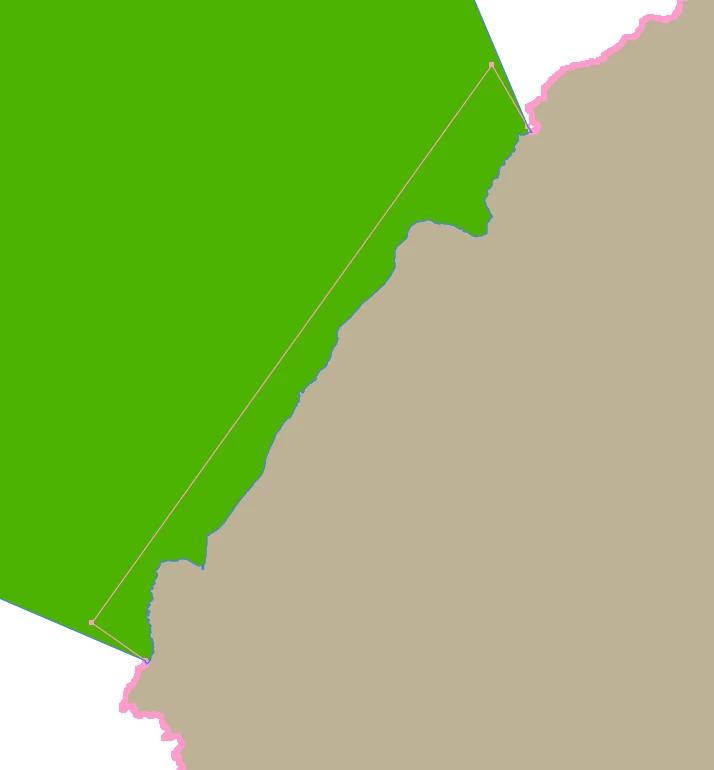
I'm making a map of areas and I need to align the borders of one of them, the green figure is part of another area along the border of which I'm going to clarify the border at this point.
What I wanted to do was to use the "Minus front" to subtract the left shape (green) from the right, thereby the area on the right would have an exact border with the neighboring area.

When you click on minus front, no actions or errors appear, everything remains as it is.


This topic has been closed for replies.

3 replies

Jacob Bugge
Community Expert
Community Expert
October 29, 2021

pvn,


I (thought I) had made an addition to my first answer, but it seems that it failed to be posted.


If you wish to keep the green shape in its own right, obviously you will need to use a copy of it in the Pathfinder operation (or in another one).


Or, as I intended to say, you can use Divide, to have the overlapping area as a separate path, then Ungroup, then Unite it with the remaining green shape (still Pathfinder).


Concerning your selecting both, your screenshot shows only the object object selected, the cut object being unselected, so are you sure?


In any case, whatever may prevent the Pathfinder operation from working, you can always obtain the appearance of the cut, by turning the green copy shape full black, then select both and make a(n Opacity) Mask with both Clip and Invert Mask unticked: that will hide the part of the object object covered by the cut object, and be reversible.


But I believe that would be an unsatisfactory (non) solution.


Participating Frequently
October 29, 2021

I choose both figures, that's for sure. I don't need to save the green shape. The "Compound" and "Minus back" operations work as they should, but not when I want to save exactly the right shape.

Yes, you are right, the solution with a black mask does not suit me, since it does not make an actual image of the figure.


In this case, I found only one solution for myself - I used Inkscape to crop the shape and then export it to Illustrator

Jacob Bugge
Community Expert
Community Expert
October 29, 2021

Thank you for sharing, pvn.


I wonder whether the Inkscape escape route is a way round some discrepancy that Illy (job description Adobe Ilustrator) is particular about.

Jacob Bugge
Community Expert
Community Expert
October 28, 2021

pvn,


Minus front requires your selecting both, and as far as I can see the green shape is unselected.


By the way, hopefully you are keeping the original green shape; or you can use Divide, then Ungroup, then Unite the split green part(s).


Participating Frequently
October 29, 2021

I apologize for not specifying this point, I really select two shapes in order to use the "Minus front", but on the screenshot I wanted to show that there are no extra groups inside the layers, and I combined them into one shape.

Ton Frederiks
Community Expert
Community Expert
October 28, 2021

Does Pathfinder panel > Merge do what you want?

Participating Frequently
October 29, 2021

Merging shapes works correctly, also, I can subtract another shape from the green shape, but I can't subtract the green shape from the bottom one in any way