Participating Frequently
November 4, 2021
Answered

Pen tool

  • November 4, 2021
  • 2 replies
  • 735 views

Hello,

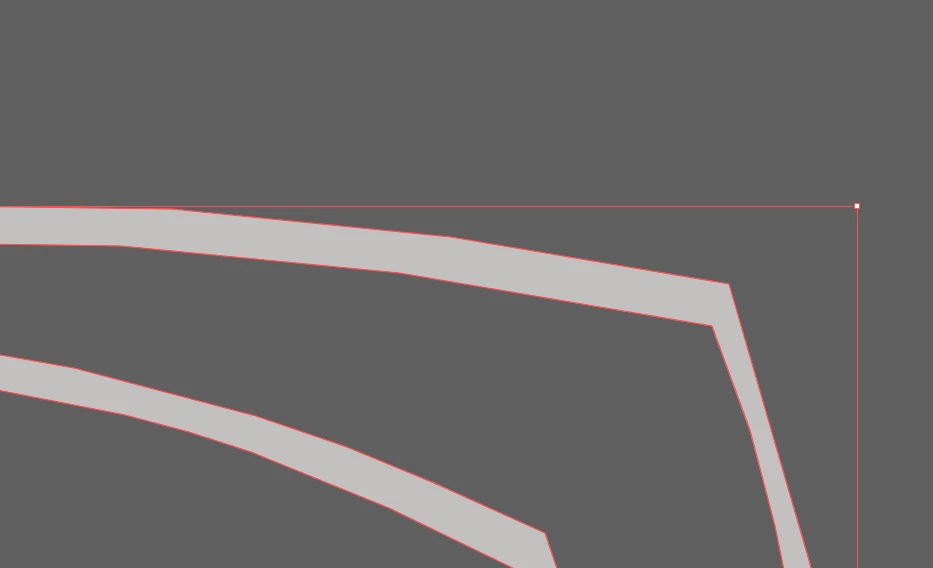
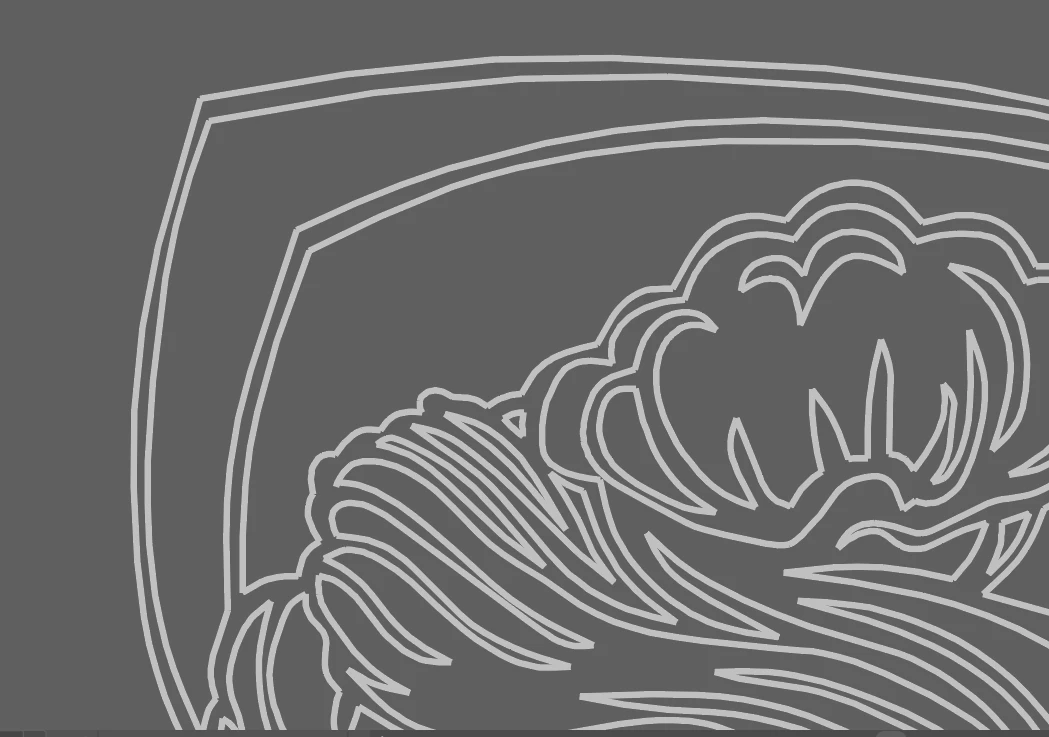
I have an object thats drawn with loose lines (pen tool but the anchor point are not connected).

Now i need to fill the object, i was busy working with making a small selection then pressen join so i can fill them.

My question was if there is a faster way to do this because it is taking forever and 9/10 times it connects to spots i dont want.


Can anyone help me please?

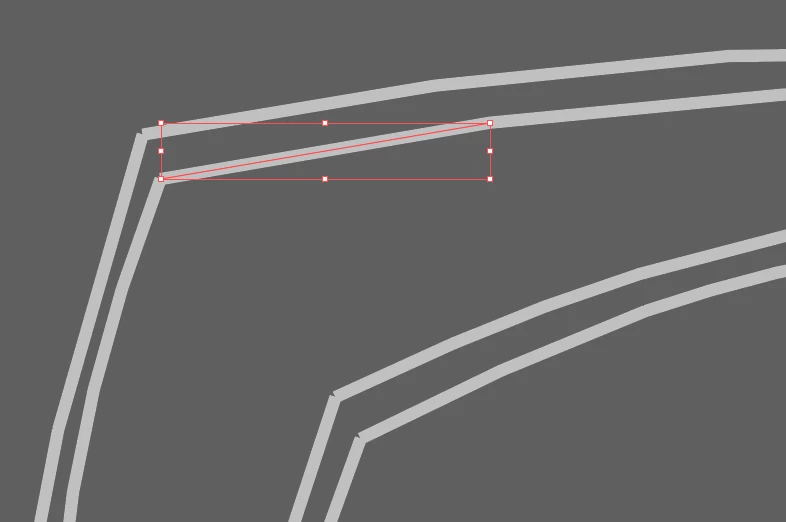
(picture 1 is how it is currently and pic 2 is how it is supposed to be)

This topic has been closed for replies.
Correct answer thepixelsmith

Try Ton's suggestion.

1- Convert the lines into a live paint group. Select them and choose Object > Live Paint > Make.

2 - You may need to turn on gap detection in the live paint options, same menu you make Live Paint from.

3 - Fill the areas you want to be enclosed with a color using the livepaint bucket, it's in the same tool group as the shape builder.

4 - Choose Object > Live Paint Expand to convert the Live Paint group back into regular paths.

5 - Ungroup the paths until they won't ungroup any longer. The strokkes adn fills should now be two different sets of objects. You can just delete the outlines and keep the filled shapes and adjust them as necessary.


The problem with this is that you may end up with some extraneous shapes.

Any way you try this is probably going to involve some cleanup of the art work.

2 replies

thepixelsmith
Community Expert
Community Expert
November 4, 2021

I assume you are selecting the anchor points with the Direct Seleciton tool and then using the join command?

You can select all the line with the Selection tool (black arrow) and use the Join comamand (Cmd–J or Ctrl–J) and that will join all the selected lines based on the proximaty of their anchor points. The anchors will weld together if they are on top of each other or they will draw a line to connect ajacent anchors. 

The problem is you can't guarantee only the points you want will join since it is automatic based on anchor point position.


Participating Frequently
November 4, 2021

Thanks for your reply,

It's exactly the problem what you said in the last bit, because when i select everything and press join the lines jump to completely differtend points.

thepixelsmith
Community Expert
thepixelsmithCommunity ExpertCorrect answer
Community Expert
November 4, 2021

Try Ton's suggestion.

1- Convert the lines into a live paint group. Select them and choose Object > Live Paint > Make.

2 - You may need to turn on gap detection in the live paint options, same menu you make Live Paint from.

3 - Fill the areas you want to be enclosed with a color using the livepaint bucket, it's in the same tool group as the shape builder.

4 - Choose Object > Live Paint Expand to convert the Live Paint group back into regular paths.

5 - Ungroup the paths until they won't ungroup any longer. The strokkes adn fills should now be two different sets of objects. You can just delete the outlines and keep the filled shapes and adjust them as necessary.


The problem with this is that you may end up with some extraneous shapes.

Any way you try this is probably going to involve some cleanup of the art work.

Ton Frederiks
Community Expert
Community Expert
November 4, 2021
Participating Frequently
November 5, 2021

Thanks for the help 🙂