
Inspiring
February 13, 2019
Answered

Placed images converted to 72 dpi automatically?!?

  • February 13, 2019
  • 4 replies
  • 3217 views

Why does Illustrator now automatically convert / scale images to 72 dpi when you place them in a file?

As far as I remember that has never happened before so this has to have something to do the newest version 23.0.2...

Is there a way to roll back to the older, workingn version, since this is not acceptable.
    This topic has been closed for replies.
    Correct answer Teemu_Arazzo

    These images. What format are the files? (For example, JPG, PNG, PSD, PDF)?

    And how EXACTLY do you save them from Photoshop including all options.

    The wrong choices can easily lead to the effect you see, but this has not recently changed, so this is a puzzle. More details might make things clear.


    Thank you!

    ...the images were in JPG-format and that was actually the thing that was causing the issue.

    As soon as I saved the image to TIF(F)-format, it worked normally.

    I could place the image into Illustrator without it changing the resolution (or the size) of the image.

    4 replies

    Legend
    February 14, 2019

    You did not tell us exactly how you saved these (JPEG) files from Photoshop, but I am 99% sure this is the problem. If you want to go back to using JPEGs, please let us know.

    Joely10623436
    Community Expert
    Community Expert
    February 13, 2019

    Let me guess:

    It's because you transformed the placed pixel image inside illustrator and now the «effective» Resolution is down to 72.

    Also, Raster-Effects have absolutely nothing to do with placed images. Only if you use PS-Effects inside AI.

    PS: it's PPI not DPI.

    Inspiring
    February 14, 2019

    Hmm.. I am not sure what you mean by that, but no, we always have/use 300 ppi raster effects in Illustrator...

    And thank you for correcting that ppi - dpi -"issue", that is most helpful in this matter.

    Daniel E Lane
    Inspiring
    February 13, 2019

    When you created the project, did you do your advanced settings or just create new and go? One of your problems could be this...

    Monika Gause
    Community Expert
    Community Expert
    February 13, 2019

    https://forums.adobe.com/people/Daniel+E+Lane  schrieb

    When you created the project, did you do your advanced settings or just create new and go? One of your problems could be this...

    That setting doesn't change plced files.

    Monika Gause
    Community Expert
    Community Expert
    February 13, 2019

    Can you please tell us more details about what you're doing there?

    Your image dimensions are huge, so I'm not quite sure what your actual issue is.

    Inspiring
    February 14, 2019

    I work in a large scale printing factory, we make banners, wallpapers etc. so I need to work images this large on daily basis, so that is not nothing new for me.

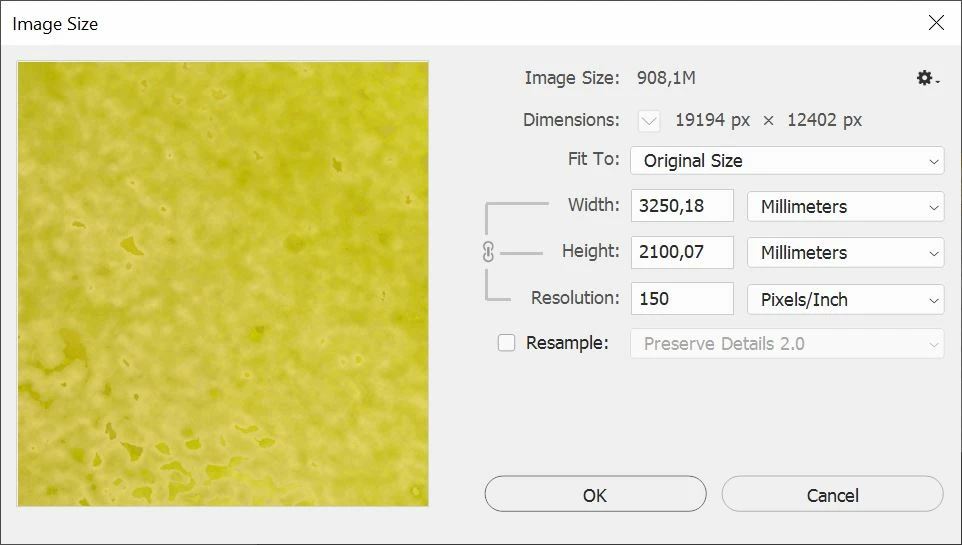
    In this case I need to have that orginal image (dimensions are that 3250x2100mm and 150 ppi (as someone pointed it out; we are usually priting with 600 dpi, rarely 1000 dpi) placed in Illustrator so I make grommet marks and and few other cut lines into the file. Then it will be saved as PDF, and run through cutter program, printed and cut at the end..

    The issue is that I have to do that same thing to about 50 more images, all more or less similar size, and I really don't want that Illustrator changes resolution on every picture every time I place them into it. Those pictures are a handful (beign that big and all) even without the extra hassle trying to get them back to the original size; the images actually are so large when Illustaror converts 150ppi into 72 ppi the image size is way bigger than what Illustrator can handle (about 5700x5700mm) and in some case the image propotions wont stay the same when you try to "transform" them back to the real size, even if you have "keep proportions" locked. As a work around you need to place them as smaller (but higher ppi version) by dragging the pointer as you place and then you can change the size to original instantly.

    And as said this issue hasn't happen with older versions of Illustrator, just with this latest.

    Legend
    February 14, 2019

    These images. What format are the files? (For example, JPG, PNG, PSD, PDF)?

    And how EXACTLY do you save them from Photoshop including all options.

    The wrong choices can easily lead to the effect you see, but this has not recently changed, so this is a puzzle. More details might make things clear.