Participant
September 25, 2025
Answered

PNG: White exports as Yellow

  • September 25, 2025
  • 2 replies
  • 136 views

I have a huge file with lots of layers and artboards and whenever I'm exporting the artwork as PNG (on a white background) all the white elements in the designs are exporting as yellow.

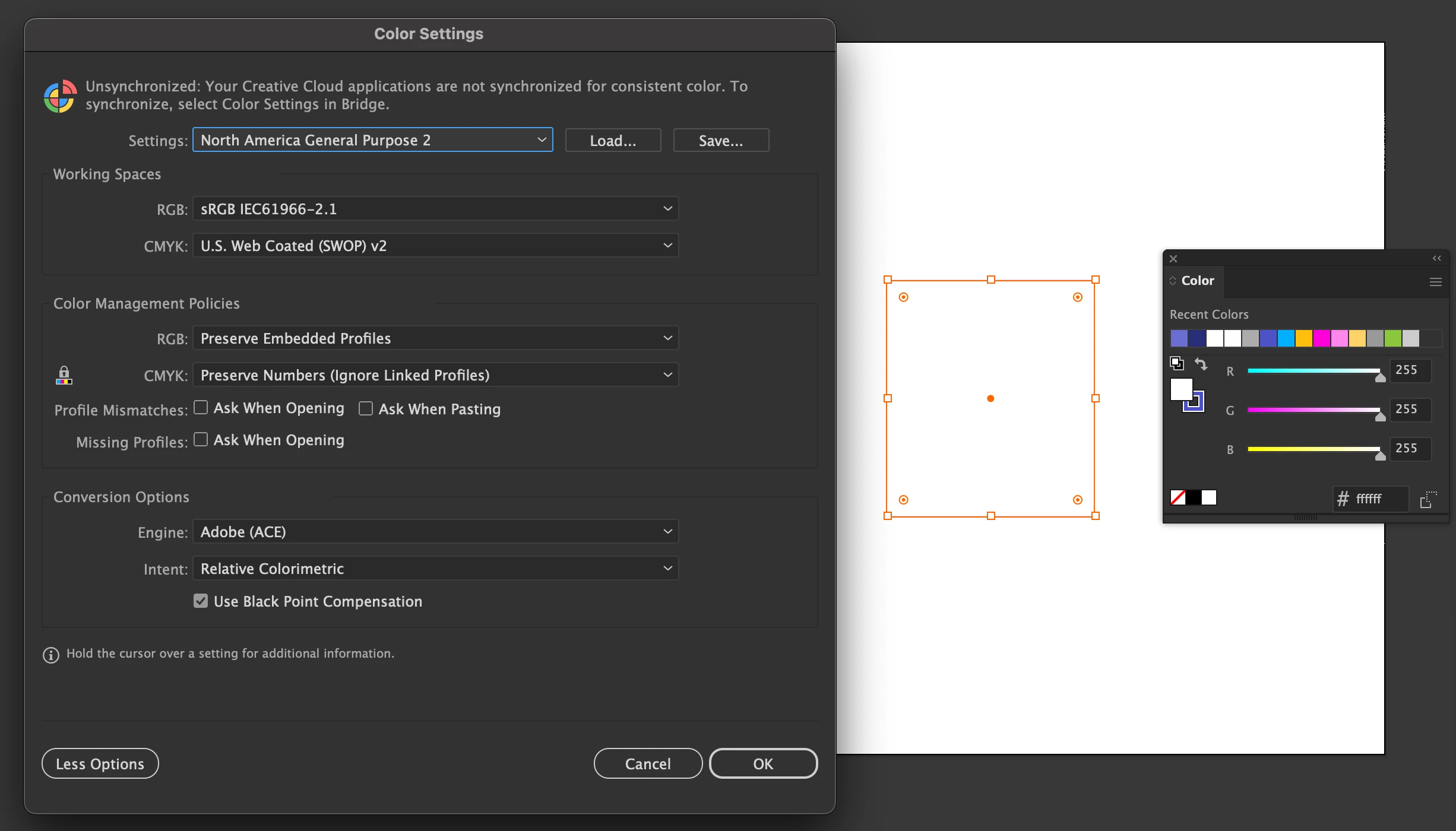
Below is an artboard from the same document with a rectangle in pure FFFFFF white + the Colour Settings as well as the exported result with the yellowed rectangle.


I've seen similar posts from a few years back but the link to the solution page is not working.

Specs:
MacBook Air 15-inch, M2, 2023, OS Seqouia 15.7
Illustrator 29.8.1

Correct answer Abhishek Rao

Hi @TXPL,


Thanks for sharing the screenshots. I tested your workflow on my end and the PNG export stayed pure white for me, so this looks like it’s linked to the document setup on your machine. From what you described, the yellow shift can happen if the document profile and the color mode are mismatched. If the file was created from a Print profile and then switched to RGB in Advanced Options, Illustrator will still tag it with a CMYK profile in the background.

I'd suggest creating the document using a Web or Mobile profile, as those are already set to RGB by default. If you need to continue with your current file, you can go to Edit > Assign Profile and set it to sRGB IEC61966-2.1 which should remove the mismatch and keep whites consistent.

Please give this a try and let me know if you still see the yellow shift. 


Looking forward to your update.

Abhishek

2 replies

Abhishek Rao
Community Manager
Abhishek RaoCommunity ManagerCorrect answer
Community Manager
September 25, 2025

Hi @TXPL,


Thanks for sharing the screenshots. I tested your workflow on my end and the PNG export stayed pure white for me, so this looks like it’s linked to the document setup on your machine. From what you described, the yellow shift can happen if the document profile and the color mode are mismatched. If the file was created from a Print profile and then switched to RGB in Advanced Options, Illustrator will still tag it with a CMYK profile in the background.

I'd suggest creating the document using a Web or Mobile profile, as those are already set to RGB by default. If you need to continue with your current file, you can go to Edit > Assign Profile and set it to sRGB IEC61966-2.1 which should remove the mismatch and keep whites consistent.

Please give this a try and let me know if you still see the yellow shift. 


Looking forward to your update.

Abhishek

TXPLAuthor
Participant
September 25, 2025

That worked! Thanks for your help Abhishek!

Harshika Verma
Community Manager
Community Manager
September 26, 2025

Awesome. Glad to hear your issue is resolved. Please feel free to reach out to us in the future for any assistance.


We would be happy to help.


Thanks,

Harshika

TXPLAuthor
Participant
September 25, 2025

And not sure if relevant but when I change the Proof Setup under View to Working RGB - SRGB IEC61966-2.1 the preview on the screen is also yellowed, while still showing that the object is FFFFFF.