markj27909855
Participant
February 1, 2017
Question

Polygons and Triangles

  • February 1, 2017
  • 5 replies
  • 1044 views

Hi all,

I know this is probably very simple and been mentioned before in other discussions... so apologies!

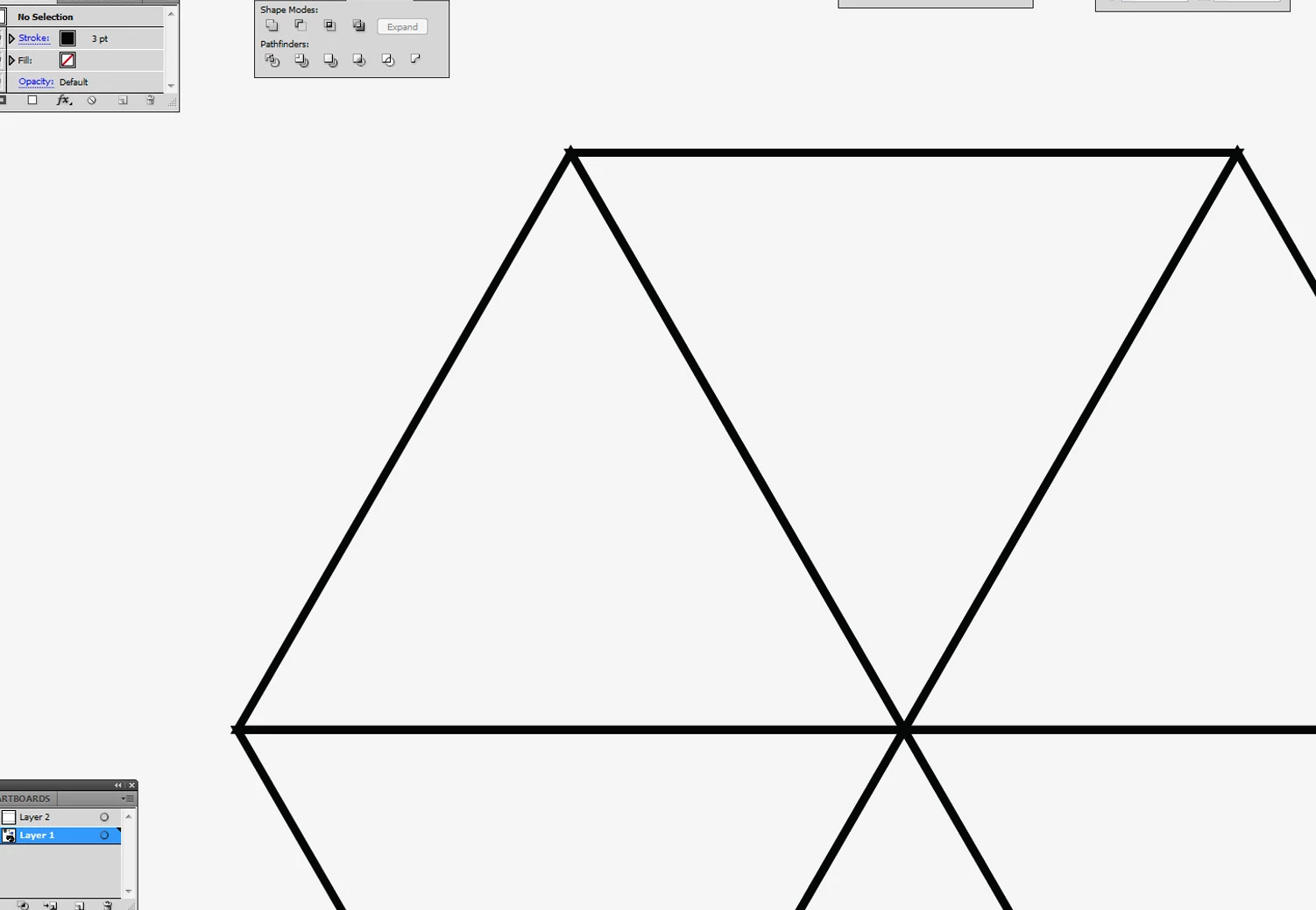
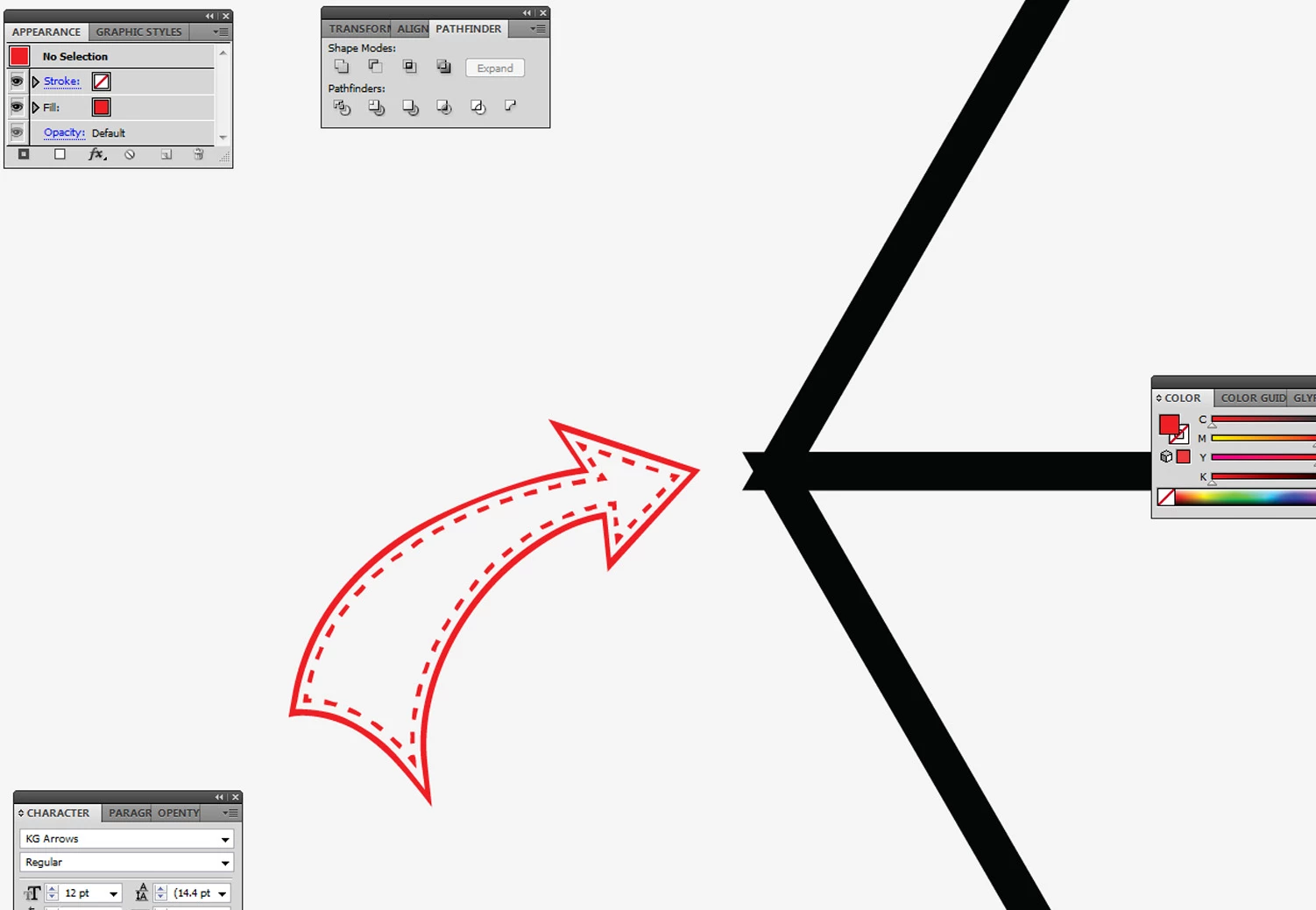
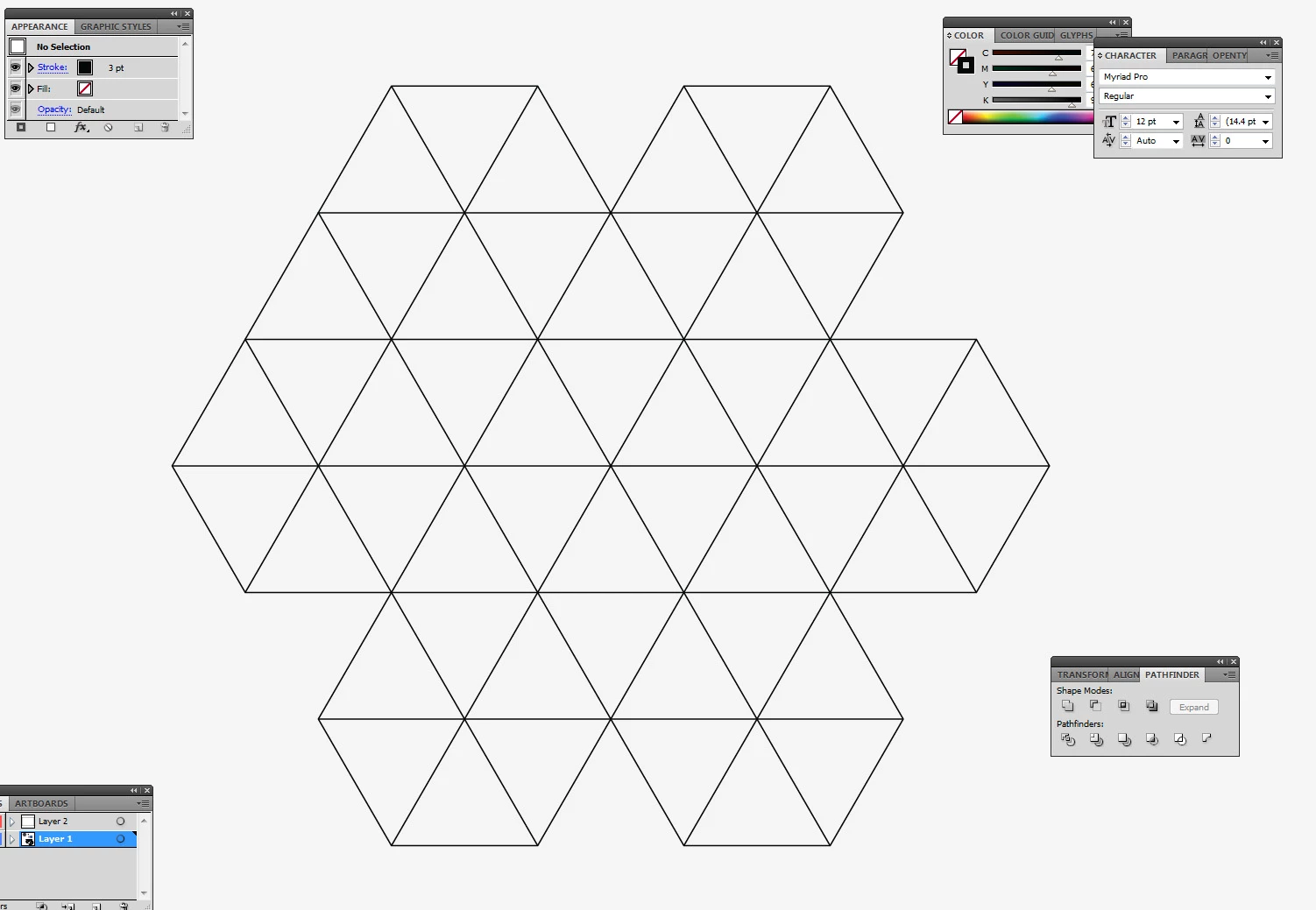
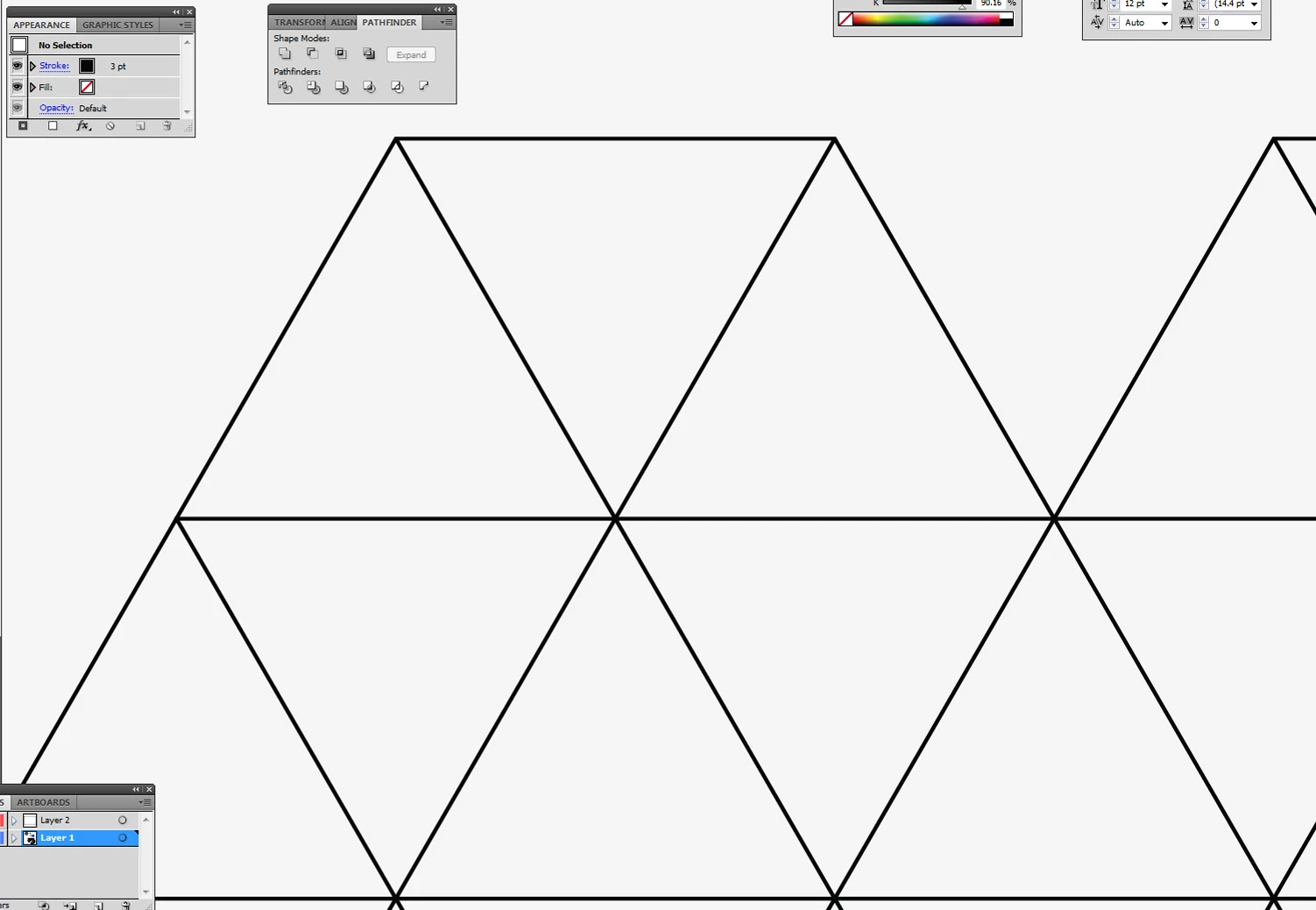
I am trying to create polygon patterns with equilateral triangles. I have managed to create the pattern fairly easily with a polygon with anchor points joined up, see image 1 & image 2. However I ideally want to make the pattern with separate triangles so I can easily add or remove triangles to adjust the pattern. The problem I have is once aligned the triangles have overlapping points (see the problem with image 3 & image 4). I was wondering if it was possible to fuse them but still have separate triangles, I have tried the pathfinders and tried Ctrl + J, but no luck.
Any help would be hugely appreciated! Also I am using Illustrator CS5.5, not CC.

Thanks,

Mark

    This topic has been closed for replies.

    5 replies

    markj27909855
    Participant
    February 2, 2017

    Hi all,

    Thanks all for your help! Tried the round corners Jacob, didn't understand it first time you mentioned it (apologies) but have played around and it has worked exactly as I wanted! Didn't even know that existed, so thank you!

    Best,

    Mark

    Jacob Bugge
    Community Expert
    Community Expert
    February 2, 2017

    You are welcome, Mark.

    Generally, I prefer the rounding to the sharp corners (apart from the greater versatility that you have just witnessed), but others may see it differently, hence the If you can live with it bit.

    markj27909855
    Participant
    February 1, 2017

    Hello again,

    When I have tried doing the individual triangles I still seem to be getting the overlapping corners when aligning them. I seem to either be able to do polygons with lines going through it creating the illusion of triangles, see first photo. Or have overlapping triangles in the polygon, see second photo...? Is it because of CS5.5? Couldn't find the pattern button also?

    Sorry to be a pain!

    Many thanks,

    M

    Jacob Bugge
    Community Expert
    Community Expert
    February 1, 2017

    Mark,

    Those are the Miter Joins of the triangles, hence my suggestion in the first post to use Round Joins.

    Ray Yorkshire
    Participating Frequently
    February 1, 2017

    Start again.

    Use the Star tool (and  before releasing use keyboard arrow up down )   + shift   to get the first  triangle

    next rotate with handles + shift  180 degrees

    Then move the triangles + alt to copy  extra ones and  place using smart guides

    Jeff Witchel, ACI
    Community Expert
    Community Expert
    February 1, 2017

    Start by drawing the six-sided polygon.

    Then daw the diagonals to connect opposite corners using the Line tool.

    Select All and go to Object > Live Paint > Make.

    With the Live Paint object selected, press the Expand button.

    This should give you your first polygon. You can make it into a repeated Pattern using the the Pattern Options panel (Window > Pattern Options.) Under the Options menu of the panel choose Make Pattern. You may need to make some minor adjustments, but it should be close with the defaults.

    Here's a video tutorial about making Patterns to help: http://www.jeffwitchel.net/2012/07/create-simply-amazing-patterns/

    Jacob Bugge
    Community Expert
    Community Expert
    February 1, 2017

    Mark,

    The easy way would be to use Stroke>Round Join (corresponding to Round Cap), if you can live with that.