

iBabs2
Inspiring
June 12, 2019
Answered

Positioning numbers on a clock face, without them rotating?

  • June 12, 2019
  • 9 replies
  • 7333 views

Hello,

I am making a clockface and I am using the distort-transform effect to have the numbers go around a center object, but I would like all the numbers to face the same direction that they started, right reading - straight up...

Because I need to use the rotate option for this there a better way to make this so the numbers do not rotate?

thanks!

babs
    This topic has been closed for replies.
    Correct answer Myra Ferguson

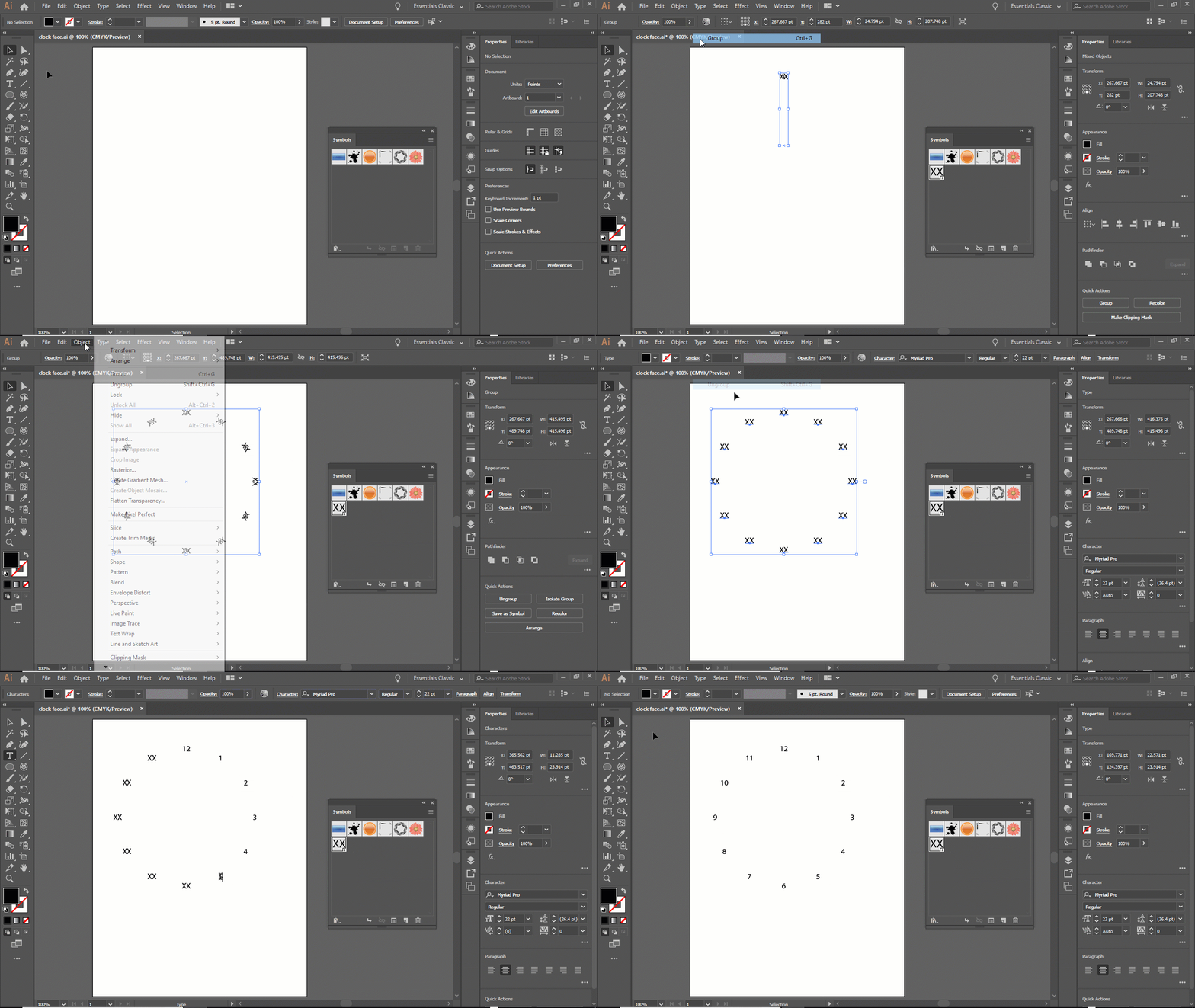
    Here's an idea for using symbols to help automate it.

    1. Type XX to make placeholder text
    2. With the text selected, click on the New Symbol button in the Symbols panel
    3. Use the Pen Tool to make a null point (Hit ESC after making one point)
    4. Group the instance of the symbol and the null point
    5. Go to Effect > Distort &Transform > Transform...
    6. Enter 30°, enter 11 copies (because we include the original in our count), set the registration point to the bottom, and turn on Preview if you want to check it
    7. Go to Object > Expand Appearance then Ungroup and Ungroup
    8. Delete the null point
    9. Select all the instances of the symbol
    10. Right-click and select Reset Transformation
    11. Break Link to break the link to the symbol
    12. Ungroup twice
    13. Edit the type

    9 replies

    Myra Ferguson
    Community Expert
    Myra FergusonCommunity ExpertCorrect answer
    Community Expert
    June 12, 2019

    Here's an idea for using symbols to help automate it.

    1. Type XX to make placeholder text
    2. With the text selected, click on the New Symbol button in the Symbols panel
    3. Use the Pen Tool to make a null point (Hit ESC after making one point)
    4. Group the instance of the symbol and the null point
    5. Go to Effect > Distort &Transform > Transform...
    6. Enter 30°, enter 11 copies (because we include the original in our count), set the registration point to the bottom, and turn on Preview if you want to check it
    7. Go to Object > Expand Appearance then Ungroup and Ungroup
    8. Delete the null point
    9. Select all the instances of the symbol
    10. Right-click and select Reset Transformation
    11. Break Link to break the link to the symbol
    12. Ungroup twice
    13. Edit the type
    marliton
    Community Expert
    Community Expert
    June 12, 2019

    Great solution!

    Marlon Ceballos
    iBabs2
    iBabs2Author
    Inspiring
    June 12, 2019

    Thanks everyone!!!!

    Very interesting ideas here.... learned a lot of good things for different uses

    I got it to work, by placing the first number (12) centered align in postion. Then selecting the rotate tool and clciked the center reference point of the circle and making a copy, while rotating it 30 degrees, in the dialog box.
    Then I repeated the copy and transform, CMD-D until I had 12 numbers in postion.

    I then changed each number to its correct hour, and then starting with hour 1 o'click  - went to Effect-distort and transform and rotated it 30 degrees. I then did the same for each number adding  another 30 degrees. So 2 o'clock was 60 degrees, 3 o'clock was 90 and so on.

    Went very quick and looks even. 

    thanks everyone!!!!

    Babs

    Kurt Gold
    Community Expert
    Community Expert
    June 12, 2019

    It can also be done with envelopes (as a basis). There were similar requests many years ago. Jacob probably has it in his archive.

    Jacob Bugge
    Community Expert
    Community Expert
    June 12, 2019

    iBabs,

    Or, if you wish to use a really silly way called the 1 step blend fake, with full accuracy/no need for position/other adjustments, you can:

    1) Create a circle centred on the clock and with a size that corresponds to the centres of the numbers, then cut it at the top Anchor Point,

    2) Type all the numbers from 12 down to 1 and add 12 again in the desired font and size (just separated by spaces in one line), then Type>Create Outlines, then Ungroup,

    3) Click one of the numbers and Align>Distribute Objects>Horizontal Distribute Center with the spacing set to Auto or some suitable value (not 0),

    4) Object>Blend>Blend Options with Spacing set to Specified Steps = 1 and Orientation set to Align to Page,

    5) Object>Blend>Make, then ShiftClick the circle and Object>Blend>Replace Spine, this will give you some crippled intermediate numbers,

    6) Object>Blend>Expand and Ungroup,

    7) Delete all the crippled intermediate numbers; you may also delete the top duplicate number 12.

    Participating Frequently
    June 12, 2019

    You could make 2 squares the approximate size of your numbers you plan on using. I filled them with light grey then used blend to make 11 copies and replaced the spline with a large circle. Expand then un-group. Use the area type tool (set to align center) and add the appropriate number to each square. Didn't take long at all. The numbers are dynamic so you can change size, color and font as you wish.

    meganchi
    Legend
    June 12, 2019

    Although this won't line up your numbers perfectly like a clock, this is just to let you know it is possible, in general, to type text using your "text to path tool" on a circle, and then going to type menu and applying the "stairstep" effect.

    iBabs2
    iBabs2Author
    Inspiring
    June 12, 2019

    Thanks everyone.....found a video by hikeart, that shows pretty much what you are both saying. Not ideal, but it works.

    Was hoping for a transform each sort of fix, but this will work.
    Thanks!

    Babs

    marliton
    Community Expert
    Community Expert
    June 12, 2019

    Hi. You need to rotate 6 degrees each number with the anchor in the center of the clock. After that, you need to rotate each number in the opposite direction having in account the total rotation (6, 12, 18, etc).

    Marlon Ceballos
    Jacob Bugge
    Community Expert
    Community Expert
    June 12, 2019

    marliton,

    rotate 6 degrees

    I believe that would be the minute ticks, the hour number being 30 degrees (360/12).

    iBabs2
    iBabs2Author
    Inspiring
    June 12, 2019

    Thanks Jacob-yes 6 for minutes and 30 degrees for the hours

    Monika Gause
    Community Expert
    Community Expert
    June 12, 2019

    Don't make this automatically at all, because you will need to reposition them anyway, so that it works visually.