
Participant
January 22, 2021
Answered

Possible to auto snap to anchors of existing path with pen tool?

  • January 22, 2021
  • 4 replies
  • 736 views

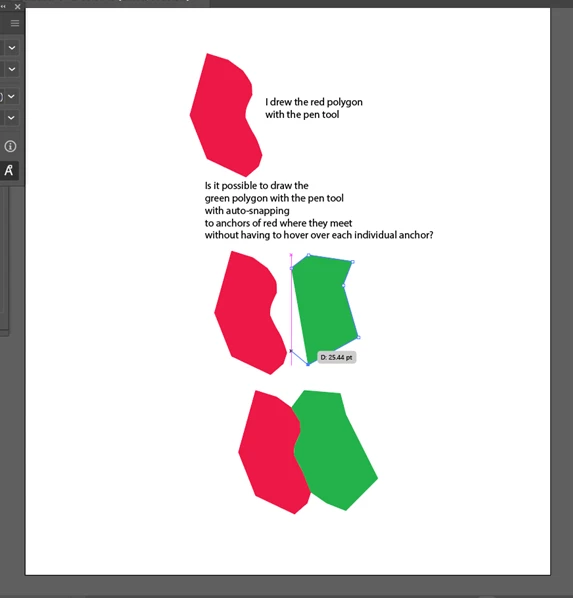
I would like to use the pen tool to draw a series of separate polygons with some that share an identical boundary with each other. Is it possible to draw one polygon, and then start to draw a new polygon that auto-snaps to the anchors of the first polygon without having to hover over each anchor point individually? This would be especially helpful if the first polygon has a complex shape that is defined by hundreds of anchors in which you wouldn't want to have to snap to each one individually. I know this is possible in software like ArcGIS where you can trace an existing line segment without having to click on each individual node (the software smartly does that for you), so that there are no slivers/gaps or overlap between two features (polygons). Any insight would be much appreciated!


Here is a graphic display of what I'm talking about:


This topic has been closed for replies.
Correct answer Jacob Bugge

keiq,


You can:


1) Switch to have the red one on top of the green one (ClickDrag either in the Layers palette, or click the red one and Ctrl/Cmd+C+F+X+F) to cover the green one;


If you need to have both as separate paths, you can:


2) Select both and use Pathfinder>Trim to cut the unwanted bit out of the green one.


Or you can do everything with the Shape Builder,

https://helpx.adobe.com/search-results.html?q=Shape+Builder+Illustrator&facets_fields=%5B%22applicable_products%22%5D&post_facet_filters=%7B%22applicable_products%22%3A%5B%22Adobe+Illustrator%22%5D%7D&scope=%5B%22helpx%22%5D&subscope=%5B%5D&limit=10&start_index=0&sort_orderby=relevancy&sort_order=desc

4 replies

Community Expert
January 22, 2021

Aside from the layer and pathfinder options, it is indeed possible to make the pen tool snap new points to the edge of an existing polygon and do so accurately. Just turn on smart guides. The manual tracing approach works alright as long as the source polygon only has no curves in its shape and the pen tool is layout down straight line segments. If the source shape has any curved features then it will be necessary to do Pathfinder operations to get the desired effect.

Jacob Bugge
Community Expert
Community Expert
January 22, 2021

You are welcome, keiq.


Jacob Bugge
Community Expert
Jacob BuggeCommunity ExpertCorrect answer
Community Expert
January 22, 2021

keiq,


You can:


1) Switch to have the red one on top of the green one (ClickDrag either in the Layers palette, or click the red one and Ctrl/Cmd+C+F+X+F) to cover the green one;


If you need to have both as separate paths, you can:


2) Select both and use Pathfinder>Trim to cut the unwanted bit out of the green one.


Or you can do everything with the Shape Builder,

https://helpx.adobe.com/search-results.html?q=Shape+Builder+Illustrator&facets_fields=%5B%22applicable_products%22%5D&post_facet_filters=%7B%22applicable_products%22%3A%5B%22Adobe+Illustrator%22%5D%7D&scope=%5B%22helpx%22%5D&subscope=%5B%5D&limit=10&start_index=0&sort_orderby=relevancy&sort_order=desc

Participant
January 22, 2021

Thanks so much Jacob Bugge! I didn't realize that the way the polygons were arranged in the workspace (which one was in front of the other) impacted how the trim tool worked. That makes so much sense now! Great tool. Cheers.

Participant
January 22, 2021

It looks like a workaround to this problem can be solved using the Pathfinder tool: