
lailal98961098
Participant
March 16, 2022
Question

Power went down, Ai file shows up as text instead of artwork.

  • March 16, 2022
  • 1 reply
  • 2064 views

Hello

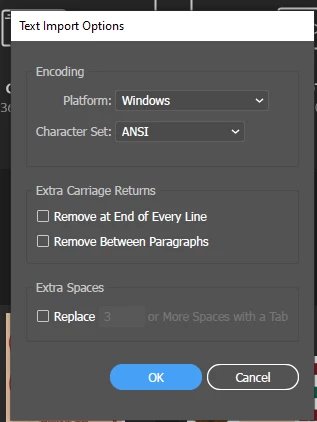
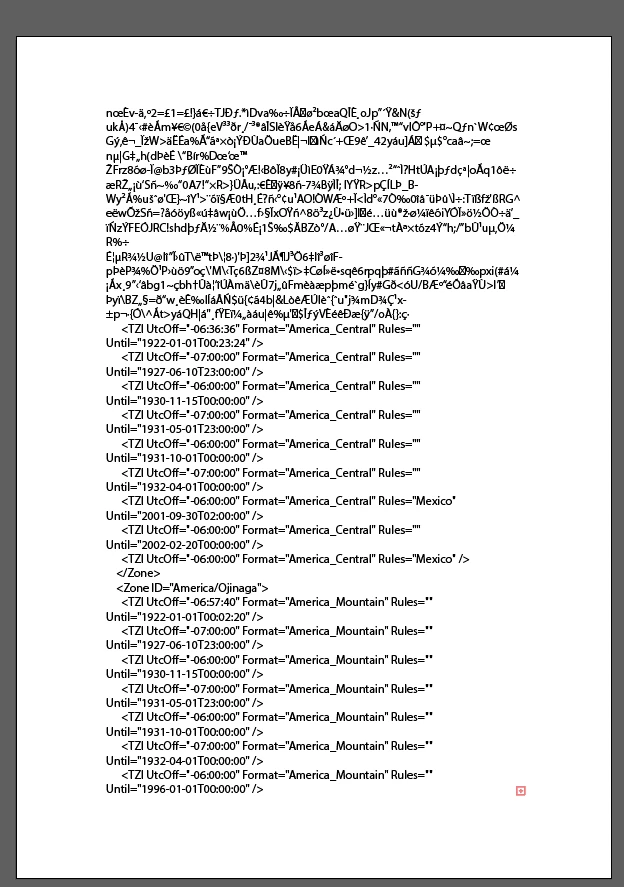
I was working on illustrator when the power went down in the house.. I have saved my work several times, so I thought I would be okay, I can see my artwork in "recent files" but when I open it this comes up (picture), and when I click "ok" it shows up as text (picture) instead of the artwork..
 

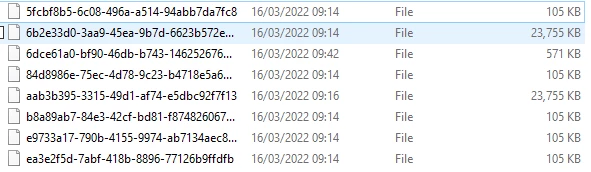
I have turned on that illustrator automatically saves recovery files, but in the folder there are no illustrator files, only these (picture).


Is my work recoverable?

This topic has been closed for replies.

1 reply

Monika Gause
Community Expert
Community Expert
March 16, 2022

If the power goes down while saving that is the very worst moment to have power go down.


JUst overwriting the same file several times a day won't save you from this. Only thing that helps are backup copies (files saved with a different name on different volumes).


What helps you to prevent this: Something similar to Time Machine (which is for the Mac, google it to find similar solutions for Windows)

The plugin Autosaviour.

Remembering to save different versions of your file manually.


Maybe @Anshul_Saini can help you with the corrupt file. But there's not a lot of hope.

lailal98961098
Participant
March 16, 2022

Hello Monika, thanks for you answer.


I will definitely always save in different versions from now on.. Unfortunate that I had to learn it the hard way.


I tried messaging Anshul, hopefully he can help 🙂 


Monika Gause
Community Expert
Community Expert
March 16, 2022
quote

I will definitely always save in different versions from now on.. 🙂 


By @lailal98961098


I didn't mean save in different versions (of Illustrator, or different file formats), but save different versions of your file (so you can return to something, even if it's slightly older), respectively save in different locations.

When you save, save it using a different name, not just hit ctrl+S.


At the end of the day or the project you can still throw away the oldest ones and keep only the most recent 2 or 3. Whatever works best for your workflow.