lisag81233280
Participating Frequently
July 13, 2019
Answered

Printing jagged from illustrator

  • July 13, 2019
  • 5 replies
  • 3874 views

I have searched the internet for hours and wasted tons of paper and ink trying to figure this out.

I have made a vector graphic in illustrator, when I try to print from illustrator I have two issues:

1. It seems like parts of the graphic is offset

2. Areas with solid color looks like "dots"

I tried saving as a pdf and printing in photoshop, the solid colors look smoother, but the entire image looks soft and out of focus. However, no jaggedness.

This topic has been closed for replies.
Correct answer Peter Villevoye

The screening effect (dots in the solid colors) can't be prevented. You might call the fills in your design "solid" but the inkjet printer needs to render them in a matrix of ink dots (in those typical 4 key ink colors, CMYK) to create the perception of the precise color. Only in shapes with a 100% fill of Cyan, Magenta, or Yellow (and combinations of these), you wouldn't be able to spot such dots. So that's okay – no improvement possible.

The 'softer' impression of the Photoshop version can be attributed to the fact that the automatically initiated/generated pixel resolution is probably less than the highest possible resolution of your printer. So the pixels tend to spread across several printer dots. Try opening (not Placing) the Illustrator file in Photoshop, and check the settings (e.g. size and resolution) upon opening. Use at least a 300 dpi resolution at the intended print size. Change it accordingly, if necessary. Hope this helps.

Now let's address the chunky elephant in the room here !

Because what the heck is happening with this directly printed Illustrator file ?? Wow, these repetitive chunks/jags are really weird ! This is not right. It must have something to do with a faulty PostScript/PDF interpretation of your printer. I checked the specs of your Canon MG7550 printer, which is from the Pixma series. These printer models have no clue about PostScript, and yours is even capable of ruining a print from Acrobat !

So I think you're stuck with this workaround, to convert the image to pixels in Photoshop.

Otherwise, please refer to the supplier and/or manufacturer of your printer to ask their advice.

5 replies

Legend
July 14, 2019

Suggest you post several pictures, comparing the printed results, and the original on screen. Please do not try to email them.

Please mark up your pictures or describe the problem exactly - don't assume it's obvious! The problem is it's very hard to follow another person's really obvious fault description... because only the designer is tuned in enough.

lisag81233280
Participating Frequently
July 14, 2019

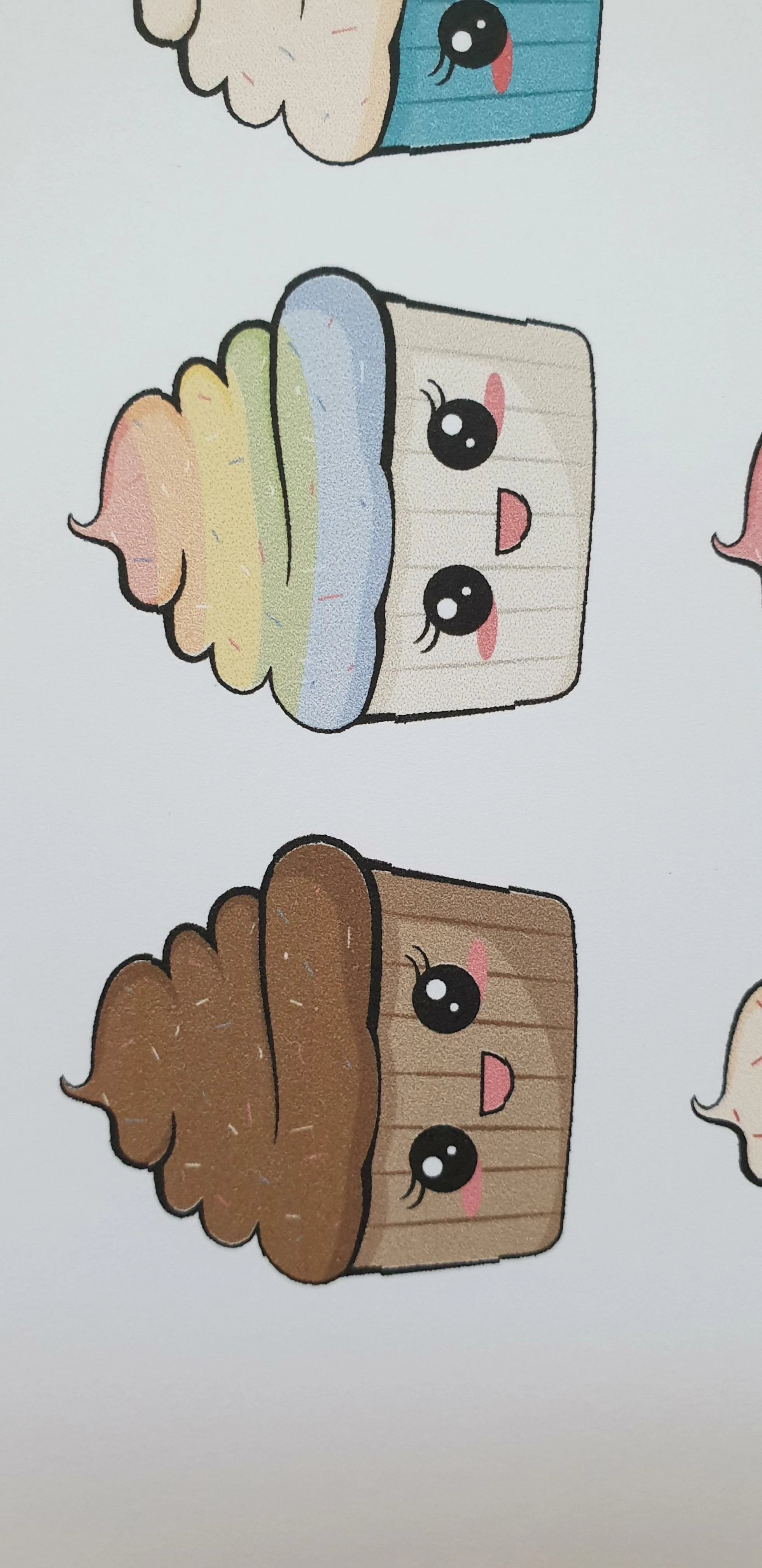
This is a picture of the graphic in illustrator (taken from my phone, not a screenshot so the colors are a little off)

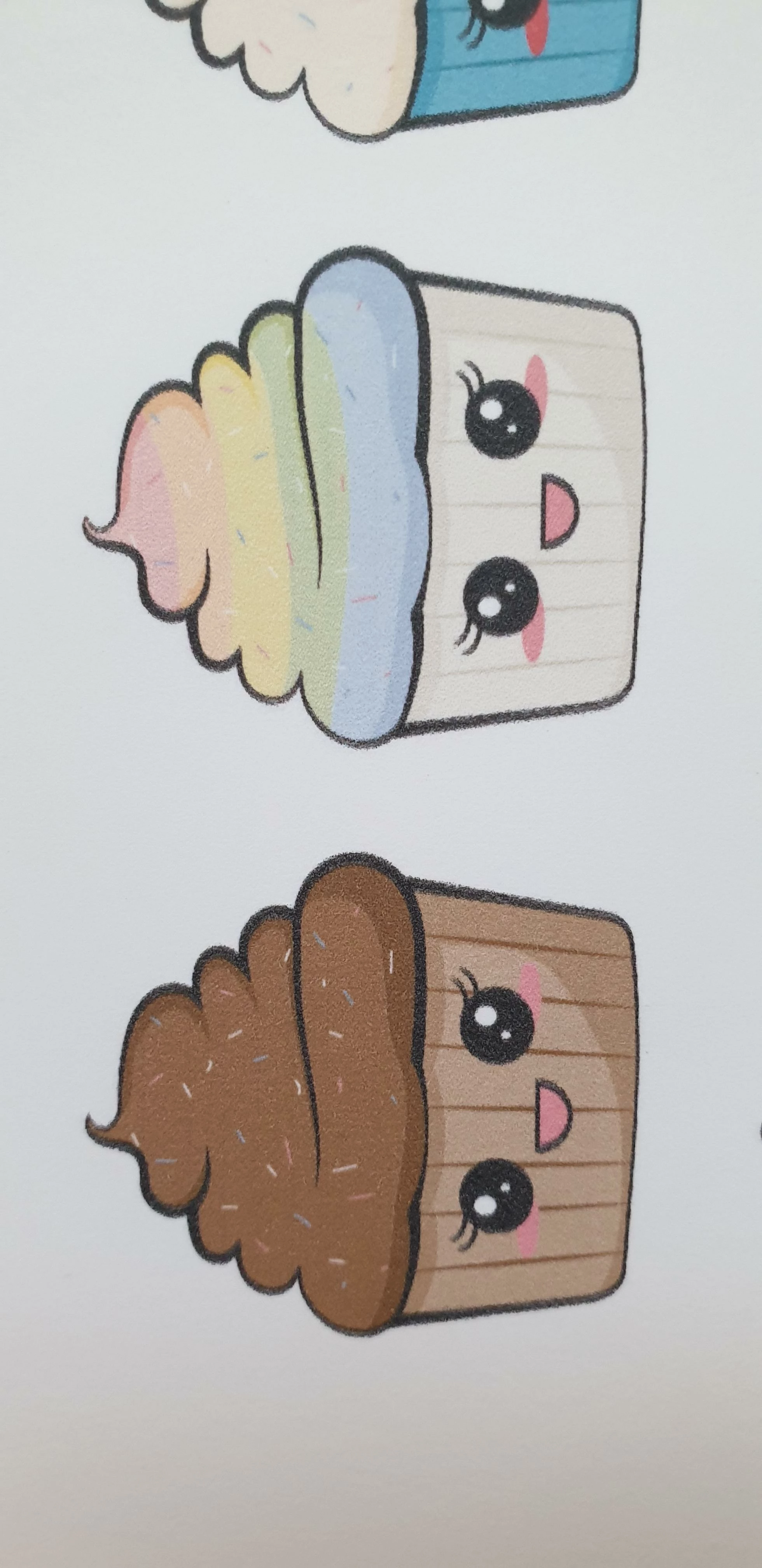
This is what it looks like printed from illustrator. It looks exactly the same every time I print it, no matter what settings I used. It also looks the same saved as a pdf and printed from acrobat.

This is another graphic I tried to print from illustrator, as you can see the lines are jagged here too.

I think it looks like it's just the black outlines that are jagged, not the colored parts.

FYI. The lines were created as strokes and converted to paths.

This is saved as pdf and printed from photoshop. I guess the print quality from photoshop is reduced because it's rasterized, but I'm posting it as a comparison. I'd prefer to be able to print directly from illustrator.

Bill Silbert
Community Expert
Community Expert
July 14, 2019

The colors in your original appear to have some sort of pattern in them already. They don't appear to be flat colors. How was the color for the cupcakes and the background created? It seems possible that the texture that is showing is somehow creating a distorted effect.

Monika Gause
Community Expert
Community Expert
July 14, 2019

Is that printer PostScript enabled?

lisag81233280
Participating Frequently
July 14, 2019

No, I don't think it is, and I can't seem to find a postscript driver for it either.

It's the Canon MG7550 printer.

Legend
July 14, 2019

If you want to print a PDF, use Acrobat. Everything that goes into Photoshop is rasterised.

Inspiring
July 13, 2019

Another possibility is Preferences > Anti-Aluasing is off.  See if turning that on helps reduce the jaggies.

Inspiring
July 13, 2019

Check your raster resolution setting.  Make sure it is set to high.  What type of printer are you using!

lisag81233280
Participating Frequently
July 14, 2019

raster resolution is set to high (you mean the document raster effect settings in illustrator?). I tried printing with Anti Alias turned on, in the same dialog box, the print looks the same.

I am using an inkjet printer, Canon MG7550.

Bill Silbert
Community Expert
Community Expert
July 13, 2019

When you look at your image in the outline mode (Command (Mac)/Control (PC)-Y toggles from Preview to Outline) can you see all of your drawing as outlines? If you cannot then your drawing is raster and if it has been enlarged will become pixelated.

When you brought the drawing into Photoshop did you do so as a "Smart Object"? If you did not then (if it actually was a vector drawing) it would have become rasterized then and some "softness" could be expected.

What format did you save the original Illustrator file? If you had, for instance, saved it as a PNG then it would become rasterized then. To maintain it's vector integrity and to keep it fully editable in illustrator you should save it as an .ai file.

lisag81233280
Participating Frequently
July 14, 2019

I see everything as outlines when I hit Ctrl+Y, it's not a raster (in illustrator) both the pdf and the ai file.

In photoshop I just opened the pdf file. I tried creating a new file and placing the pdf as a smart object, I have not tried printing it yet, but the file looks exactly the same in photoshop (rasterized and not as a vector).