
sfitzgeraldTU
Participating Frequently
August 20, 2018
Question

Problem merging dates from CSV into graph

  • August 20, 2018
  • 2 replies
  • 2748 views

I'm attempting to merge data into an Illustrator file to create a batch of bar graphs based on a group of CSV files. I've followed the tutorial (Merge data to create data-driven graphics through templates and variables in Illustrator) successfully, except that my dates are merging as numbers instead of dates. I've attempted to format the dates as text, save the CSVs with UTF-8, to no avail. a 6/30/16 date merges into Illustrator as 6.00 and a 12/31/16 date merges as 12.00, so every June date and every December date appear the same. This also messes up the graph, leaving the chart with two categories instead of one of the data columns being assigned to the x-axis.

Screenshots below of my files.

Graphs Merge Document.csv

Sample 1 financials.csv
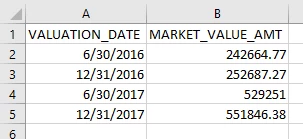
Original graph document:
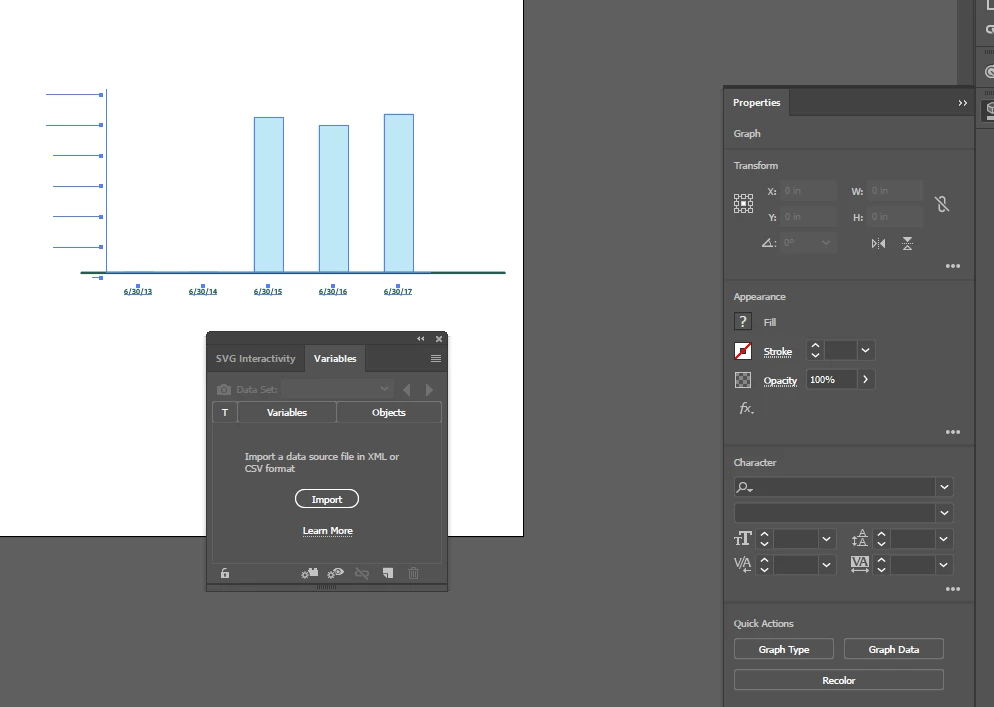
Merged data and graph document:
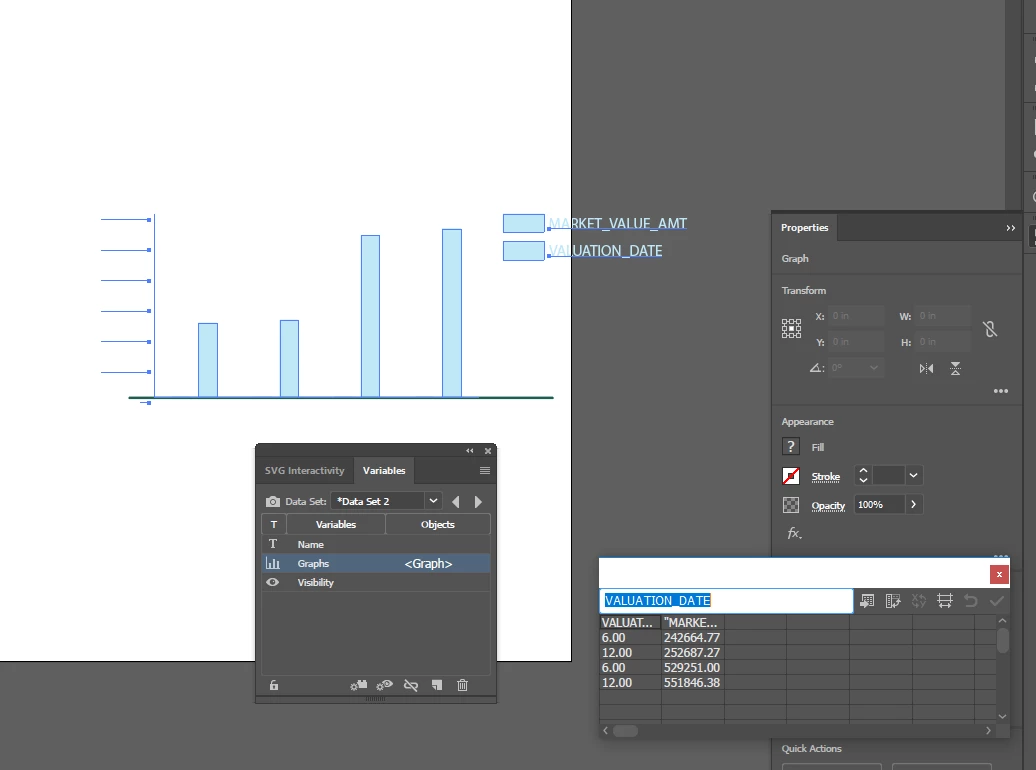
This topic has been closed for replies.

2 replies

jane-e
Community Expert
Community Expert
August 22, 2018

sfitzgeraldTU  wrote

I'm attempting to merge data into an Illustrator file to create a batch of bar graphs based on a group of CSV files. I've followed the tutorial (Merge data to create data-driven graphics through templates and variables in Illustrator) successfully, except that my dates are merging as numbers instead of dates. I've attempted to format the dates as text, save the CSVs with UTF-8, to no avail. a 6/30/16 date merges into Illustrator as 6.00 and a 12/31/16 date merges as 12.00, so every June date and every December date appear the same.

Two ideas, and one or the other should work.

First:

Your dates are right aligned, meaning they are still numbers, assuming they have General formatting. You didn't say how you attempted to format the dates as numbers, but try this: type a single quote   '   in front of the date. If it's left aligned, it's text. If you have a lot of dates you might want to put the quote in another column and concatenate the two columns.

Second (if the first doesn't work):

If that doesn't work, use the formula =text(A1,"d/mm/yyyy")

I used two Ds; you'll want one D if you don't want the zero.

And if that still doesn't work, you'll need to copy the dates with the function (as in Column B) and in the next column choose Edit > Paste Special > Values to convert the functions into regular text.

If you are not on a Mac, then Paste Special is on your Home tab on the far left instead of the Edit menu.

You will now have three columns:

A     Dates, which are actually numbers

B     Functions to convert the Date/Numbers to text

C     Text

They will all look the same. When you see which works, you can decide what to do with the other two.

sfitzgeraldTU
Participating Frequently
August 22, 2018

I have tried all of these, formatting the dates as text does not solve the issue. They continue to import into AI as numbers (6.00 and 12.00) Thus far the only workaround I've found is to format the dates as spelled-out text (ex. June 31, 2017), but this does not meet the standards of our style guide.

jane-e
Community Expert
Community Expert
August 22, 2018

It may be a bug in Illustrator. Can you give the steps you are using? I have time to test it if I get them this afternoon. After that things will be crazy here.

Mylenium
Legend
August 21, 2018

Using slashes is not valid date formatting. Dates must be delimited with points or hyphens to work in AI.

Mylenium

sfitzgeraldTU
Participating Frequently
August 21, 2018

Changing the slashes to hyphens or to dots (periods) produces the same result.

And the dates work just fine with slashes when I manually input the graph data (intead of importing):