
Inspiring
January 31, 2024
Question

problem of aliasing

  • January 31, 2024
  • 4 replies
  • 515 views

Hello,

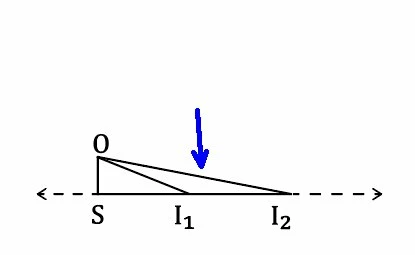
In Illustrator, I have a graphic of 62 x 17 mm where I have a problem of aliasing on this black line only (see blue arrow). That is strange is that I can see it above all at low magnification. How to remove this aliasing on this line ?
This topic has been closed for replies.

4 replies

Inspiring
January 31, 2024

In my case, I export only in SVG (no raster image).

Monika Gause
Community Expert
Community Expert
January 31, 2024

And then the SVG is used in which way? On a website? Then the browser is creating the pixelsteps

Inspiring
January 31, 2024

Actually, the SVG is exported to the desktop, and then inserted inside a Word document (insert/image in Word).

Inspiring
January 31, 2024

This screenshot was made from the Illustrator artboard main window.

And I have verified in the preferences that "anti aliasing" was switched ON.

I don't understand how to remove the aliasing in the Illustrator artboard main window.

Monika Gause
Community Expert
Community Expert
January 31, 2024

Antialiasing will only be a real issue when exporting to raster images. 

When printing, this will not appear (unless it's a really odd printing process)


What you see on screen is just that: what you see on screen. Monitors are low resolution compared to printing.

Inspiring
January 31, 2024

Hi Monika,

I don't find the anti aliasing method "supersampling". Where is it ?

Monika Gause
Community Expert
Community Expert
January 31, 2024

It's in the export dialog boxes for pixel images.

If you do not export to raster images, then this should not be an issue.

Monika Gause
Community Expert
Community Expert
January 31, 2024

Some angles work better than others. You have the antialiasing method set to Supersampling already?


If it still does not work, then I would try and import the AI file into Photoshop and try if it does a better job.