Inspiring
January 19, 2021
Question

PROBLEM TRACING A PATH

  • January 19, 2021
  • 7 replies
  • 324 views

Hey!

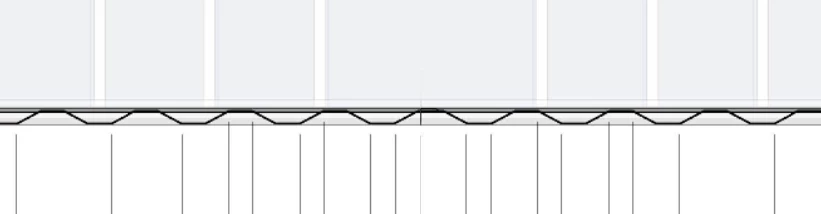
So I have this image that has this trapeze-like stroke design and I want to make a precise path in Illustrator with exact measurements in each of its sides, replicate it to have a full large line, and then combine it into a single path, I'm not new to Illustrator but I'm not the best at it.

To summarize, I want the same path as the image but in an Illustrator precise path. It's just like using the "Zig-zag" effect but with "strong" lines, if I use this effect it makes the line soft and I want the path as shown below

I've been trying for the past two but non of my experiments are the way I want.

Thanks in advance.
This topic has been closed for replies.

7 replies

Jacob Bugge
Community Expert
Community Expert
January 23, 2021

For my part you are welcome, guino.


I for one hope you will share your findings.


Unfortunately, there is no way to edit your post. That feature has been removed owing to recurring trouble with less nice posters that have had their posts moderated only to edit the bad things back in.


It is possible to ask for editing by a moderator.


guino11Author
Inspiring
January 23, 2021

Thanks for all the replies!

P.S: How do you edit a post here I don't see an option, thanks.

Jacob Bugge
Community Expert
Community Expert
January 20, 2021

Enough to share you know where, Kurt?


Kurt Gold
Community Expert
Community Expert
January 20, 2021

More than enough white stuff, Jacob. At the moment I could build a lot of snowmen and igloos.


Mohammad.Harb
Community Expert
Community Expert
January 20, 2021

Draw the first 4 line segments, then alt + drag to make a copy, then duplicate using (ctrl + D ) 

Jacob Bugge
Community Expert
Community Expert
January 20, 2021

guino,


You can:


1) At the far left (or elsewhere), create a horizontal path with a length of a full broken zig zag, then Object>Path>Add Anchor Points twice,

2) Deselect and Direct select the two rightmost new Anchor Points and Object>Transform>Move (downwards) by the height between the top and bottom horizontal part,

3) Deselect and Select with the (normal) Selection Tool, then Effect>Distort&Transform>Transform>Move horizontally by the length from 1) and set the number of Copies as desired,

4) Object>Expand Appearance if desired.


Move/adjust position if needed.


Edit: Hi Kurt. Last white stuff disappeared here. How there?


Kurt Gold
Community Expert
Community Expert
January 20, 2021

Looks like a custom pattern brush may do what you want.