
Participant
January 21, 2023
Answered

Problem with converting a vector image to a raster format

  • January 21, 2023
  • 6 replies
  • 813 views

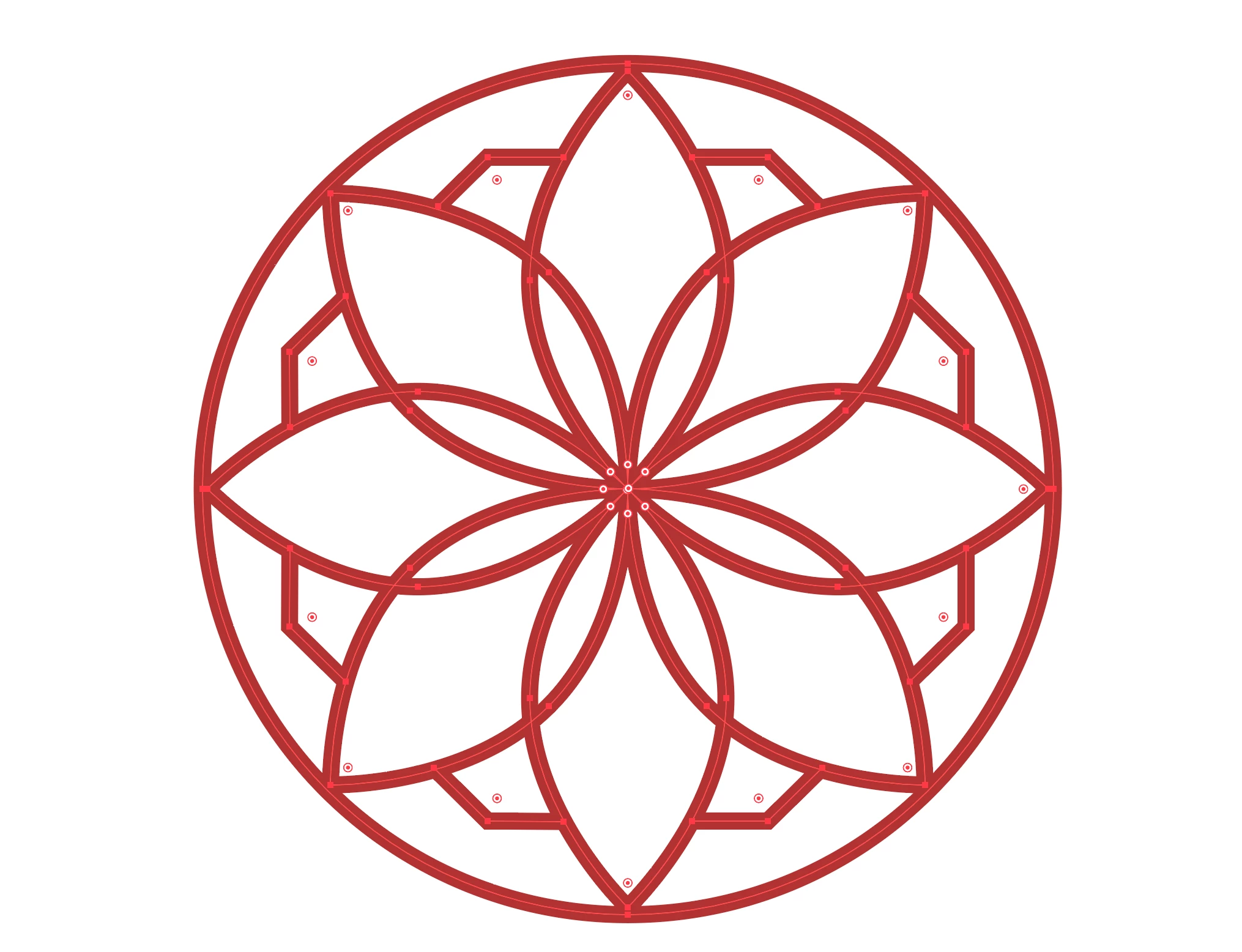
Hi, I've been trying to export a simple vector logo I made in Illustrator to a raster format (I tried both JPEG and PNG). However, while the shape looks normal in vector format, one of the paths gets distorted and extended in a weird way whenever I convert it to a raster image (left side of the shape, see images attached below). How can I fix this?

 

This topic is closed to new replies. Start a new post to keep the conversation going.
Correct answer Jacob Bugge

Magdalena,


The spike on the left petal looks like a very sharp corner corresponding to a total of three Anchor Points all apart in a constellation reflecting the spike angle, along with Join set to Miter in the Stroke panel.


But it seems that both horizontal petals are ailing in their left side, the corresponding spike on the rightmost one being hidden by the top left petal; you can see it by the lack of corner widgets to the left of both.


But it ought to also show in the vector format.


In any case, I believe the clean and simple way would be to delete the two ailing horizontal petals and then select the two sound vertical ones (with the normal Selection Tool) and rotate a copy of them by 90 degrees as replacements (Object>Transform>Rotate).


6 replies

Participant
February 2, 2023

@Monika Gause @Mylenium @Jacob Bugge Thank you so much for your help!

Jacob Bugge
Community Expert
Community Expert
February 2, 2023

For my part you are welcome, Magdalena.


Did you find out how many Anchor Points there were?


Anubhav M
Community Manager
Community Manager
January 24, 2023

Hello @MagdalenaKutela,


Thanks for reaching out. I hope the suggestions shared by Monika and Mylenium, and Jacob helped resolve the trouble you were having with Illustrator. If not, kindly share a sample file (https://community.adobe.com/t5/illustrator-discussions/share-your-files-in-6-simple-steps/td-p/12967531), so we can check it on our end.


Looking forward to your response.


Thanks,

Anubhav

Jacob Bugge
Community Expert
Jacob BuggeCommunity ExpertCorrect answer
Community Expert
January 21, 2023

Magdalena,


The spike on the left petal looks like a very sharp corner corresponding to a total of three Anchor Points all apart in a constellation reflecting the spike angle, along with Join set to Miter in the Stroke panel.


But it seems that both horizontal petals are ailing in their left side, the corresponding spike on the rightmost one being hidden by the top left petal; you can see it by the lack of corner widgets to the left of both.


But it ought to also show in the vector format.


In any case, I believe the clean and simple way would be to delete the two ailing horizontal petals and then select the two sound vertical ones (with the normal Selection Tool) and rotate a copy of them by 90 degrees as replacements (Object>Transform>Rotate).


Mylenium
Legend
January 21, 2023

Your spacing of the paths looks slightly uneven, so I tend to think that you indeed have two anchor points there. If you are using GPU preview the first thing might be to switch to software-only for greater precision and zoom in. This may already expose the issue and you can fix it.


Mylenium

Monika Gause
Community Expert
Community Expert
January 21, 2023

First of all I would check that corner. There might be two anchors. You need to get rid of one of them. You could split the path and then move the anchors exactly on top of each other. Then Join.

It could be simpler to just use the Strokes panel (Window > Strokes) and apply the round corners option to the strokes. You might need to show optiobns in that panel to see these options.