
June 17, 2019
Answered

Problem with deleting anchor point

  • June 17, 2019
  • 5 replies
  • 6843 views

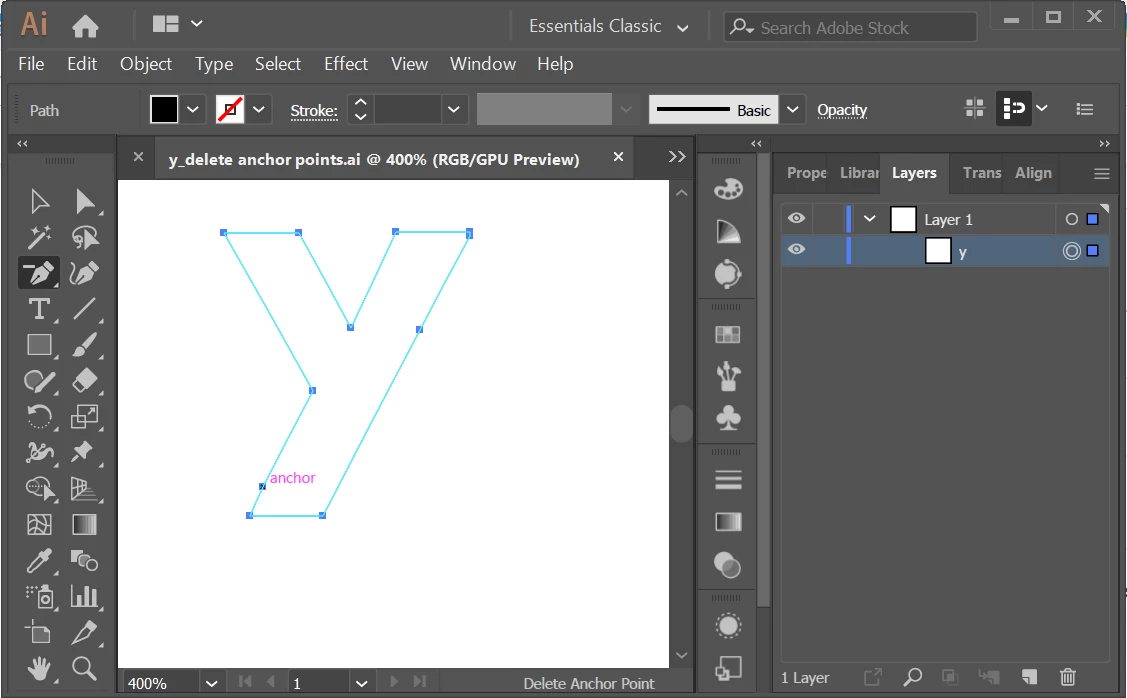
I have problems with deleting anchor points on image traces. I used the Expand function and the anchor points show up, but I either 1) cannot delete the anchor point or 2) after deleting, the path becomes non-editable (e.g. cannot offset anymore) and doesn't have any anchor points anymore. My mouse is over one of the anchor points I am trying to delete. I tried the Pen tool as well as the Delete Anchor Point tool. Any reason or suggestions on how to go about this?
    This topic has been closed for replies.
    Correct answer Grant H

    I might have! But I have no idea how that would have happened. Can you tell me more please? I think it is to do with how I use the Expand and Image Trace functions but I haven't got much of a clue what it would be.


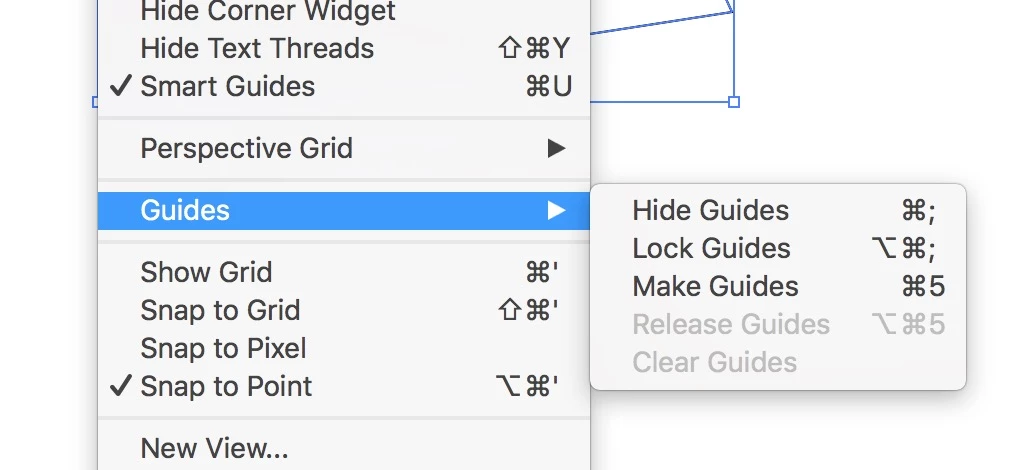
    goto View>guides>release guides

    5 replies

    Lukas Engqvist
    Community Expert
    Community Expert
    November 28, 2021

    If you have not selected Ignore White in the advanced preferences you may have two objects, the one being the shape the other being the hole.

    My suggestion is to use the Selection Arrow (v) and double click (drill down) until you have isolated the shape you wish to edit.


    Nore that the Pen tool normally automatically goes into remove Anchor point when over an existing closed anchor point. Many users will keep Pen on automatic change to add remove point, using alt/option to convert curve. 

    June 19, 2019

    Thanks everyone! "Release Guides" resolved the issues and some understanding of guides now opened up a whole new way of using Illustrator for me.

    meganchi
    Legend
    June 18, 2019

    Select the "Y" and Go to View Menu, select "Guide", then select "Release Guides".

    Participant
    November 2, 2021

    Hi Meganchi,


    It appears I am having a similar problem with removing an anchor point...

    What exactly to you mean by "select Y"?

    Is this an icon? 

    I'm very new at this.


    Thank you,

    IO


    Doug A Roberts
    Community Expert
    Community Expert
    November 2, 2021

    It was 'select Y' because the topic creator was having trouble with a Y-shaped object.

    barbara_a7746676
    Community Expert
    Community Expert
    June 18, 2019

    Select the path. When you hover the Pen tool over the anchor point you should see a minus sign next to the Pen tool, Do you see the minus sign?

    June 18, 2019

    Hi Barbara, Yes, the minus sign next to the Pen tool did appear. I just couldn't screenshot with that icon appearing.

    I can send the sample file if it helps anyone resolve the issue.

    barbara_a7746676
    Community Expert
    Community Expert
    June 18, 2019

    Yes, go ahead and send the sample file. That would help.

    jane-e
    Community Expert
    Community Expert
    June 18, 2019

    Hi Nic,

    Your Control panel says your path has a black fill and no stroke. I’m wondering why can‘t we see the fill? Can you show your Appearance panel with the path selected?

    Jane

    June 18, 2019

    Jane, yes, thanks for pointing out. That was my other problem too. I put in a coloured (e.g. black) fill but the fill doesn't show. (I also clicked Ctrl-Y to switch to outline view and back again to check if that was an issue.)

    When using the Expand function on the image trace, I tried to expand just path or both path and fill too. Both were still giving me problems.

    Monika Gause
    Community Expert
    Community Expert
    June 18, 2019

    Did you turn that path into a guide?