
Participant
June 24, 2018
Answered

Problème de tracés sur Illustrator

  • June 24, 2018
  • 2 replies
  • 503 views

Bonjour,

j'ai un petit problème depuis quelques temps avec deux tracés :
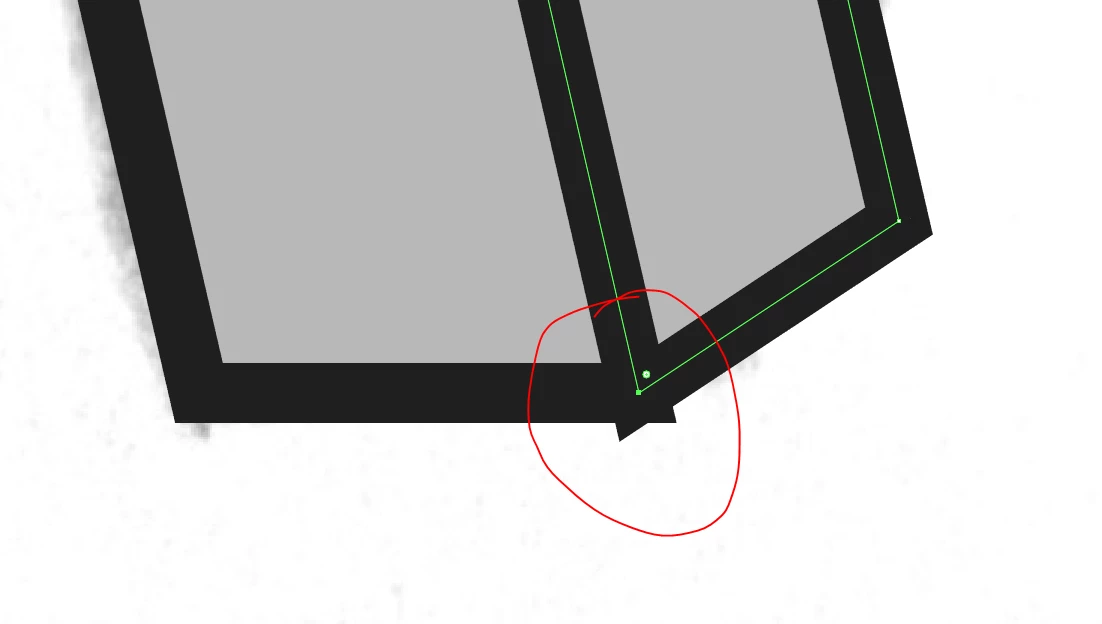
Les bords, à cause des angles aigus forment des pointes qui dépassent à l'extérieur de la forme que je veux dessiner.

Est-ce qu'il est possible, par n'importe quel moyen, de faire disparaître ces pointes afin d'avoir un résultat comme sur les deux autres angles sur la photo?

Merci d'avance.

This topic has been closed for replies.
Correct answer Jacob Bugge

n,

Or, if you wish to keep both paths and still have the sharp corners without spikes, you may:

1) Select both paths and switch the Stroke Join (and maybe Cap, I always prefer to have corresponding appearance whether used or not) to Round;

2) Ctrl/Cmd+C+F to create a copy of the paths on top, then Pathfinder>Unite, then Remove the fill if any and switch the Stroke Join (and maybe Cap) back to Miter Join (and Butt Cap if you changed the Cap);

3) Select everything and Ctrl/Cmd+G to Group.

This will give you a separate adapted stroke on top of the two paths.

2 replies

Jacob Bugge
Community Expert
Jacob BuggeCommunity ExpertCorrect answer
Community Expert
June 24, 2018

n,

Or, if you wish to keep both paths and still have the sharp corners without spikes, you may:

1) Select both paths and switch the Stroke Join (and maybe Cap, I always prefer to have corresponding appearance whether used or not) to Round;

2) Ctrl/Cmd+C+F to create a copy of the paths on top, then Pathfinder>Unite, then Remove the fill if any and switch the Stroke Join (and maybe Cap) back to Miter Join (and Butt Cap if you changed the Cap);

3) Select everything and Ctrl/Cmd+G to Group.

This will give you a separate adapted stroke on top of the two paths.

Monika Gause
Community Expert
Community Expert
June 24, 2018

You could set the corner to "rounded" in the strokes panel.

Or you would need to build the whole thing differently: make a stroke going round it. And only one line in the center.