twoolri
Participant
January 11, 2018
Answered

Problems with Blending

  • January 11, 2018
  • 4 replies
  • 1966 views

Hey guys,

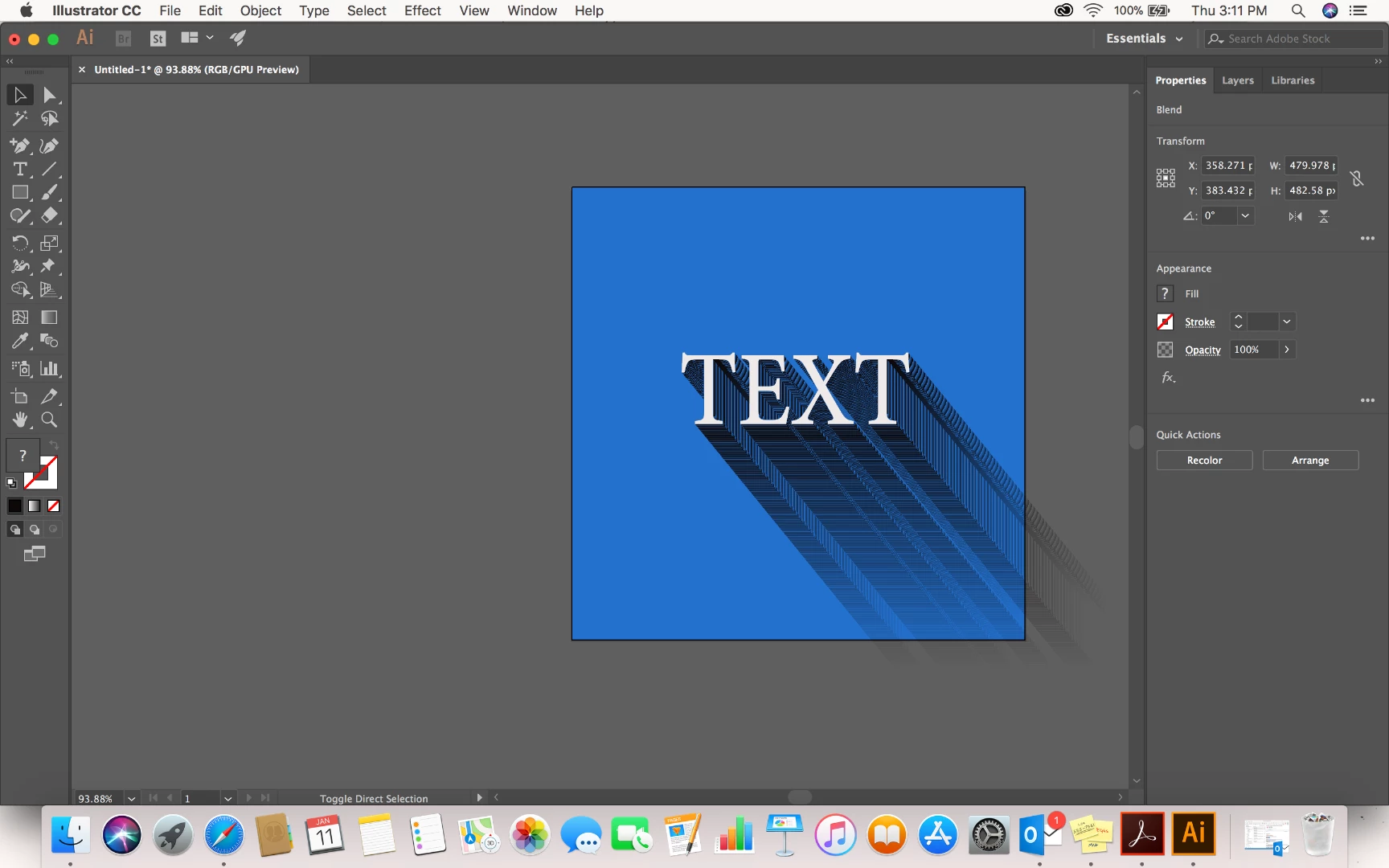
I've been working on making a shadow for the longest without any luck and every time I try this happens. Any thoughts? I found a tutorial on youtube and did everything step by step exactly like them but there's was smooth and mine was not and I don't know how to fix it.

    This topic has been closed for replies.
    Correct answer barbara_a7746676

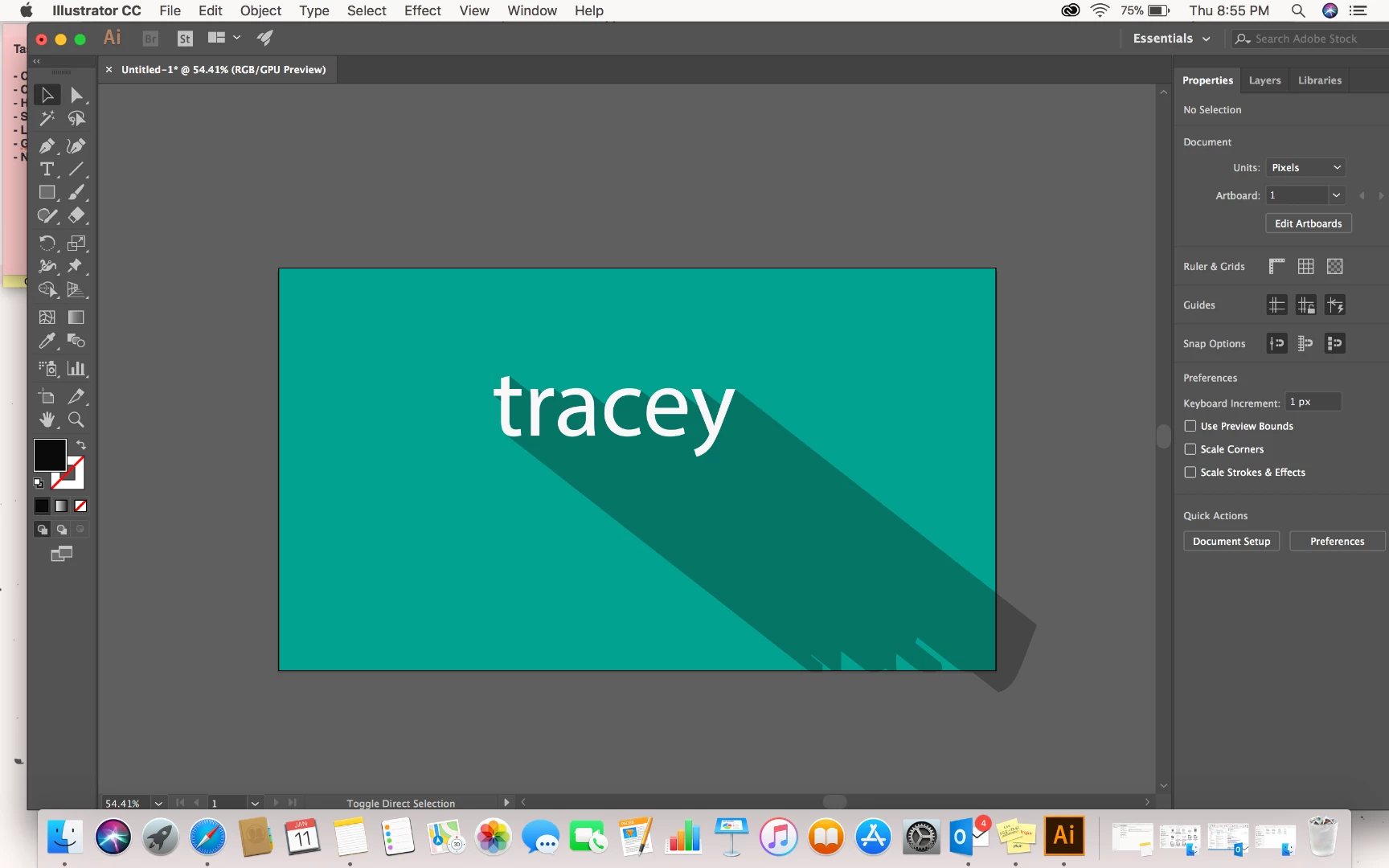
    I tried to redo the same exact thing just with my name now. None of them have a stroke but the first and last layer in the blend have fills. This is what I got with my Opacity set at 30%. This is the closest I've been able to get to any kind of shadow but the tutorials all have them set at 0%.


    I just took a look at the tutorial. The first object in the blend, the one closest to the text has 100% opacity black fill no stroke. The one farthest from the text has zero opacity fill no stroke.

    4 replies

    jane-e
    Community Expert
    Community Expert
    January 11, 2018

    What's the link for the tutorial?

    And does the tutorial have a black stroke on the text? I can't tell if your example does.

    twoolri
    twoolriAuthor
    Participant
    January 12, 2018
    barbara_a7746676
    Community Expert
    Community Expert
    January 11, 2018

    Here's another technique that does not use Blend. Although it does take more steps, it doesn't take long and you may like the results better.

    Duplicate the type. With the duplicate selected, choose Type > Create Outlines.

    Choose Effect > 3D > Extrude & Bevel. Put in a large number for the Extrude Depth.

    Choose Object > Expand Appearance.

    In Pathfinder, click on Unite.

    Fill with a gradient: zero opacity to black.

    In the Transparency panel, change the mode to Multliply.

    Put the shadow underneath the type and align it with the letters.

    twoolri
    twoolriAuthor
    Participant
    January 12, 2018

    Thank you for this! If I can't figure it out I'll try this technique

    barbara_a7746676
    Community Expert
    Community Expert
    January 11, 2018

    It looks like the tutorial may have been using the Blend tool to create the drop shadow. You can add more steps to the blend to make it appear smoother.

    Select the blend, double-click on the Blend tool in the Tools panel to bring up Blend Options. Choose Specified Steps and increase the number of steps.

    Myra Ferguson
    Community Expert
    Community Expert
    January 11, 2018

    The problem is there aren't enough steps to make the blend look seamless. If you did it with the Blend Tool, you can either select Smooth Color or add more steps on Specified Steps.

    twoolri
    twoolriAuthor
    Participant
    January 12, 2018

    I added more steps but it still doesn't seem as smooth. I'm up to around 1100 steps so I feel I must be doing something wrong

    barbara_a7746676
    Community Expert
    Community Expert
    January 12, 2018

    Do the objects you're using for the blend have a stroke or a fill or both? Try the blend with only a fill and no stroke.