allenb53734930
Participating Frequently
January 30, 2018
Answered

Properties panel

  • January 30, 2018
  • 4 replies
  • 2152 views

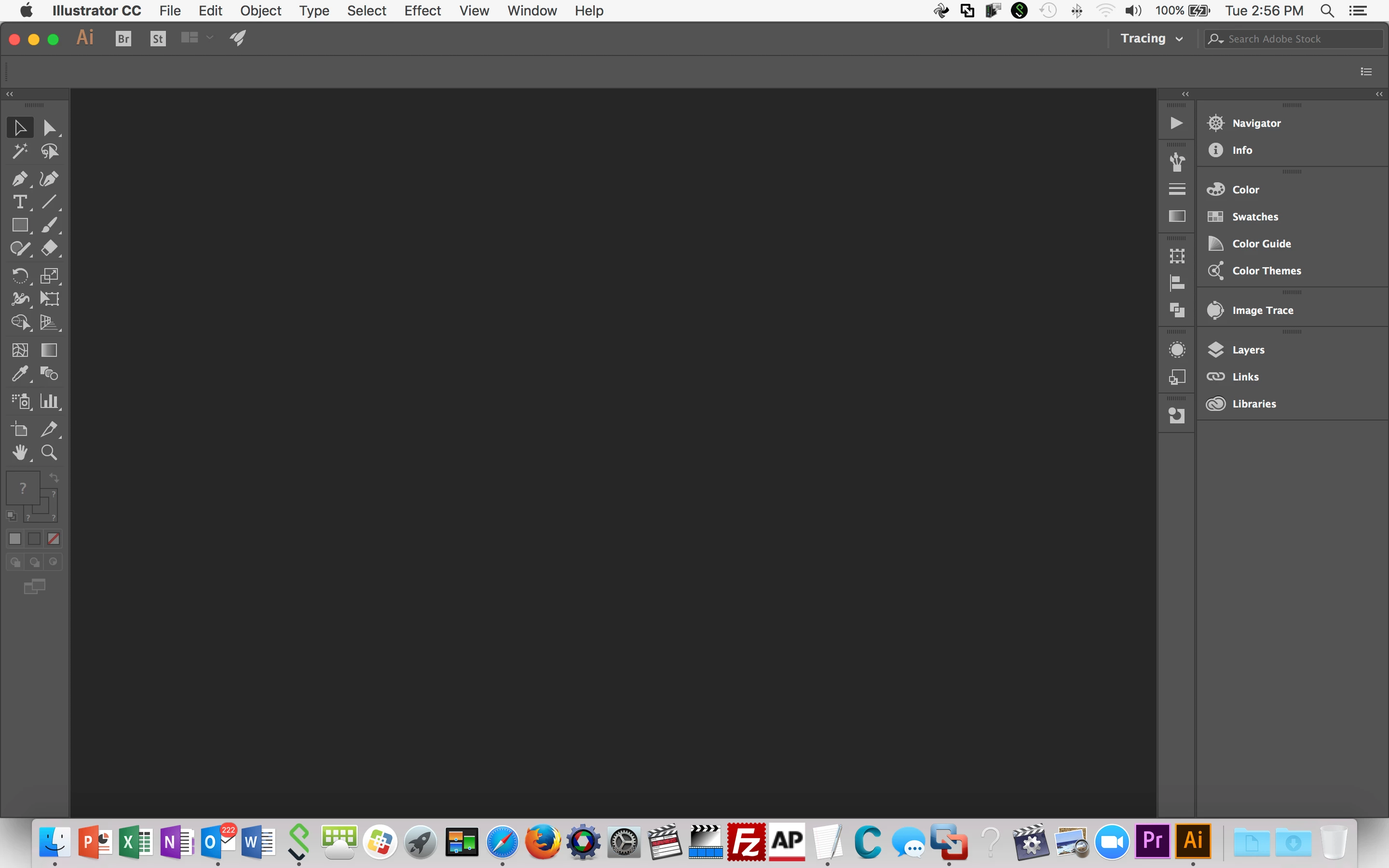
I just got Illustrator 21.0.1 installed on my laptop. But the properties panel that shows up in the video tutorials isn't there. Am I missing something, or is that just not available on my version? Here are a couple of screen shots, the first from the tutorial, the second from my version of AI. Thanks in advance:

    This topic has been closed for replies.
    Correct answer Katie Houghton

    Just a reminder 21 is CC 17 and 22 is CC 18. The tutorial you are reviewing is for CC 18. The interface does not look the same in CC 17. CC 17 and prior does not have a Properties panel. If IT controls your install you might need to ask them for version 22.0.1 which is Illustrator CC 2018. Hope that helps.

    I think you are getting confused with the newer tutorials working with older software.

    4 replies

    Katie HoughtonCorrect answer
    Inspiring
    January 31, 2018

    Just a reminder 21 is CC 17 and 22 is CC 18. The tutorial you are reviewing is for CC 18. The interface does not look the same in CC 17. CC 17 and prior does not have a Properties panel. If IT controls your install you might need to ask them for version 22.0.1 which is Illustrator CC 2018. Hope that helps.

    I think you are getting confused with the newer tutorials working with older software.

    allenb53734930
    Participating Frequently
    January 31, 2018

    It does help. I wasn't aware that the tutorials were for the newer version, until you all told me! I got the update this morning and can't wait to play around with it.

    Thanks for putting up with the fumblings of this dilettante.

    Allen

    Inspiring
    January 30, 2018

    The image trace is in the Control Panel on top if you have a raster object selected. You can also get it from the Object Menu. Object>Image Trace>Make. The properties panel just gives more information then the control panel since it has more area. It is a replacement of the control panel. I have stopped using the control panel but I still like my other panels in view hence I like Essential Classic View instead of the Essential View in CC 18. CC 17 has the expand button in the control panel and Object menu. My picture is prior to making the Image Trace object. Once you make it you will see the Expand in the control panel and of course you can get the Expand from the Object menu as well.

    allenb53734930
    Participating Frequently
    January 31, 2018

    Thanks very much. I'll give this a try.

    Inspiring
    January 30, 2018

    Just update to CC 18. The properties panel is there.

    allenb53734930
    Participating Frequently
    January 31, 2018

    One of our techs pushed the update app to my computer, and I've now got the latest version. Thanks again.

    Monika Gause
    Community Expert
    Community Expert
    January 30, 2018

    It was introduced in version 22

    allenb53734930
    Participating Frequently
    January 30, 2018

    Thanks for the reply. Is it just a matter of the panel being more convenient, or are some of the functions also only available with the newer version? I was trying to use the image tracing function, and it requires clicking an "expand" button at one point. But I couldn't find that anywhere.

    Thanks again.

    Allen

    jane-e
    Community Expert
    Community Expert
    January 30, 2018

    allenb53734930  wrote

    I was trying to use the image tracing function, and it requires clicking an "expand" button at one point. But I couldn't find that anywhere.

    Allen

    You are in the Tracing Workspace. Open Image Trace panel (7th in your panel dock).

    Select an Image. Click Image Trace in the Control panel. Choose settings in the Image Trace panel. With the image still selected, click Expand in the Control panel.