Inspiring
October 10, 2018
Answered

Punch out gradient

  • October 10, 2018
  • 4 replies
  • 3092 views

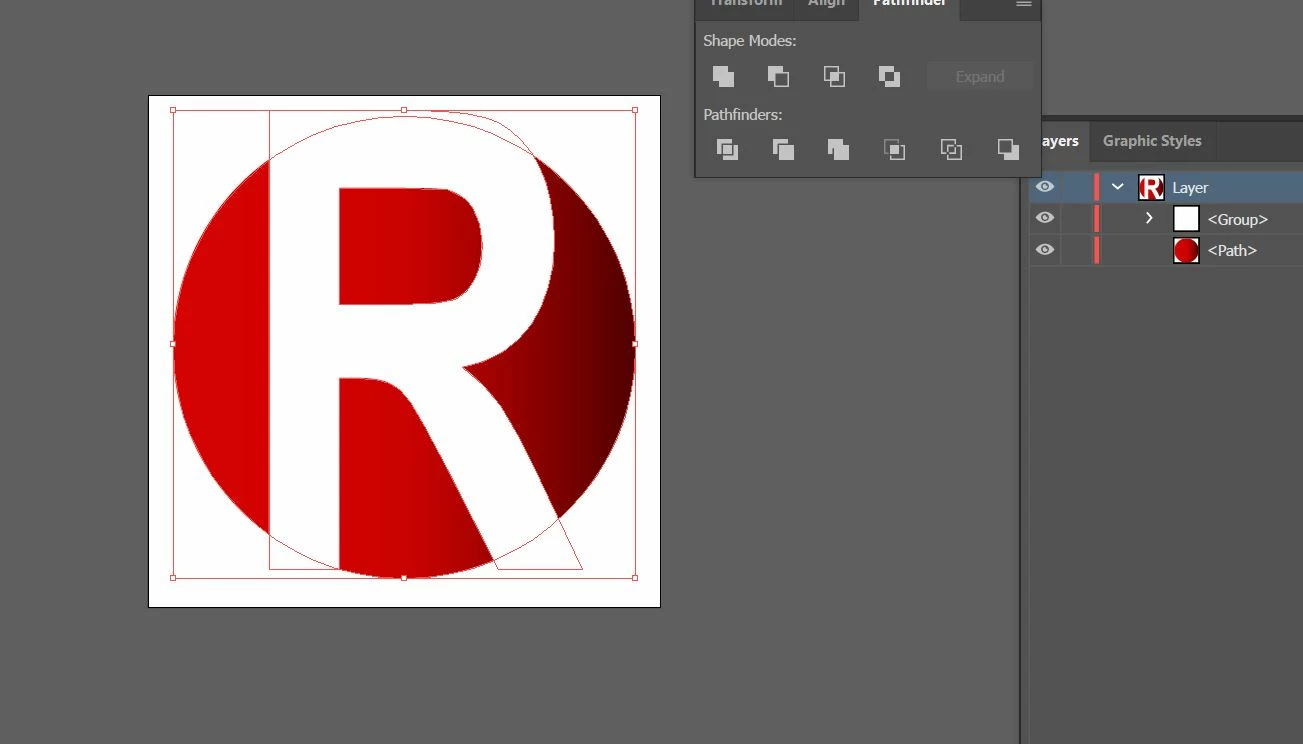
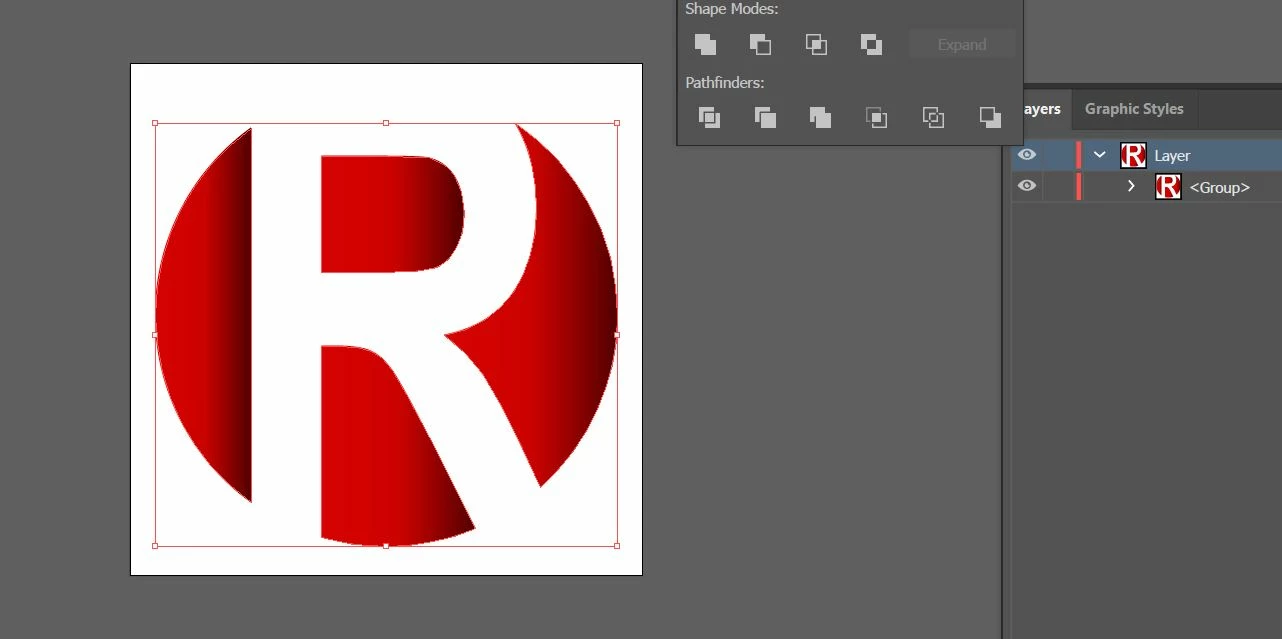
A simple task, I thought. I have the letter 'R' on top of a sphere with a gradient. I need to punch out the R with the Pathfinder Tool. However, when I punch out with 'Minus Front', I get the punch out, but since the underlying sphere is now separate paths, the gradient adjusts for each path.
    This topic has been closed for replies.
    Correct answer barbara_a7746676

    You've already done the hardest part -- converting the text to outlines and using the Pathfinder Minus Front.

    Now you have several grouped shapes. Select the group. Select the Gradient tool in the tools panel.

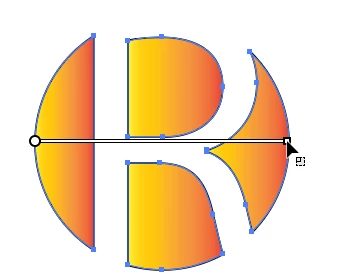
    Drag over the shapes with the Gradient tool in the direction you want the gradient.

    4 replies

    Inspiring
    October 11, 2018

    You could use an Opacity Mask. That would keep the letter editable.

    Top:

    Circle with gradient and letter "A" on top.

    Middle:

    Copy letter "A" to clipboard, select the circle, go to window "Transparency" and choose "Make Opacity Mask".

    Paste letter "A" into the opacity mask (Cmd+F for same position), change color to black.

    Return form view Opacity Maks to normal view.

    Delete or hide white letter "A".

    Draw or copy a new circle behind the 1st one, white fill.

    Bottom:

    In case you need it you now can edit the text in your opacity mask, e.g. change to "G".

    Have fun.

    barbara_a7746676
    Community Expert
    barbara_a7746676Community ExpertCorrect answer
    Community Expert
    October 11, 2018

    You've already done the hardest part -- converting the text to outlines and using the Pathfinder Minus Front.

    Now you have several grouped shapes. Select the group. Select the Gradient tool in the tools panel.

    Drag over the shapes with the Gradient tool in the direction you want the gradient.

    sebrameAuthor
    Inspiring
    October 11, 2018

    Barbara, you are wonderful.

    barbara_a7746676
    Community Expert
    Community Expert
    October 12, 2018

    Glad that worked for you!

    lambiloon
    Community Expert
    Community Expert
    October 11, 2018

    Hi check following video hope you understand more easily...Thanks.

    Ali Sajjad / Graphic Design Trainer / Freelancer / Adobe Certified Professional
    angie_taylor
    Legend
    October 11, 2018

    If you hold the Alt key when you use Pathfinder it will maintain the original shapes when you Minus front. This makes it easier to control or change elements. so, if you want to access the complete circle again you can. Just double-click to go into isolation mode and select the circle and now you can change its properties. Not sure if this will help this particular situation but its useful to know :-)

    ceyhun_akgun
    Legend
    October 10, 2018

    1- Use the PathFinder panel. Remove the non-text "R" object from the circle object together. (Minus Front)

    2- Select the parts and execute the "Compound Path" command.

    Graphic Designer Educator / PrePress Consultant