

Punch out, mask, subtract compound shape from image
I have a horseshoe that was originally an EPS but I turned into a compound path per advice of @Bobby Henderson to be able to "punch out" pill-shaped holes. So sections that were previously white are now 100% transparent.
Now I need to take that complex horseshoe Compound Path and fill it with an image. I haven't been able to make that happen. Keeping the horseshoe compound path on top I tried the following:

- Subtracting the horseshoe from the image -> I figured if I could get that to work, then I would just use an invert select command
- Select image > Image trace > Expand. Then drag the horseshoe path into the resulting group of expanded image parts. This works but doesn't seem to be editable. I'd rather have a repositionable non-destructive method if possible. Like a mask of some sort.
(This is the final desired look, that I achieved only by image trace and expand, but the rainbow image is not reposititionable or scaleable - lavender background used for contrast)
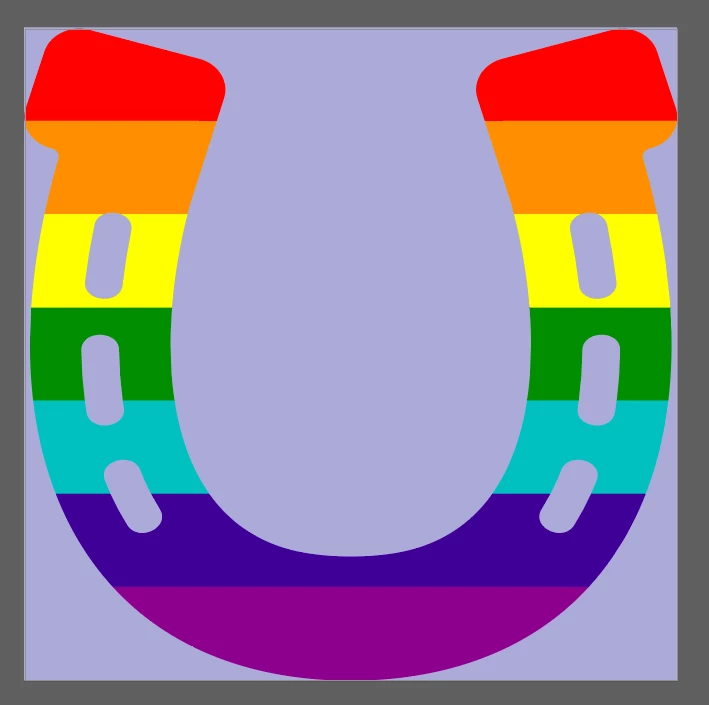
The issue seems to be, as far as I can tell, that my horseshoe is a compound path and you can't use a compound path as a mask. So, how can I convert a compound path into a single shape so that I can use it as a mask?
Thanks
Link to AI file: https://drive.google.com/file/d/182Zfgprluu5xeGRSVlfdh2j2h9sqcROB/view?usp=share_link


 AdChoices