Participating Frequently
April 16, 2019
Answered

'Punching Out' Stoke to show as transparent

  • April 16, 2019
  • 3 replies
  • 1017 views

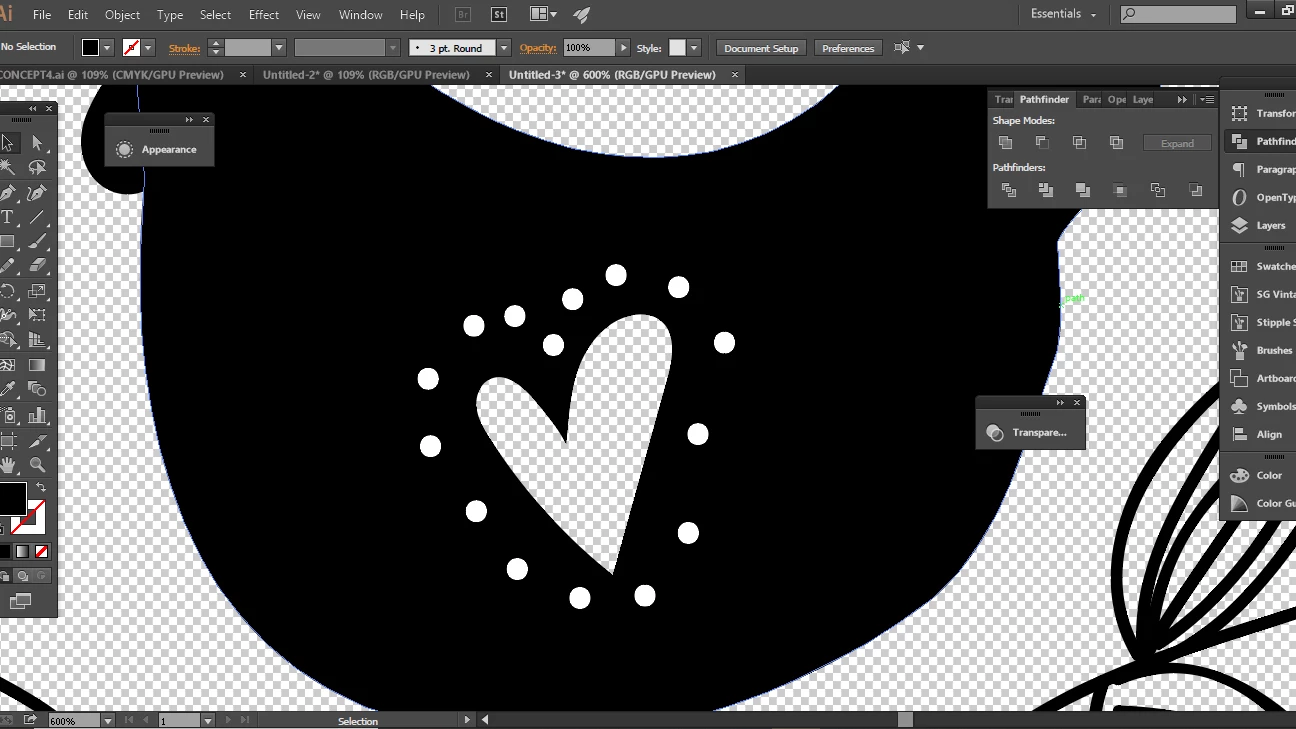
I have created a design with two parts that need to be 'punched out' of a base shape making them transparent.

I managed to use Minus Front for one part (the heart) which worked perfectly but I cannot get the same to happen for the circle dots surrounding it.

I have tried all of the ways I found on the groups/forums but absolutely nothing works. At my wits end

This topic has been closed for replies.
Correct answer Anna Lander

Thank-you for your replies.

I have tried this also with no luck. I selected all circles, grouped them and Expanded Appearance. When I then select the object I want the circles punched from and the circles and proceed to Minus Front the object and whichever dot I click to select the group disappears completely. I have no idea what I am doing wrong.


try to use Exclude mode instead of Minus Front

3 replies

Myra Ferguson
Community Expert
Community Expert
April 16, 2019

I'd recommend the ShapeBuilder Tool. First, since the dots were made with the Paintbrush Tool, go to Object > Expand Appearance. Then select the shapes involved (the one to be punched and the ones doing the punching), select the ShapeBuilder Tool (Shift + M), and Alt+click on the circles.

meganchi
Legend
April 16, 2019

Select the circles, go to Object menu, expand. Make the circles a compound path, then use the pathfinder tool to minus front.

Participating Frequently
April 16, 2019

I have tried this and it still doesn't work

Monika Gause
Community Expert
Community Expert
April 16, 2019

What is it? A dashed stroke? Then you would first have to outline the stroke before you can punch it.