c_tu
Participant
March 6, 2018
Answered

Randomizing Circle Sizes with Halftone Pattern

  • March 6, 2018
  • 2 replies
  • 2948 views

Hello,

This is my first time using the adobe forum so please bear with me.

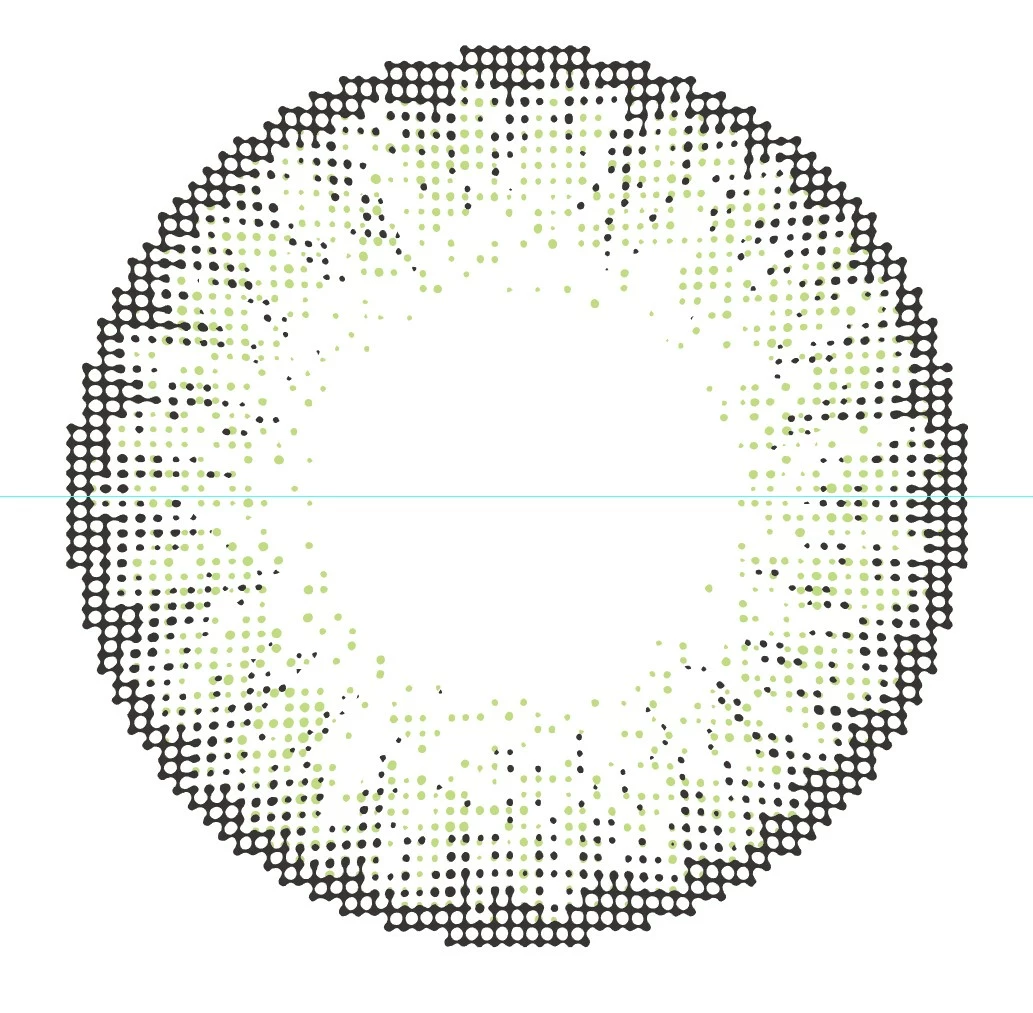
I know how to create halftones that go from big to small and vice versa, but I was wondering if there was a way to randomize the size of the circles other than manually selecting each one and adjusting it.

I attached an image and what I am referring to @IS50_2 something similar to the dots in green. Thank you!

This topic has been closed for replies.
Correct answer tromboniator

A couple of things you can do. First thing is to make a copy of your work and play around with that rather than the original and only!. Then select the dots by whatever method works for you, and go to Selection > Save Selection. It may come in handy.

Go to Object > Transform > Transform Each. Set Scale Horizontal and Vertical to a reasonable maximum percentage, above or below 100% depending on the general trend you want; click on Transform Objects and on Random. Click Preview. If you like what you see (doesn't have to be perfect, you can repeat the process or go in the other direction as often as you want) click OK.

Another possibility is to use a randomizing script: there's one at vectorboom.com, freebies, that allows you to set both minimum and maximum percentages. If you're not used to using scripts, you'll want to read the Illustrator Help information. If it's confusing, please come back for assistance.

Peter

2 replies

ceyhun_akgun
Legend
March 6, 2018

Illustrator ve Photshop ile benzer çalışmalar yapılabilir.

Fakat, tek bir filtre ya da kısa adımlarla yapılamayabilir.

Works similar to Illustrator and Photoshop.

However, it can not be done with a single filter or short steps.

Adobe Illustrator

1- Radial Gradient

2- Effect> Effect Gallery > Sketch > Halftone Pattern

Since the effect is pixel-based,

I applied EXPAND and then I applied "Trace".

Graphic Designer Educator / PrePress Consultant
tromboniator
Community Expert
tromboniatorCommunity ExpertCorrect answer
Community Expert
March 6, 2018

A couple of things you can do. First thing is to make a copy of your work and play around with that rather than the original and only!. Then select the dots by whatever method works for you, and go to Selection > Save Selection. It may come in handy.

Go to Object > Transform > Transform Each. Set Scale Horizontal and Vertical to a reasonable maximum percentage, above or below 100% depending on the general trend you want; click on Transform Objects and on Random. Click Preview. If you like what you see (doesn't have to be perfect, you can repeat the process or go in the other direction as often as you want) click OK.

Another possibility is to use a randomizing script: there's one at vectorboom.com, freebies, that allows you to set both minimum and maximum percentages. If you're not used to using scripts, you'll want to read the Illustrator Help information. If it's confusing, please come back for assistance.

Peter
c_tu
c_tuAuthor
Participant
March 7, 2018

That seemed to have done the trick, thank you! Much faster than changing them manually.

tromboniator
Community Expert
Community Expert
March 7, 2018

Excellent! Glad I could help.