
Participant
November 30, 2018
Answered

recoloring artwork

  • November 30, 2018
  • 2 replies
  • 8464 views

I cannot change the color of an image.  I attempted to go to EDIT>EDIT COLORS>RECOLOR ARTWORK....  Unfortunately my recolor artwork is grayed out.  I am unable to click it.  I also tried changing the artwork in fill.  The fill will change colors but my image remains the same color.  I could not think of any other way to try to change the color.  Please help me!!!
    This topic has been closed for replies.
    Correct answer Mario Arizmendi

    Got it Yeah I am back in photoshop changing the color now Thank you The

    only problem is the color is in illustrator and I cannot put that color in

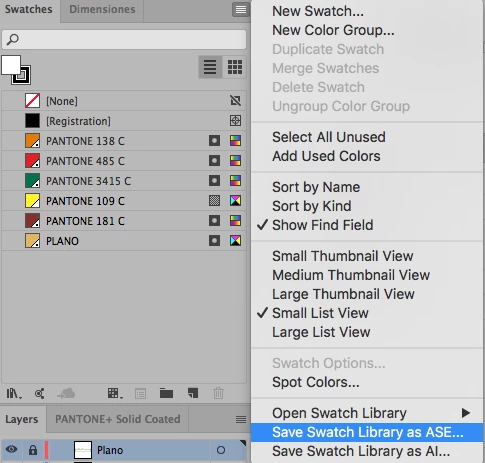
    photoshop I do not know how to save an AI swatch so that I can bring it up

    in Photoshop. Do you know how to do that?

    On Fri, Nov 30, 2018 at 10:41 AM Mario Arizmendi <forums_noreply@adobe.com>


    Just go to the swatches panel in illustrator and save it as .ase, then go to swatches panel in photoshop and load it.

    2 replies

    cmgap
    Community Expert
    Community Expert
    November 30, 2018

    What is your source file that you are trying to recolor? It sounds like it is not a vector image. Can you share the image or post a screen shot of it and provide some information on what you want to recolor.

    Participant
    November 30, 2018

    I used photoshop to cut out and mask it then saved it as a photoshop file.

    Mario Arizmendi
    Legend
    November 30, 2018

    So, you have to deal with colors in photoshop directly, not in ilustrator. How ever

    Depending on the complexity of the artwork may be you can auto trace (imagetrace) to convert it into vectors then you can use recolor artwork.

    Mario Arizmendi
    Legend
    November 30, 2018

    First be sure of

    1. You have selected the artwork

    2. the artwork must be vectors, not a pixel image like jpg, png, psd, etc

    please show Show screnshoots