Participant
January 19, 2024
Answered

Relink Multiple Placed Images with the same file at once (add apply to all checkbox)

  • January 19, 2024
  • 2 replies
  • 2247 views

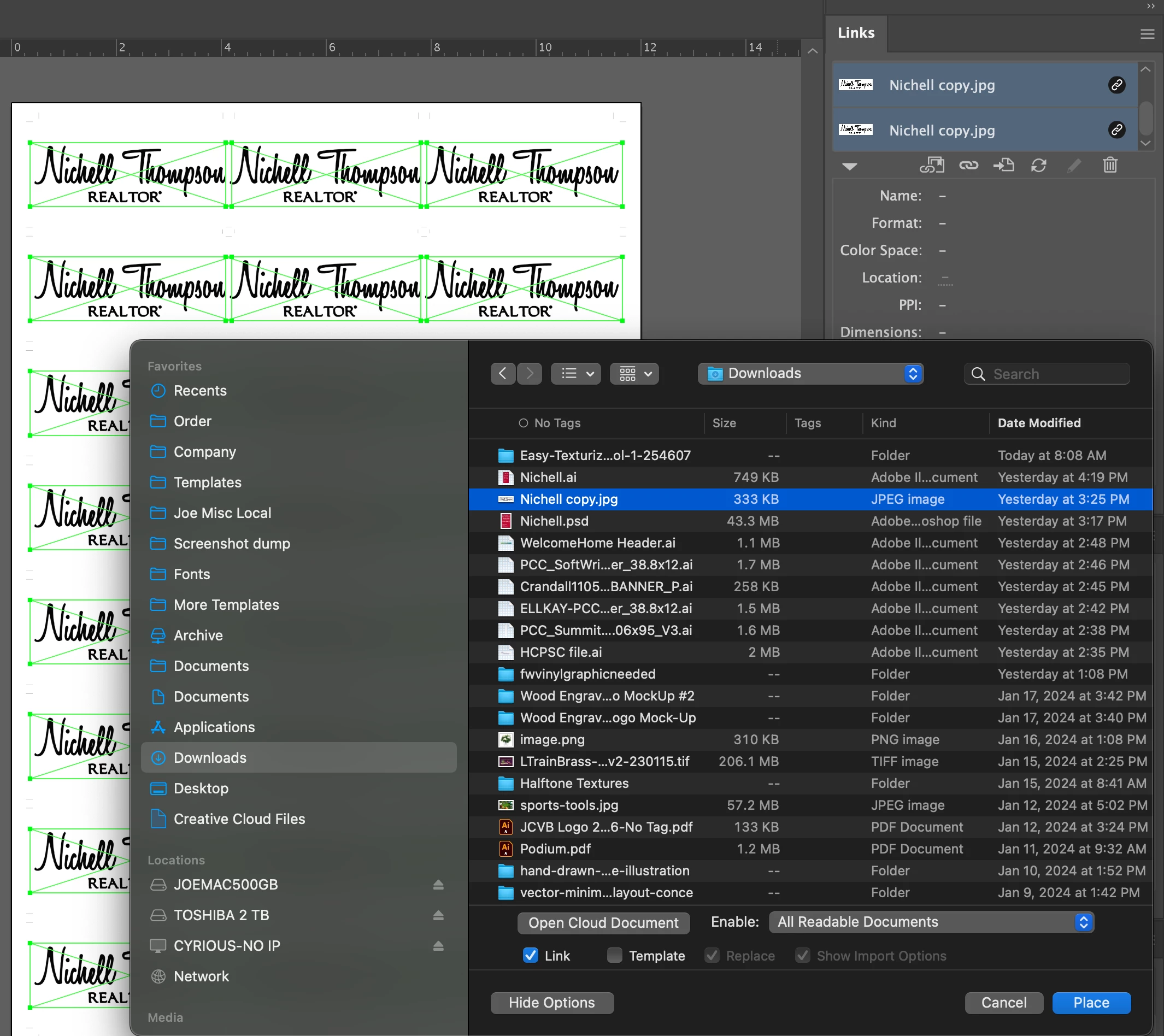
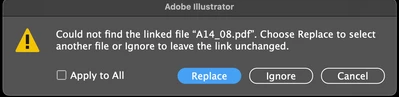
We currently have the ability to select multiple objects and select the Relink icon within the Links window. We are then able to select the image to replace the first object, it is replaced, and a new finder/explorer window pops up to then select the next new image to replace the next old image. This is fine, but in many cases i'd just like to use the same image on everything that i'm relinking. I've always wanted one of those 'Apply to All" check boxes like you get in the case of relinking a file with broken links. So I suppose one way you could do this is to break the links and reopen, etc. but this is not efficient at all. The checkbox could be added next to the Link, Template, Replace, Show Import Options  checks?

Correct answer marcg68495176

This script will replace all links with the same name with your chosen file. 

/**
 * This script replaces all linked files with the same name at one time in Adobe Illustrator.
 * It allows the user to select the link to replace from a list of current links using a drop-down menu
 * and then choose the new file from a dialog.
 */

function replaceAllLinksWithSameName() {
    var doc = app.activeDocument;
    var placedItems = doc.placedItems;
    var linkNames = [];

    // Collect all unique link names
    for (var i = 0; i < placedItems.length; i++) {
        var placedItem = placedItems[i];
        if (placedItem.file) {
            var fileName = placedItem.file.name;

            // Check if the fileName is already in linkNames
            var isUnique = true;
            for (var j = 0; j < linkNames.length; j++) {
                if (linkNames[j] === fileName) {
                    isUnique = false;
                    break;
                }
            }

            if (isUnique) {
                linkNames.push(fileName);
            }
        }
    }

    if (linkNames.length === 0) {
        alert("No linked files found in the document.");
        return;
    }

    // Create a dialog for link selection
    var dialog = new Window("dialog", "Select Link to Replace");
    dialog.orientation = "column";

    var dropdown = dialog.add("dropdownlist", undefined, linkNames);
    dropdown.selection = 0;

    var okButton = dialog.add("button", undefined, "OK");
    okButton.onClick = function() {
        dialog.close(1);
    };

    if (dialog.show() != 1) {
        return;
    }

    var oldFileName = dropdown.selection.text;
    var newFile = File.openDialog("Select the new file to replace " + oldFileName);

    if (newFile) {
        var count = 0;

        for (var k = 0; k < placedItems.length; k++) {
            var placedItem = placedItems[k];
            if (placedItem.file && placedItem.file.name === oldFileName) {
                placedItem.file = newFile;
                count++;
            }
        }

        alert(count + " links have been replaced.");
    } else {
        alert("Operation cancelled or no file selected.");
    }
}

replaceAllLinksWithSameName();


2 replies

marcg68495176
marcg68495176Correct answer
Inspiring
June 18, 2024

This script will replace all links with the same name with your chosen file. 

/**
 * This script replaces all linked files with the same name at one time in Adobe Illustrator.
 * It allows the user to select the link to replace from a list of current links using a drop-down menu
 * and then choose the new file from a dialog.
 */

function replaceAllLinksWithSameName() {
    var doc = app.activeDocument;
    var placedItems = doc.placedItems;
    var linkNames = [];

    // Collect all unique link names
    for (var i = 0; i < placedItems.length; i++) {
        var placedItem = placedItems[i];
        if (placedItem.file) {
            var fileName = placedItem.file.name;

            // Check if the fileName is already in linkNames
            var isUnique = true;
            for (var j = 0; j < linkNames.length; j++) {
                if (linkNames[j] === fileName) {
                    isUnique = false;
                    break;
                }
            }

            if (isUnique) {
                linkNames.push(fileName);
            }
        }
    }

    if (linkNames.length === 0) {
        alert("No linked files found in the document.");
        return;
    }

    // Create a dialog for link selection
    var dialog = new Window("dialog", "Select Link to Replace");
    dialog.orientation = "column";

    var dropdown = dialog.add("dropdownlist", undefined, linkNames);
    dropdown.selection = 0;

    var okButton = dialog.add("button", undefined, "OK");
    okButton.onClick = function() {
        dialog.close(1);
    };

    if (dialog.show() != 1) {
        return;
    }

    var oldFileName = dropdown.selection.text;
    var newFile = File.openDialog("Select the new file to replace " + oldFileName);

    if (newFile) {
        var count = 0;

        for (var k = 0; k < placedItems.length; k++) {
            var placedItem = placedItems[k];
            if (placedItem.file && placedItem.file.name === oldFileName) {
                placedItem.file = newFile;
                count++;
            }
        }

        alert(count + " links have been replaced.");
    } else {
        alert("Operation cancelled or no file selected.");
    }
}

replaceAllLinksWithSameName();

Participant
August 21, 2025

Thank you. It works perfectly. I love you.

CarlosCanto
Community Expert
Community Expert
January 19, 2024

How about 

- Place one link

- apply Transform Effect to make a row of copies

- apply another Transform Effect to make more rows


then replacing the the single image replaces all effect copies


would that work for you?


Participant
January 22, 2024

Just tried it. yes that does work, thanks! (i'd still like Adobe to consider the other easier solution).