Cakeshop
Known Participant
July 28, 2023
Answered

Removing points from the inside of a shape using scripts

  • July 28, 2023
  • 4 replies
  • 765 views

Hey all,


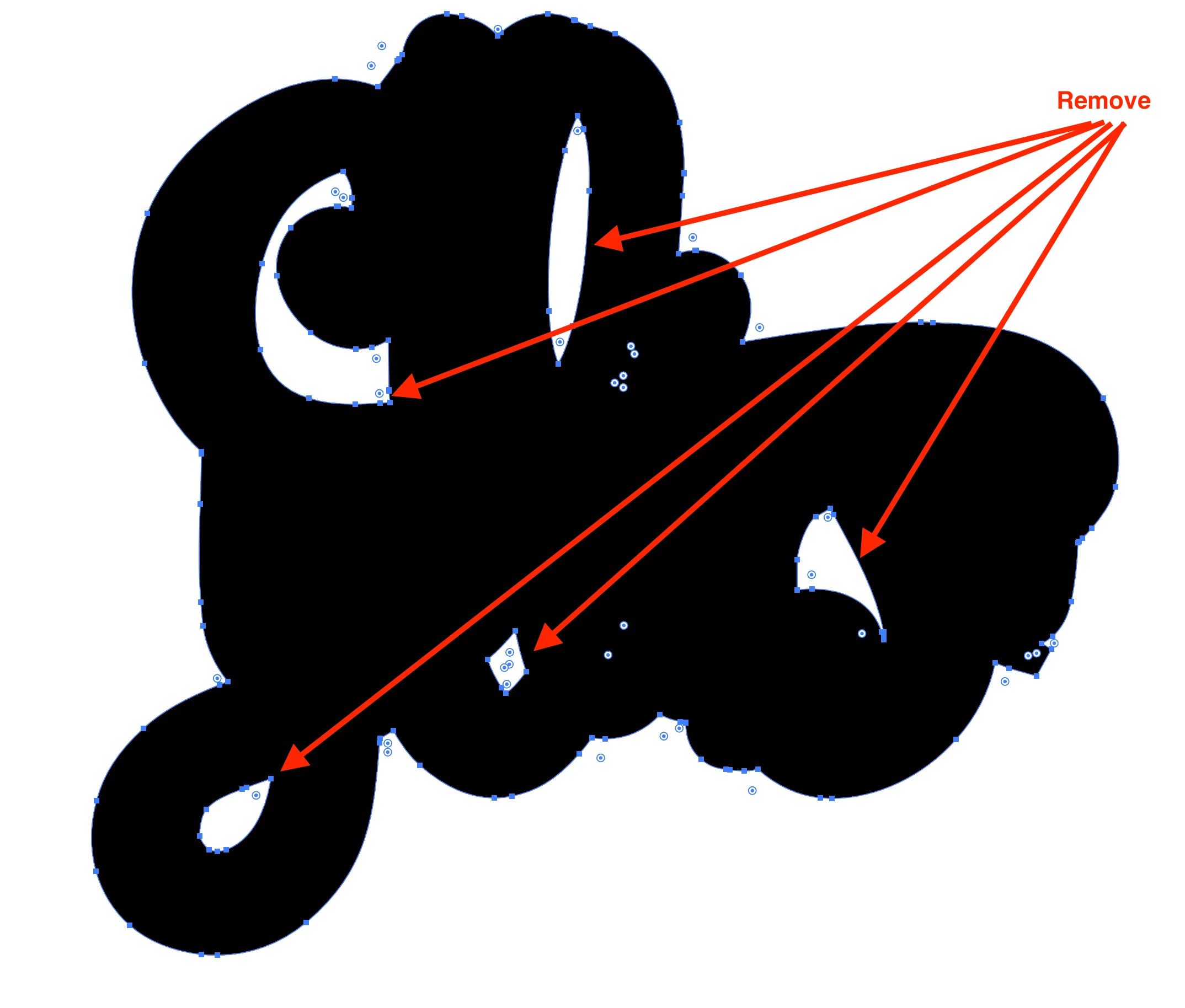
I have loads and loasd of files to cut on our laser. I have created offset paths on all of them BUT do not want to cut anything inside the outer shape (see screenshot example below).


Is there a script, tool or automated bit of magic I do not know which can select and delete these bits of the shape which will save me hours please? All the shapes are different sizes with different shaped, sized and qtys of bits to delete!


Thanks all,


Joe

Correct answer pixxxelschubser

@Cakeshop 

Thank you for your feedback.


I would handle it similarly (as you and @sttk3). That's how I've recommended it for similar requests.


In most cases, it is important that there is an offset and that there are no sharp corners left.
(In the screenshots I work with a second fill, but only for better visibility.)

You need:

  • group your object (only required for the last effect)
  • An effect offset path with positive value + the "value for the rounded edges".
  • A second effect offset path with a negative "value for the rounded edges" so that the sharp edges are eliminated.
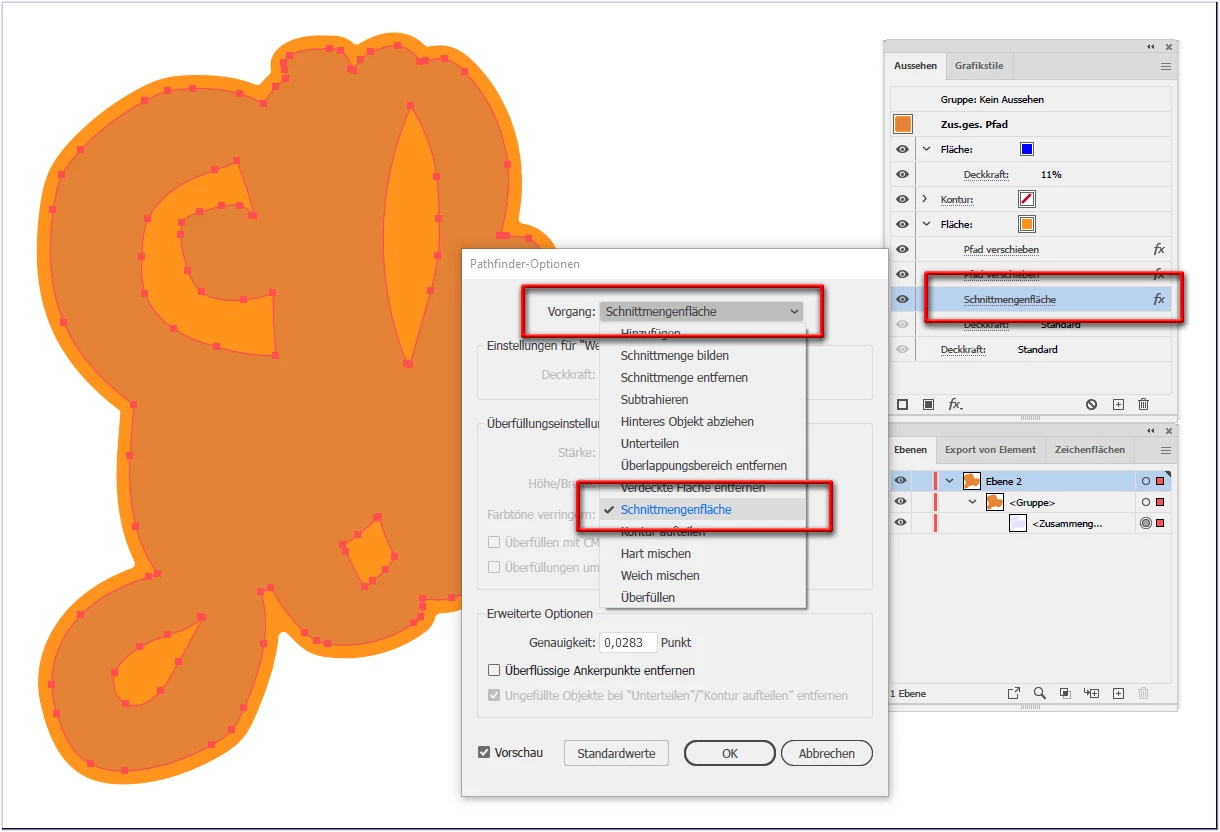
  • A third effect Patfinder "Crop" eliminates the inner elements.


This can be saved as a graphic style. Or it can be recorded as an action or in combination with a script.
The only important thing is: they are effects. that is why you finally need to convert the appearance and possibly the pathfinder add again, so that no superfluous/disturbing paths remain in the file (check in the outline view).


your path - grouped
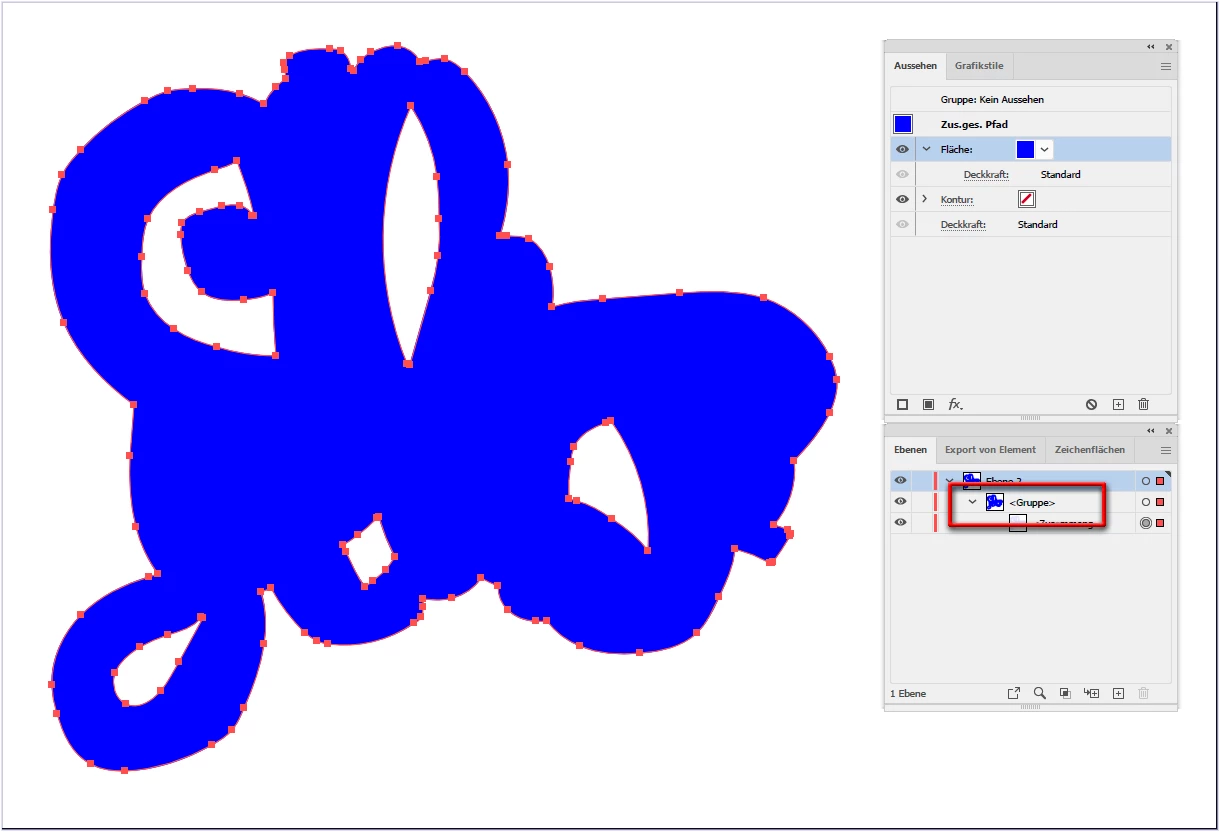
 

(for better visibility here in forum with a second fill)

first effect
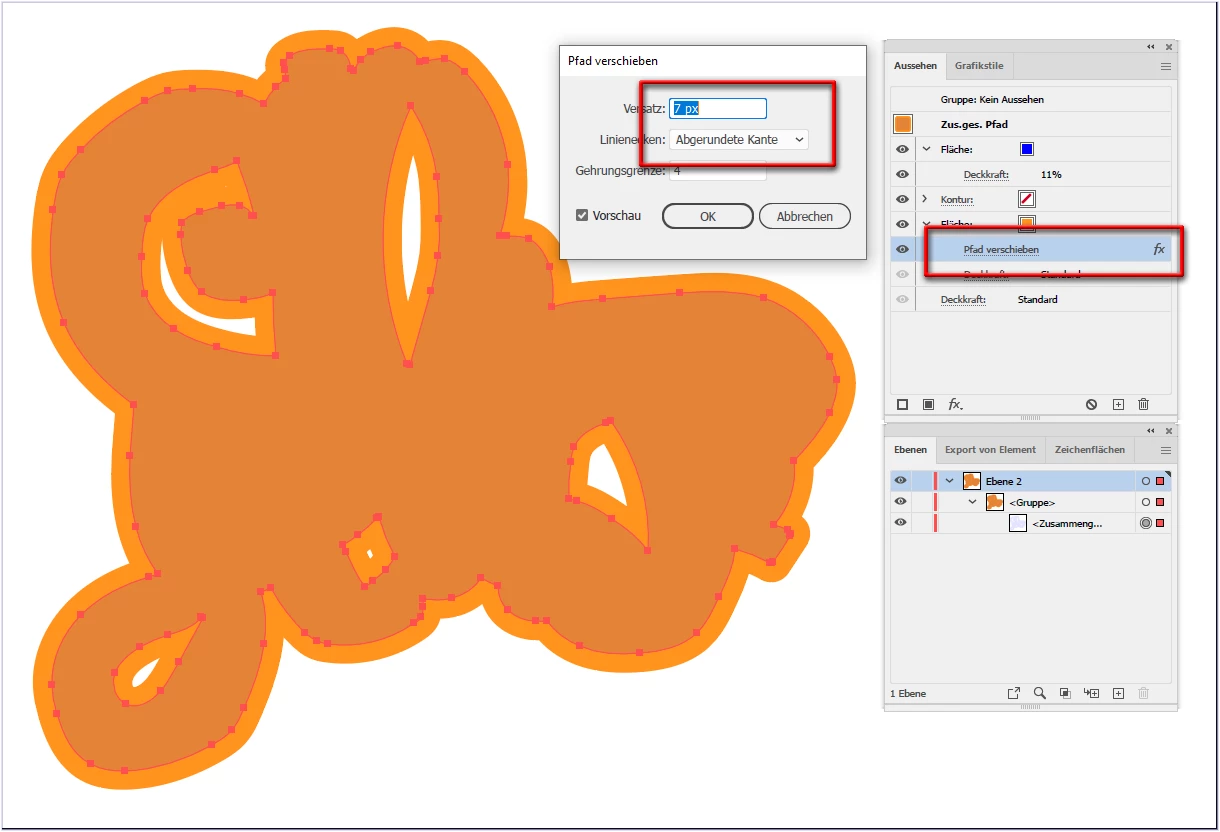
 

second effect --> no sharp corners
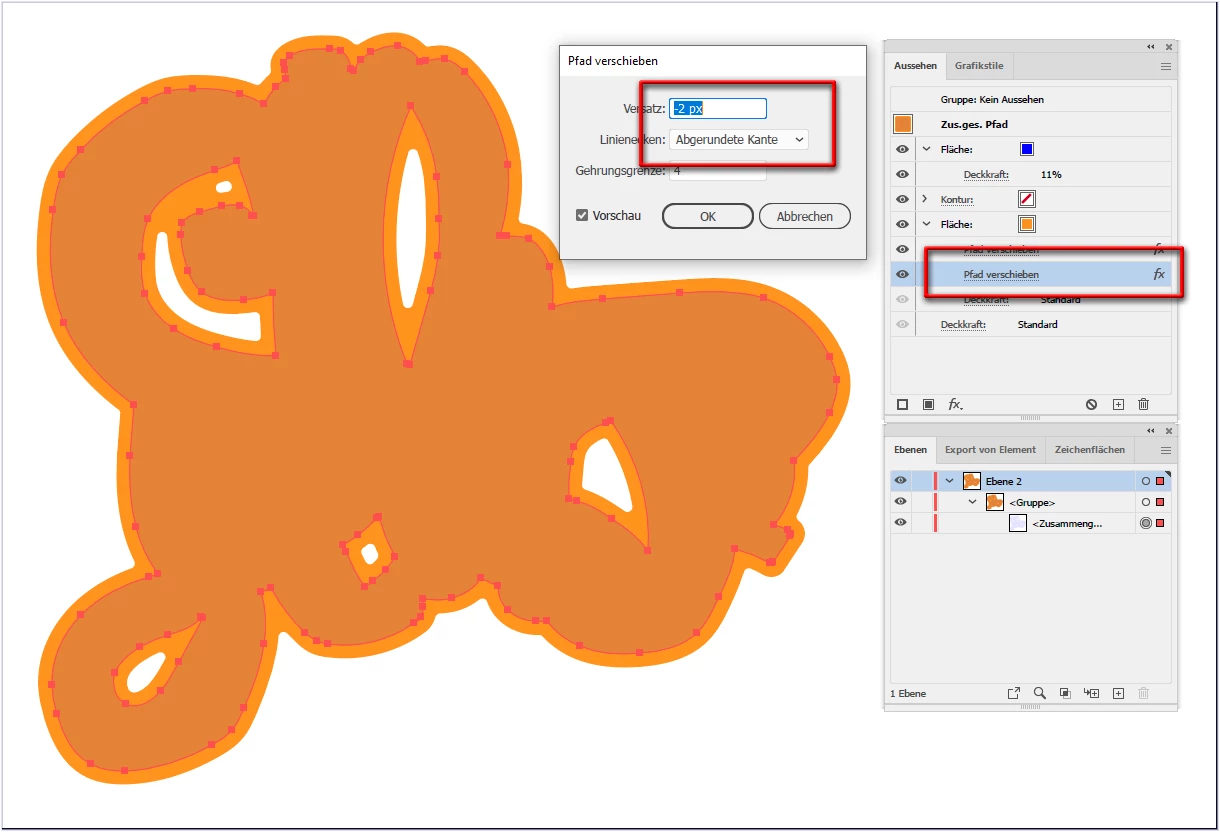
 

third effect --> eliminates inner shapes


4 replies

pixxxelschubser
Community Expert
pixxxelschubserCommunity ExpertCorrect answer
Community Expert
July 29, 2023

@Cakeshop 

Thank you for your feedback.


I would handle it similarly (as you and @sttk3). That's how I've recommended it for similar requests.


In most cases, it is important that there is an offset and that there are no sharp corners left.
(In the screenshots I work with a second fill, but only for better visibility.)

You need:

  • group your object (only required for the last effect)
  • An effect offset path with positive value + the "value for the rounded edges".
  • A second effect offset path with a negative "value for the rounded edges" so that the sharp edges are eliminated.
  • A third effect Patfinder "Crop" eliminates the inner elements.


This can be saved as a graphic style. Or it can be recorded as an action or in combination with a script.
The only important thing is: they are effects. that is why you finally need to convert the appearance and possibly the pathfinder add again, so that no superfluous/disturbing paths remain in the file (check in the outline view).


your path - grouped


(for better visibility here in forum with a second fill)

first effect


second effect --> no sharp corners


third effect --> eliminates inner shapes



Cakeshop
CakeshopAuthor
Known Participant
August 5, 2023

Thanks for this, yes you are right this is way better than my solution 🙂

pixxxelschubser
Community Expert
Community Expert
August 5, 2023

Very good.

😉
The most important thing is to have at least one solution. It is optimal if you can choose the best solution (for yourself) from several possibilities.

Legend
July 29, 2023

It can be achieved nondestructively with Appearance: apply Pathfinder > Divide and Pathfinder > Add. The same effect continues even if you change the shape.

pixxxelschubser
Community Expert
Community Expert
July 28, 2023

And what was your solution?

Script or not Script?

Cakeshop
CakeshopAuthor
Known Participant
July 29, 2023

Sorry, was in a bit of a rush yesterday and didn't want you all wasting your time posting answers when I'd already figured it out.


So for example, if the original offset path (the size of the edge required) was 2mm but it had holes inside you wanted to remove...


1. You add another offset path the same size as the original offset path (another 2mm offset path in this example) so now the edge is 4mm, but the internal bits/holes will disappear in this larger path.

2. You can now delete the original 2mm path, so you are only left with the 4mm one with no holes in it...

3. Then you add a third offset path but for -2mm to get the larger path with no holes back to the size you want, and now delete the larger offset path.


This can be done with a recorded action or a script 👍

Cakeshop
CakeshopAuthor
Known Participant
July 28, 2023

Don't worry all, 2 mins later I sussed this out!