Known Participant
March 16, 2021
Answered

Repeat Pattern showing repeat lines

  • March 16, 2021
  • 3 replies
  • 4872 views

Hi there,


Please can anyone help me.

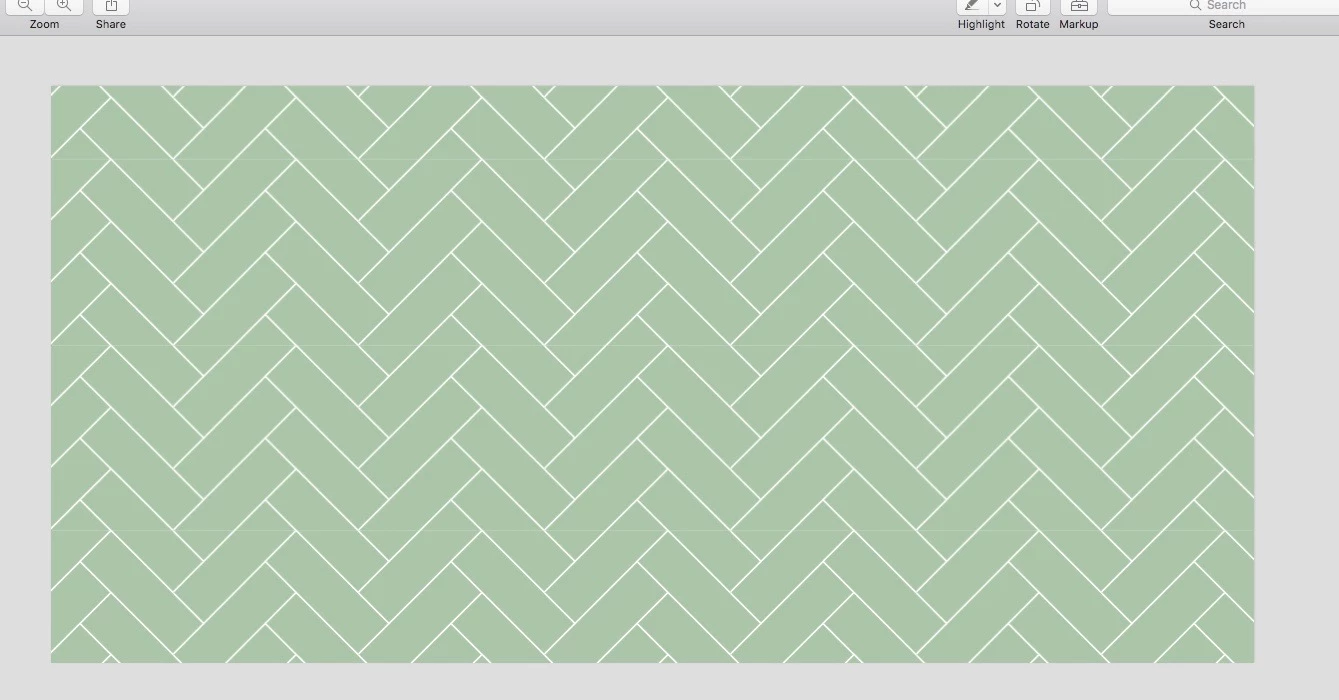
The repeat lines keep showing up on my pattern and it's the most simple pattern so I don't know what I'm doing wrong can anyone help? I tested it and put it to print and yep the lines showed up once printed too.


Can anyone help me with this please?


Thank you so much!
 

This topic has been closed for replies.
Correct answer Ton Frederiks

Hi there,


Thank you for showing me your example. I just downloaded your file and dropped it into my illustrator and it won't show me the dimensions of your pattern as I'm assuming because i didn't create it and it's not listed as my swatch....

Argghh!


3 replies

Ton Frederiks
Community Expert
Community Expert
March 16, 2021

One additional thing you can try when you must export as an image, use Art Optimized for Anti-Aliasing in the export settings.

Known Participant
March 16, 2021

Sorry just to clarify you mean I would no longer save the image as a PDF but now have to export it? If so do you have anything you could share the link to where it tells me how to use art optimized for anti-aliasing in the export settings?


Thank you!

Ton Frederiks
Community Expert
Community Expert
March 16, 2021

Don't worry about anti aliasing settings when exporting as pdf. The lines can still show, but should not on a high res output device. Check that with your printer.

But avoiding the lines is better by avoiding fractional pixels.

Ton Frederiks
Community Expert
Community Expert
March 16, 2021

Hi Rebecca,


units can be changed in the document setup or by right or ctrl clicking the rulers.

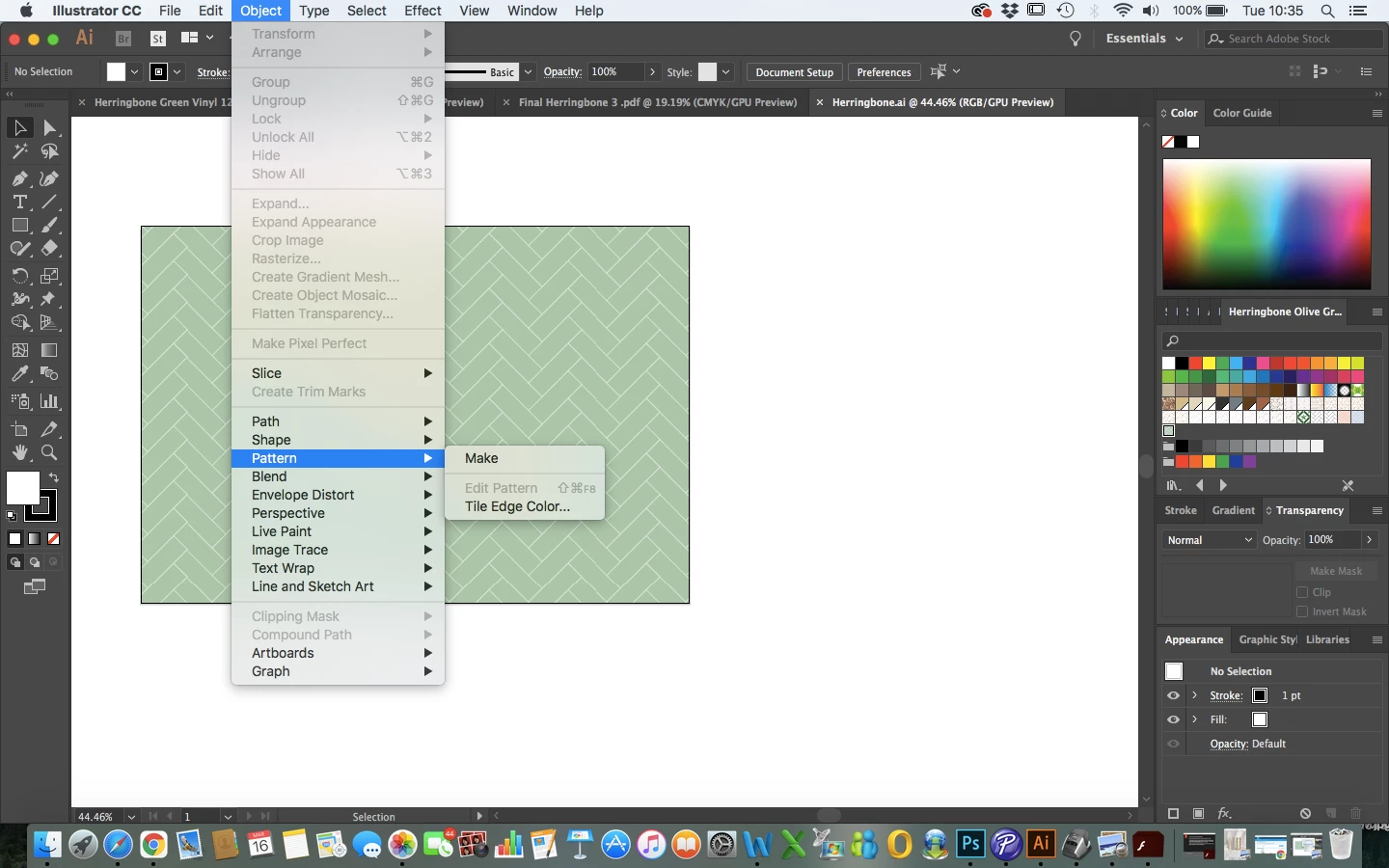
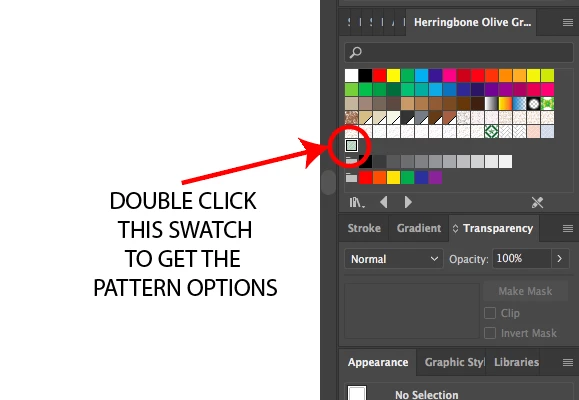
If you double click the pattern in the Swatches panel, the Pattern Options panel should come up. As an alternative you could select your pattern swaych in the Swatches panel and choose Object > Pattern > Edit Pattern.

When exporting the pattern you can set the PPI in the Export options, no need to change the Document Raster Effects setting, this is used only when you apply effects/filters that generate pixels.

When the printers want PDF, which is good news because you can keep it vector, you do not need to export, you can do a save as Adobe PDF. If they use a high resolution device to print you probably won’t see the lines in the output.

I can share an example of my attempt at this pattern if you want.

For more info on the pattern maker:

https://helpx.adobe.com/illustrator/user-guide.html/illustrator/using/create-edit-patterns.ug.html

Known Participant
March 16, 2021

Hi Tom,


I've saved the pattern as a PDF but the lines still show really don't know where I am going wrong here?


Thank you 

Ton Frederiks
Community Expert
Community Expert
March 16, 2021

When you export as an image or print on a desktop printer, your vector pattern gets converted to pixels.

Set your document units to pixels.

Make sure that your pattern tile size does not contain fractional pixels (double click the pattern swatch in the Swatches panel to check this). A fractional pixel does not exist an will be rounded to a whole pixel, causing unwanted lines.

When exporting use ppi values of 72 or multiples thereoff like 144 or 288.

Known Participant
March 16, 2021

Hi Tom,


I don't know whether i'm doing this right but after a quick look on youtube to change the document unit I went to file > document set up and changed the document unit to pixels...


Couldn't figure out how to check if my pattern contained fractional pixels..... I doubled clicked the pattern as you suggested in the swatches panel but nothing came up?


Next  I went to effect >  document raster effect setting and changed resolution to 288 as you suggested...


But now when I go to export > export as an option for PDF doesn't appear and my printers need to have their documents as a PDF.


Anyway so I just created the file again my art board has to measure 125 x 60 cm then I changed it to pixels added the pattern to my art board again then went to effect > document raster effect setting and changed resolution to 288 then went to the usual export > export as and the option for PDF came up this time I saved it. But then when I clicked on the image the annoying lines still appear as you can see below....


Also now i've exported it once as a PDF if I try to export it again as another PDF the PDF option doesn't even show up anymore like on my first attempt?


Can you help with this at all?


Thank you!