Zapt Works
Inspiring
May 27, 2024
Answered

Replacing "Xyz Xyz Xyz" texts with folder name in Illustrator

  • May 27, 2024
  • 3 replies
  • 5576774 views

Hello. I need your help.


Definition:

There are so many folders in the "mass" work I do.
As templates, they all contain the same ai files.
I can't do them all in the same ai file. I need to make folder by folder.


Request:

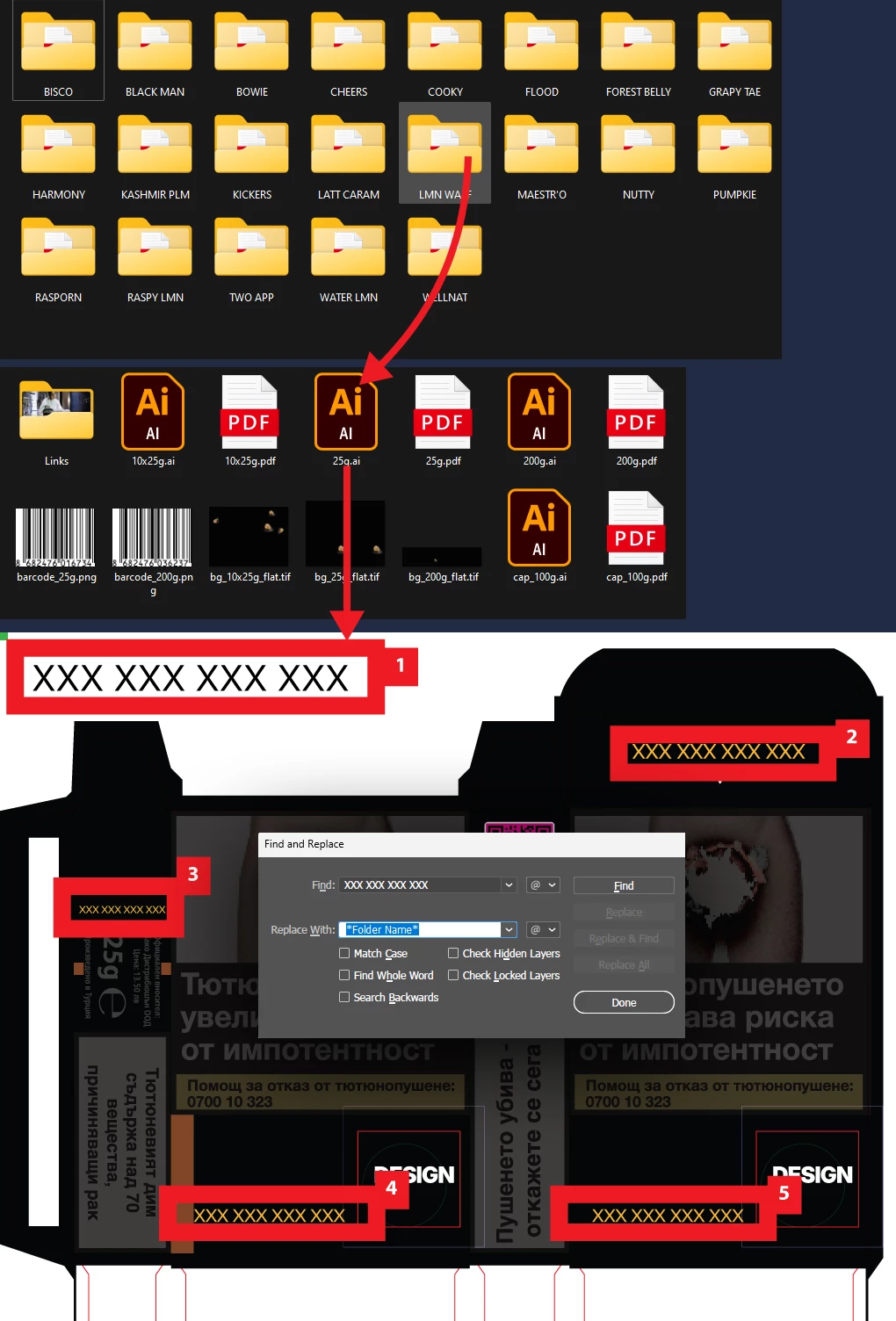
I want to replace the fixed and identical texts written "Xyz Xyz Xyz Xyz" in the ai files in the folder with "the name of the current folder". I do this with Find & Replace, but I can make mistakes because I copy and paste manually. Can I automate this with jsx file or action?

Note:
The names "Xyz Xyz Xyz Xyz" are all on the same Layer and there is nothing else on the layer. It is always visible. It's not locked.
"Xyz Xyz Xyz Xyz" in different sizes and rotations.
I need to use spaces in folder names. Therefore, if it will pull data like "%20", I should replace it with " ".


Thanks in advance.


This topic has been closed for replies.
Correct answer pixxxelschubser

Hi @Zapt Works 

Many thanks for the sample file. It was very helpful.


The following script replaces all placeholders ‘XXX ...’ on the predefined levels ‘info’ and ‘name’ in all ai files with the name of the parent folder as required. The folder can be selected after starting the script.


Sidenote:

I have switched off automatic saving and closing.
After testing, you can switch on automatic saving and closing by removing the comment characters ‘//’ in line 22.


Try it:


// https://community.adobe.com/t5/illustrator-discussions/replacing-quot-xxx-xxx-xxx-quot-texts-with-folder-name-in-illustrator/td-p/14643582
// thread: Replacing "XXX XXX XXX" texts with folder name in Illustrator 
// based on sample file: layout.ai
// regards pixxxelschubser

// Script fails if there is no layer ‘info’ and no layer ‘name’ in the document
// After testing, you can switch on automatic saving and closing by removing the comment characters ‘//’ in line 22

var sourceFolder = Folder.selectDialog ("Select Folder with ai files");
if( sourceFolder) {
    var sourceFiles = sourceFolder.getFiles(/\.ai$/i);
    if( sourceFiles) {
        var sFolLen = sourceFiles.length;
        for (var i = sFolLen-1; i>=0; i--) {
        app.userInteractionLevel=UserInteractionLevel.DONTDISPLAYALERTS;
        app.open(sourceFiles[i]);
        app.userInteractionLevel=UserInteractionLevel.DISPLAYALERTS;
        
        var aDoc = app.activeDocument;
        main ();
        
        //aDoc.close(SaveOptions.SAVECHANGES);    // Activate this line to automatically save and close the file
        }
    }
};

function main () {
    var folNme = decodeURI (aDoc.path).split("/").reverse();
    
    changeTxt("info", folNme);
    changeTxt("name", folNme);
    return;
};

function changeTxt(nme, f) {
    //var givenTxt = "XXX XXX XXX XXX";    // activate if you need an additional test for ‘XXX ...’
    var lay = aDoc.layers.getByName(nme);
    var tfLen = lay.textFrames.length;
    for (var j=0; j<tfLen; j++) {
        var txt = lay.textFrames[j];
        //if( txt.contents == givenTxt) {    // activate if you need an additional test for ‘XXX ...’
            txt.contents = f[0];
            //}    // activate if you need an additional test for ‘XXX ...’
        }
    return;
};




3 replies

Zapt Works
Inspiring
May 31, 2024

Can anyone help me please?

pixxxelschubser
Community Expert
pixxxelschubserCommunity ExpertCorrect answer
Community Expert
June 4, 2024

Hi @Zapt Works 

Many thanks for the sample file. It was very helpful.


The following script replaces all placeholders ‘XXX ...’ on the predefined levels ‘info’ and ‘name’ in all ai files with the name of the parent folder as required. The folder can be selected after starting the script.


Sidenote:

I have switched off automatic saving and closing.
After testing, you can switch on automatic saving and closing by removing the comment characters ‘//’ in line 22.


Try it:


// https://community.adobe.com/t5/illustrator-discussions/replacing-quot-xxx-xxx-xxx-quot-texts-with-folder-name-in-illustrator/td-p/14643582
// thread: Replacing "XXX XXX XXX" texts with folder name in Illustrator 
// based on sample file: layout.ai
// regards pixxxelschubser

// Script fails if there is no layer ‘info’ and no layer ‘name’ in the document
// After testing, you can switch on automatic saving and closing by removing the comment characters ‘//’ in line 22

var sourceFolder = Folder.selectDialog ("Select Folder with ai files");
if( sourceFolder) {
    var sourceFiles = sourceFolder.getFiles(/\.ai$/i);
    if( sourceFiles) {
        var sFolLen = sourceFiles.length;
        for (var i = sFolLen-1; i>=0; i--) {
        app.userInteractionLevel=UserInteractionLevel.DONTDISPLAYALERTS;
        app.open(sourceFiles[i]);
        app.userInteractionLevel=UserInteractionLevel.DISPLAYALERTS;
        
        var aDoc = app.activeDocument;
        main ();
        
        //aDoc.close(SaveOptions.SAVECHANGES);    // Activate this line to automatically save and close the file
        }
    }
};

function main () {
    var folNme = decodeURI (aDoc.path).split("/").reverse();
    
    changeTxt("info", folNme);
    changeTxt("name", folNme);
    return;
};

function changeTxt(nme, f) {
    //var givenTxt = "XXX XXX XXX XXX";    // activate if you need an additional test for ‘XXX ...’
    var lay = aDoc.layers.getByName(nme);
    var tfLen = lay.textFrames.length;
    for (var j=0; j<tfLen; j++) {
        var txt = lay.textFrames[j];
        //if( txt.contents == givenTxt) {    // activate if you need an additional test for ‘XXX ...’
            txt.contents = f[0];
            //}    // activate if you need an additional test for ‘XXX ...’
        }
    return;
};


Zapt Works
Inspiring
June 25, 2024

Thank you very much

Inspiring
May 28, 2024

I'm sorry.
I was warned so I erased this reply.

pixxxelschubser
Community Expert
Community Expert
May 28, 2024
quote


… This is a test script without exception handling.
Select the [LMF WA-] folder.


By @kyosuke12345


@Zapt Works 

Attention! 

The script appears to change and overwrite all Illustrator files in the selected folder. If you still need your template file in its original state, it must not be in the same folder.

Zapt Works
Inspiring
May 29, 2024

It can overwrite all ai files, no problem. So I don't need the original files.

pixxxelschubser
Community Expert
Community Expert
May 27, 2024

Hi @Zapt Works 

Does the layer have a name? What is it?

Does the layer have the same name in all files? 


Or to put it another way: can the layer always be uniquely identified in each file (eg by name or by position in layers hierarchy)? If not, then you would always have to "loop" through all the text fields in the file and check the content. I would like to avoid this.


Do you have a sample file for testing? (structured as described in your last topic)

Zapt Works
Inspiring
May 29, 2024

Does the layer have a name? What is it?
There are only XXX XXX XXX XXX text layers on two different layers. One is called "info", the other is called "name" as I show in the images.


Does the layer have the same name in all files? 

Yes they are same on all files.


Do you have a sample file for testing? (structured as described in your last topic)
I try to attachhed the sample folder stracture and ai files as zip. But not allowed, so i send you sample ai file.

https://drive.google.com/file/d/1zSbHwmQcCC5ezHYYki4uOBUBjOc8HuDk