Hi @Kilcheer,
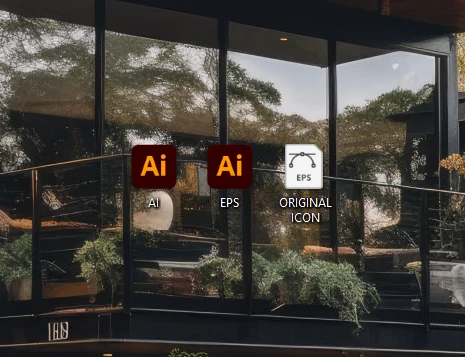
I see you're facing issues with EPS file icons after an update to Illustrator 2024. It's frustrating when these problems affect your workflow, but I'm here to help you out. Since you've already cleared your computer cache and removed the "IconCache.db" file without success, I suggest trying the following steps to restore the generic icon for your EPS files:
-
Change Default Program: Open your Windows File Explorer and locate an EPS file. Right-click on it and select "Open with" > "Choose another app." Choose a program to open EPS files from your computer and make sure to check the box that says, "Always use this app to open .eps files." This should associate the generic icon back to EPS files.
-
Change File Association: If the above step doesn't work, you can try changing the file association for EPS files. Go to "Settings" > "Apps" > "Default apps." Under "Choose default apps by file type," find .eps and make sure it's set to open with your preferred program.
-
File Properties: Right-click on an EPS file and select "Properties." In the "General" tab, there's an option to "Change" the icon. Try changing it to the default icon.
-
Reinstall Illustrator: If none of the above steps work, consider reinstalling Illustrator. Sometimes, file associations can get mixed up during software updates.
By following these steps, you should be able to restore the generic icon for your EPS files and differentiate them from .AI files. I hope this helps you manage your files more effectively.
Let me know if you need further assistance or have any other questions!
Best,
Anshul Saini




 AdChoices