

Vectorgeek
Participating Frequently
April 22, 2018
Answered

Rotate object & keep original orientation

  • April 22, 2018
  • 7 replies
  • 6102 views

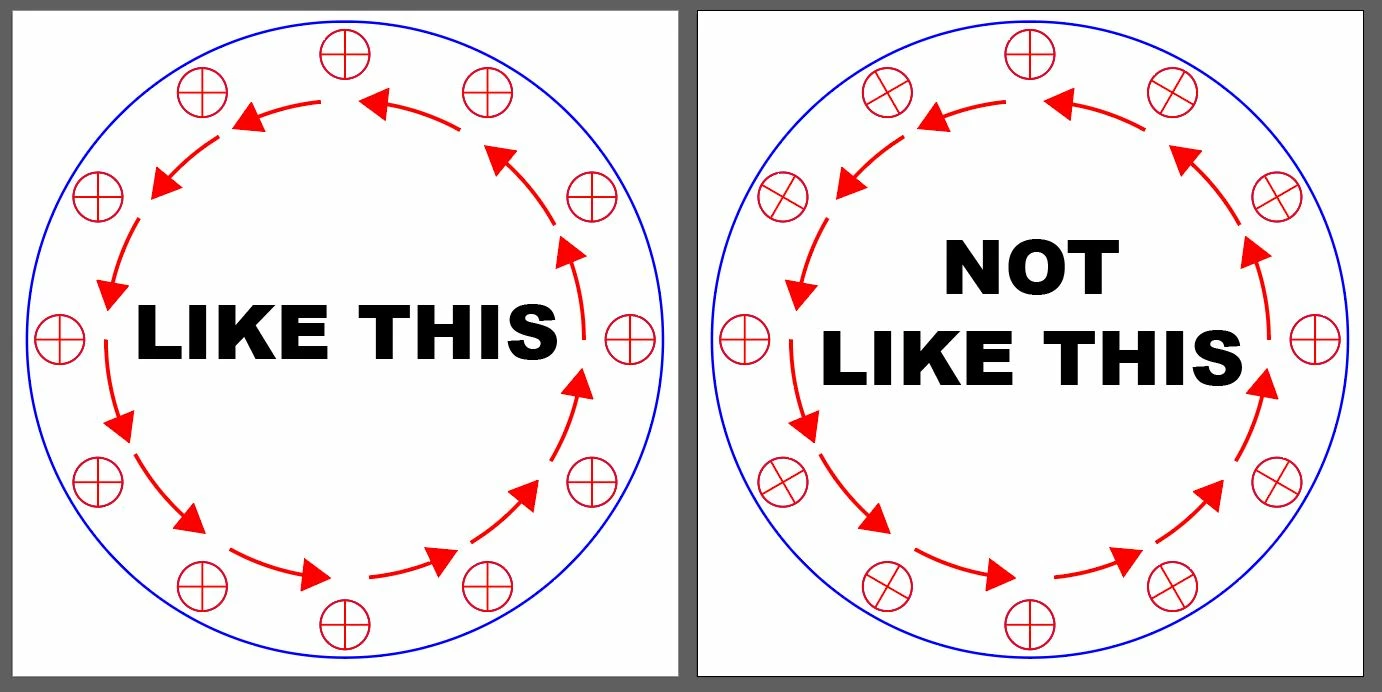
I was trying to rotate an object 360 degrees around a center point like a clock face yet keep the original object orientation.  I thought I had it figured out by grouping the object and resetting the bounding box. It worked on my workstation with a same version. After rotation I could click on the Transform panel and set the object angle to zero. When I tried tonight it just doesn't work. As soon as you rotate the object the bounding box resets to zero.

I am stumped.
    This topic has been closed for replies.
    Correct answer Ton Frederiks

    Thanks Tom. I tried just redrawing everything from scratch and can't get it to work. Object Grouped> Rotate Tool >Alt click rotate. Bounding box is still zero. I ended up doing all the circles separate and copy dragging the Xs to each circle. Smart guides made it  pretty easy.

    To top it off after finishing all the connector diagrams the engineer wanted all the Xs removed LOL! Problem solved!


    In that case Symbols would have helped.

    I just discovered that using Symbols would have solved your rotation problem too.

    If your rotated object would have been a Symbol, then selecting them and right click > Reset Transformation would have reset them ot zero.

    7 replies

    angie_taylor
    Legend
    April 23, 2018

    The other thing that occurred to me was that you could possibly do this by aligning the circles to a path? Would the blend tool allow you to do this? It has alignment options? What do you think Ton?

    Jeff Witchel, ACI
    Community Expert
    Community Expert
    April 23, 2018

    Hi Angie,

    Look at answer #3. It's exactly what you're asking about. Including a video: http://www.jeffwitchel.net/2011/11/blend-tips/

    Best,

    Jeff

    angie_taylor
    Legend
    April 23, 2018

    Ah, thanks Jeff! :-) I missed that one! :-)

    angie_taylor
    Legend
    April 23, 2018

    This is a case where expressions would help. We have them in After Effects. I’d love them in Illustrator too! :-)

    I was also wondering whether the Transform effect would be of any use in this situation? Could you apply two instances of it? Where one could override the other?

    jane-e
    Community Expert
    Community Expert
    April 23, 2018

    theangietaylor  wrote

    I was also wondering whether the Transform effect would be of any use in this situation? Could you apply two instances of it? Where one could override the other?

    You can apply multiple Appearances, which include Transform effects, in the Appearance panel.

    Override the other? I'm not sure what you are trying to do?

    You can also put Appearances, including Transformations, on multiple fills and strokes.

    angie_taylor
    Legend
    April 23, 2018

    Yes, thank you. I’m aware that you can add multiple instances. I’m suggesting that a solution to the issue above could be to apply the Transform effect twice. One to Rotate the objects around the circle and the other to give each the opposite rotation. In essence, cancelling out the initial rotation. I’m not in front of Illustrator so can’t try it out.

    Vectorgeek
    Participating Frequently
    April 23, 2018

    Ok had some time to play with it. I am running Adobe Illustrator CC ver 22.1

    I know shape objects remember their orientation but this is a group with the circle shape and two lines forming an X in the middle. I thought I figured it out on Friday by grouping it and resetting the bounding box before rotation but I can't repeat that behavior for some reason.

    Every time I rotate that group and then click on the group and look at the transform pallet the object angle remains at zero.

    It's driving me nuts. I've been using Illustrator for 20 years and not being able to figure something this simple is beyond me. I keep thinking there is some preference thing I'm missing. I know there are scripts that will reset the bounding box but if it's at zero that is not going to help. I didn't want to do a blend trick either since I'm doing this for a bunch of electrical connectors and some have over 100 pins.

    Ton Frederiks
    Community Expert
    Community Expert
    April 23, 2018

    It seems that, if all the objects in a group have the same orientation inititally, the rotation will be remembered.

    If the objects  in a group have a different angle, the rotation will not be remembered.

    But that does not help you with your problem.

    Resetting bounding boxes will not work either, because resetting a bounding box does not undo an object rotation, it just resets the rotation of the bounding box.

    A script (like I mentioned in reply 7) will help.

    Vectorgeek
    Participating Frequently
    April 23, 2018

    Thanks Tom. I tried just redrawing everything from scratch and can't get it to work. Object Grouped> Rotate Tool >Alt click rotate. Bounding box is still zero. I ended up doing all the circles separate and copy dragging the Xs to each circle. Smart guides made it  pretty easy.

    To top it off after finishing all the connector diagrams the engineer wanted all the Xs removed LOL! Problem solved!

    Ton Frederiks
    Community Expert
    Community Expert
    April 23, 2018

    Shapes remember their individual rotation.

    As long as the objects are Shapes, you can select them and reset the rotation.

    The circles with the cross in your example are not Shapes.

    You could try a script to replace the rotated objects with an unrotated object.

    See zamena [Illustrator Praxis]

    Monika Gause
    Community Expert
    Community Expert
    April 23, 2018

    https://forums.adobe.com/people/Ton+Frederiks  schrieb

    Shapes remember their individual rotation.

    As long as the objects are Shapes, you can select them and reset the rotation.

    The circles with the cross in your example are not Shapes.

    You could try a script to replace the rotated objects with an unrotated object.

    See zamena [Illustrator Praxis]

    This is a group. I have rotated it, closed and reopened the file:

    It's a CC2015.3 feature:

    Ton Frederiks
    Community Expert
    Community Expert
    April 23, 2018

    Yes it will remeber the rotation angle for the group.

    But unlike the rotation angle of shapes you cannot select multiple rotated groups and reset the angle at once.

    Omar.Fathy
    Community Expert
    Community Expert
    April 22, 2018

    You tried to use the scatter brush with [ Rotation relative to page ] ?!

    Jeff Witchel, ACI
    Community Expert
    Community Expert
    April 22, 2018

    You should be a able to "unRotate" your objects in the Transform panel afterwards as you mentioned. In your closeup screenshot, it looks as if the Bounding Box was reset. Did you use Object menu > Shape > Expand Shape at one point?

    If a Restart (as Monika suggests) does not work, you may want to try using a Blend instead.

    See the following video about Blends: http://www.jeffwitchel.net/2011/11/blend-tips/

    Making a Blend follow a circle starts about 1:40 into the video. Blends allow you to set the Orientation of the objects to your Page or your Path. So setting to the Page would give you what you're looking for.

    Vectorgeek
    Participating Frequently
    April 23, 2018

    I tried several different methods including expand shape, group, and reset bounding box before using the rotate tool. In every instance the bounding box is reset to zero even after the object is rotated. I was going to do the blend method but I just want to figure out why rotate isn't working. Oddly enough I was able to get it to work in Indesign.

    Monika Gause
    Community Expert
    Community Expert
    April 23, 2018

    Vectorgeek  schrieb

    Oddly enough I was able to get it to work in Indesign.

    InDesign works completely differently in this respect.

    Which version do you have?

    I could get it to work in CC2017. The feature was introduced in CC2015.3.

    Monika Gause
    Community Expert
    Community Expert
    April 22, 2018

    Are you sure it's the same version?

    When was the last computer restart?

    Vectorgeek
    Participating Frequently
    April 22, 2018

    I'll have to verify but I just updated both this week. What does the version matter through? Shouldn't the angle show after rotation regardless of version?